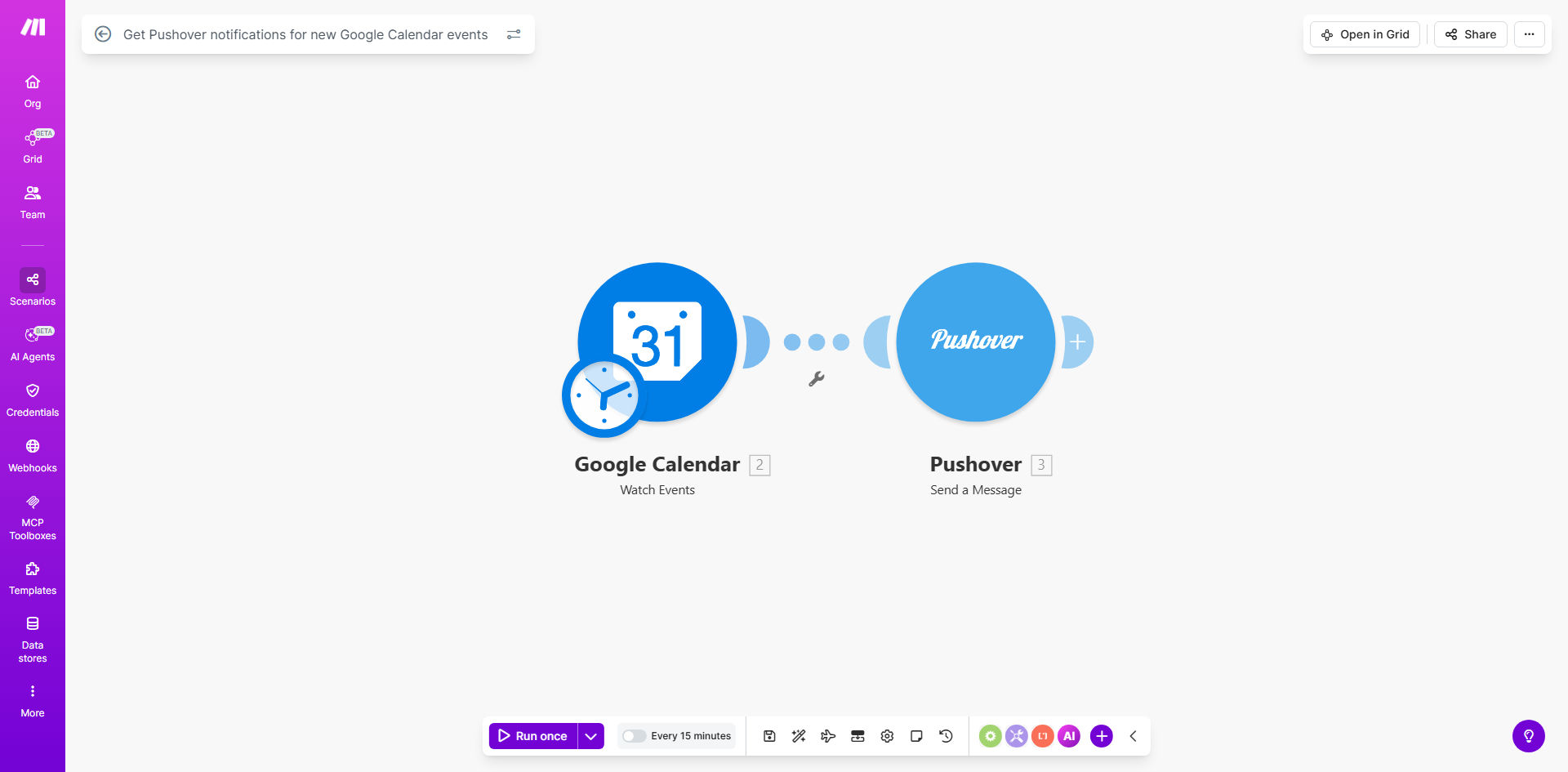
What This Workflow Does
In today's fast-paced business environment, missing a calendar alert can mean missing a critical client call, team sync, or project deadline. Relying on standard Google Calendar notifications within your email or a single device is risky—alerts get buried, silenced, or simply ignored.
This automation solves that by creating a robust, multi-channel alert system. Every time a new event is created in your Google Calendar, this Make.com workflow instantly sends a high-priority notification to your mobile device via Pushover. It transforms passive calendar entries into proactive, impossible-to-ignore alerts that ensure you and your team are always on time and prepared.
The business value is clear: reduced missed appointments, improved professional reliability, and reclaimed mental energy. Instead of manually setting multiple reminders or constantly checking your calendar, you get a guaranteed ping right where you need it, the moment an event is scheduled.
How It Works
The workflow is a simple yet powerful chain reaction between two apps, orchestrated by Make.com.
Step 1: Monitoring Google Calendar
Make.com acts as a watchful assistant, periodically checking your specified Google Calendar for any newly created events. You can set it to monitor your primary calendar, a shared team calendar, or even a specific calendar dedicated to urgent appointments.
Step 2: Capturing Event Details
When a new event is detected, Make.com immediately captures all its relevant data: the event title, start and end time, location, description, and list of attendees. This raw data is prepared for the next step.
Step 3: Formatting & Sending the Alert
Make.com then formats this data into a clear, concise message. It can create a custom notification like "URGENT: Strategy meeting with Acme Corp in 30 minutes (Boardroom)." This formatted message is instantly sent to the Pushover API.
Step 4: Receiving the Push Notification
Pushover delivers the message as a high-priority push notification to all your registered devices (phone, tablet, desktop). You can assign custom sounds and vibration patterns, making it stand out from other alerts.
Pro tip: Use filters in Make.com to send alerts only for events containing specific keywords (like "Client" or "Deadline") or from certain calendars. This prevents notification fatigue and ensures you're only interrupted for what's truly important.
Who This Is For
This automation is invaluable for busy professionals and teams who depend on punctuality and clear communication.
Freelancers & Consultants: Never miss a client call or project check-in, building a reputation for reliability.
Remote & Hybrid Teams: Ensure all team members, regardless of location, receive simultaneous alerts for shared meetings and stand-ups.
Executives & Managers: Get guaranteed alerts for back-to-back critical meetings throughout the day.
On-Call Staff & IT Support: Receive immediate notifications for scheduled maintenance windows or emergency briefings.
Essentially, anyone who uses Google Calendar for business and needs more reliability than standard notifications offer will benefit from this integration.
What You'll Need
To set up this workflow, you'll need just a few accounts and connections:
- A Make.com account (free tier is sufficient to run this workflow).
- A Google account with access to the Calendar you want to monitor.
- A Pushover account and the Pushover app installed on your mobile device(s).
- API connection credentials (Make.com will guide you through authorizing access to both Google Calendar and Pushover).
Quick Setup Guide
You can have this automation running in under 10 minutes.
- Clone the Template: Click the "Get This Workflow" button to open the template in your Make.com account and create a copy.
- Connect Google Calendar: In the first module, authorize Make.com to access your Google Calendar. Select the specific calendar you want to monitor.
- Connect Pushover: In the notification module, add your Pushover User Key and API Token from your Pushover account settings.
- Customize the Message (Optional): Edit the text module to format the notification message exactly how you want it to appear on your phone.
- Turn It On: Save your scenario and toggle the scheduler to "On." The workflow will now run automatically based on the poll interval you set (e.g., every 5 minutes).
Key Benefits
Eliminate Missed Meetings: Pushover notifications are designed to be seen and heard, drastically reducing the chance of overlooking a calendar alert compared to an email or a soft app notification.
Save Administrative Time: Automate the manual process of setting multiple reminders for different types of events. This workflow handles it all instantly and consistently.
Improve Team Synchronization: For shared calendars, everyone gets the same real-time alert, ensuring all team members are on the same page without manual follow-ups.
Gain Peace of Mind: The knowledge that your critical schedule is backed by a reliable, automated system frees up mental bandwidth to focus on your work, not your calendar.
Highly Customizable: While the template is ready-to-use, you can easily extend it to add conditional logic, filter events, or even trigger additional actions like sending an SMS backup.