Make.com Seliom Google Sheets Case Management Automation

Automatically Create Seliom Cases from Google Sheets

Sync new spreadsheet rows to Seliom cases without manual data entry

Get This Workflow → Make.com · Seliom · Free Template
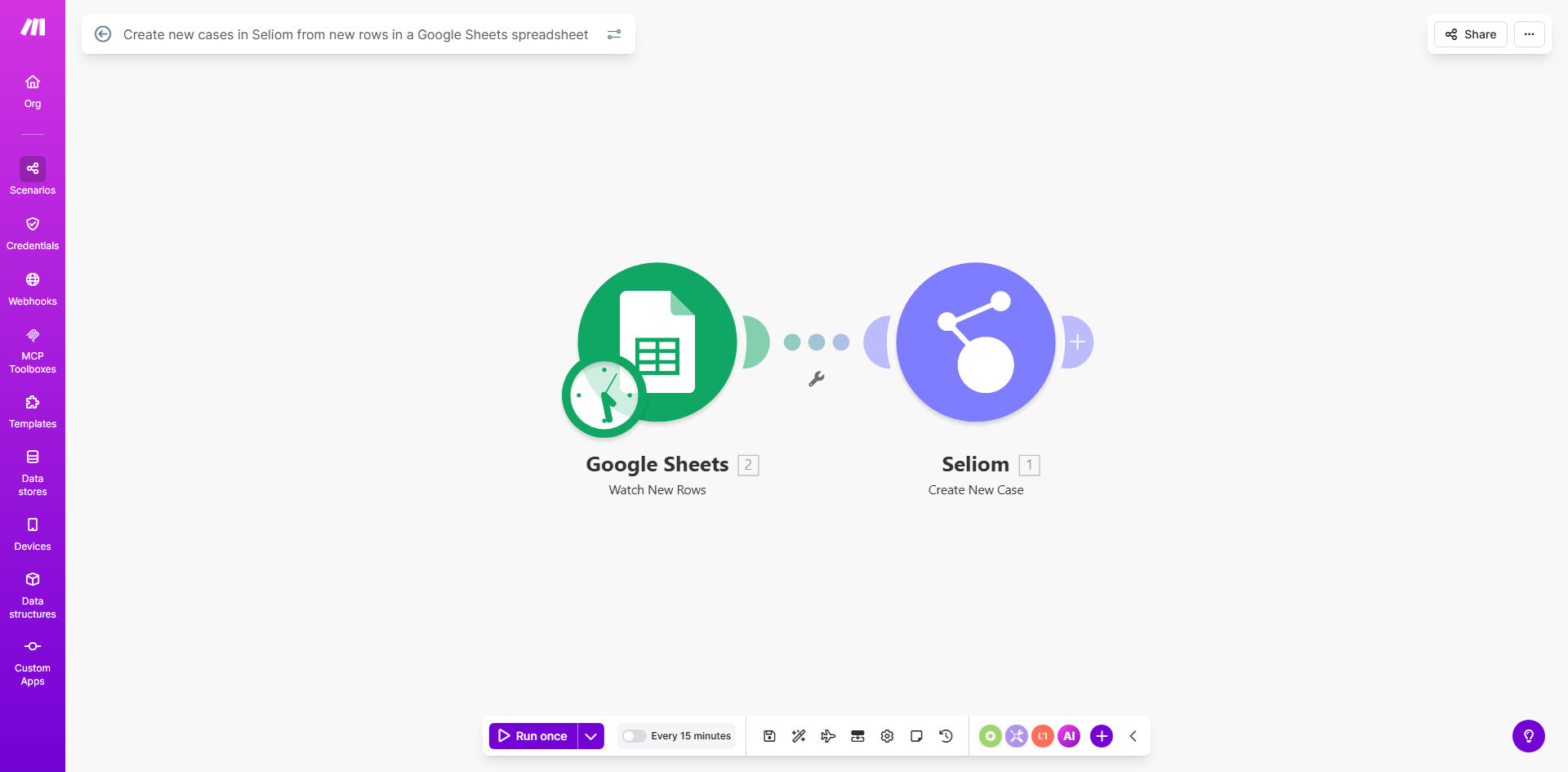
Seliom case creation automation workflow diagram

What This Workflow Does

This automation solves the common problem of manually transferring information from spreadsheets to case management systems like Seliom. Teams often collect customer requests, bug reports, or service tickets in Google Sheets through forms or shared documents, then waste time copying this data into Seliom.

The workflow automatically checks your specified Google Sheet for new rows at regular intervals (default every 15 minutes). When new entries are detected, it creates corresponding cases in Seliom with all relevant details mapped from spreadsheet columns to Seliom case fields. This eliminates duplicate data entry while ensuring no requests get overlooked.

How It Works

1. Scheduled Google Sheets Check

The workflow runs on a schedule you configure (default: every 15 minutes) to scan your designated Google Sheet for new rows added since the last check.

2. Data Extraction

For each new row found, the system extracts specified column values that will populate the Seliom case fields like title, description, priority level, and custom fields.

3. Case Creation in Seliom

Using Seliom's API, the workflow creates a new case for each qualifying row, mapping spreadsheet data to the appropriate case fields according to your configuration.

Pro tip: Add a "Status" column in your sheet to mark rows as "Processed" after case creation, preventing duplicates while maintaining an audit trail.

Who This Is For

This automation delivers the most value for:

  • Customer support teams receiving requests via Google Forms that need to become tracked cases
  • Operations managers coordinating field service requests collected in shared spreadsheets
  • IT departments tracking incidents reported through informal channels before formal ticketing
  • Professional service firms converting client intake forms into project cases

What You'll Need

  1. A Google Sheets spreadsheet with your case data (make a copy of the sample template)
  2. Seliom account with API access permissions
  3. Make.com account (free tier sufficient for basic usage)
  4. Clear mapping between your spreadsheet columns and Seliom case fields

Quick Setup Guide

  1. Duplicate the sample Google Sheet template or prepare your own with required case fields
  2. Connect your Google Sheets account in Make.com
  3. Authenticate with your Seliom API credentials
  4. Map spreadsheet columns to Seliom case fields in the workflow configuration
  5. Set your preferred schedule frequency (start with default 15 minutes)
  6. Test with sample data before activating full automation

Key Benefits

Eliminate manual data entry - Save 2-5 minutes per case that would otherwise be spent copying information between systems.

Reduce human error - Automated field mapping ensures data consistency versus manual transcription mistakes.

Improve response times - Cases are created immediately upon spreadsheet entry rather than waiting for manual processing.

Maintain complete audit trail - Every automated case creation can include timestamps and source references.

Scale your operations - Handle sudden volume spikes without adding administrative staff to process requests.

Frequently Asked Questions

Common questions about Seliom and Google Sheets automation

Automating case creation eliminates manual data entry errors and ensures no customer requests fall through the cracks. It's ideal for teams receiving requests via forms that populate spreadsheets before needing official case tracking in Seliom.

For example, a field service company might receive repair requests through a Google Form that saves to Sheets. This automation instantly converts submissions into service tickets without staff having to monitor and manually transfer the information.

This automation works for any Seliom case type - customer support tickets, service requests, project tasks, or incident reports. The spreadsheet columns map directly to Seliom case fields like title, description, priority, and custom fields.

The flexibility allows different departments to use the same automation with their specific case templates. Marketing might track campaign requests while IT manages system outages, all from different sheets feeding into respective Seliom case types.

The default 15-minute interval balances responsiveness with API limits. For urgent cases, reduce to 5 minutes. For less critical items, increase to hourly to reduce system load.

Consider your service level agreements when setting the schedule. Emergency response teams need near-real-time processing, while back-office functions may prioritize system efficiency over immediacy.

Yes, you can add filters in Make.com to verify required fields, check for duplicates, or validate data formats before case creation. This prevents incomplete or incorrect cases from being created.

Common validations include checking for valid email addresses in customer contact fields, verifying service codes against your master list, or ensuring priority levels match your defined scale.

  • Add mandatory field checks
  • Implement format validation
  • Set business rule verifications

The workflow will need reconfiguration if you add/remove columns or change headers. We recommend versioning your spreadsheet structure and documenting changes to maintain sync reliability.

For teams anticipating frequent changes, consider adding a configuration sheet that maps dynamic column positions to consistent field names, creating an abstraction layer between your data structure and the automation.

Unlike manual imports, this provides continuous sync, works with shared spreadsheets, and can trigger follow-up actions like notifications or task assignments after case creation.

The automation maintains a living connection rather than one-time transfers. When multiple team members collaborate on the same sheet, their updates flow automatically into Seliom without requiring export/import cycles.

Absolutely! GrowwStacks specializes in tailored Seliom automations that match your exact workflow needs, including multi-step approval processes, conditional routing, and integration with your other business tools.

Our consultants will analyze your current processes to design an automation system that fits seamlessly into your operations while providing measurable efficiency gains. Common customizations include:

  • Multi-department case routing logic
  • Integration with billing systems
  • Custom reporting and analytics

Need a Custom Seliom Automation?

This free template is a starting point. Our team builds fully tailored automation systems for your specific business needs.