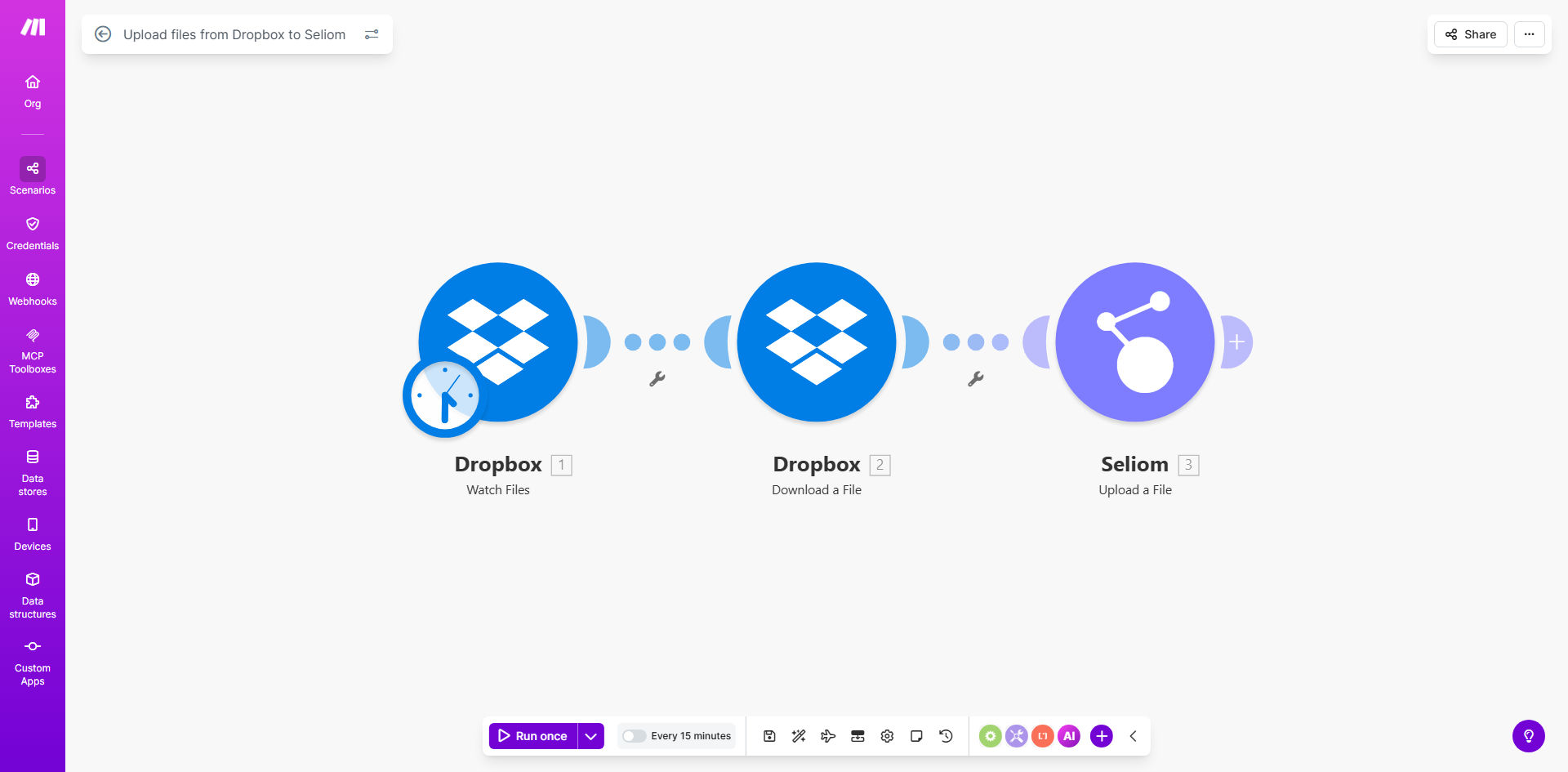
What This Workflow Does
Managing digital assets across different platforms is a common yet tedious task for creative teams, marketing agencies, and project managers. You might store final designs, client briefs, or project resources in Dropbox for easy sharing, but your team collaborates and manages tasks within Seliom. Manually downloading files from Dropbox and re-uploading them to Seliom is not only time-consuming but also prone to errors, version mix-ups, and delays.
This automation solves that problem completely. It creates a seamless, one-way bridge from a designated Dropbox folder to your Seliom account. Whenever a new file is added to your watched Dropbox folder, the workflow triggers automatically. It fetches the file and uploads it directly to a specified location in Seliom, ensuring your project resources are always synchronized without any manual intervention.
The template is pre-configured to check for new files every 15 minutes, but you can easily adjust this schedule to match your workflow's urgency—whether you need near-instant updates or daily batches.
How It Works
The workflow operates on a simple "watch and move" principle, leveraging Make.com's robust automation engine to connect two powerful cloud services.
Step 1: Monitoring Dropbox for Changes
The scenario starts with a Dropbox module set to "Watch files" in a specific folder. It polls the folder at your chosen interval (e.g., every 15 minutes) and detects any newly added files. This trigger is the starting point for the entire automation.
Step 2: Retrieving the File Data
Once a new file is detected, the workflow retrieves its essential details: the file name, path, size, and a secure download link. Make.com temporarily holds this file data in memory to pass it to the next step.
Pro tip: You can add a filter after the trigger to only process certain file types (like .jpg, .pdf, .mp4) or files containing specific keywords in their names. This prevents unwanted files from being transferred.
Step 3: Uploading to Seliom
The core action happens here. The workflow uses the Seliom module to "Upload a file." It takes the file data from the previous step and sends it to a predefined destination within your Seliom account, such as a specific project, task, or general file library.
Step 4: Completion & Error Handling
After a successful upload, the workflow can be extended to send a confirmation notification to a Slack channel, update a Google Sheet log, or send an email. If an upload fails (e.g., due to a network error or file size limit), the scenario can route the error to a separate path for alerting and retry logic.
Who This Is For
This automation is a game-changer for any business or team that uses Dropbox for storage and Seliom for project management or client collaboration.
- Creative Agencies: Automatically upload final logos, designs, and video files from Dropbox to the corresponding client project in Seliom.
- Marketing Teams: Sync campaign assets, brand guidelines, and report PDFs so the entire team has immediate access within their project workspace.
- Freelancers & Consultants: Keep client deliverables organized by having contract documents, invoices, and work products automatically appear in the shared Seliom project.
- Remote Teams: Eliminate the "I've uploaded it to Dropbox, can you move it?" back-and-forth, ensuring a single source of truth within Seliom.
What You'll Need
- A Make.com Account: A free or paid Make.com plan to build and run the automation scenario.
- Dropbox Account: Access to a Dropbox Business or personal account where your source files are stored.
- Seliom Account: An active Seliom account with a project or space ready to receive the uploaded files.
- A Dedicated Source Folder: A specific folder in your Dropbox that will be the "watch folder" for this automation. It's best practice to use a dedicated folder to avoid processing unrelated files.
Quick Setup Guide
You can have this automation running in under 10 minutes by following these steps:
- Clone the Template: Click the "Get This Workflow" button to open the template on Make.com. Click "Copy" to create your own version of the scenario.
- Connect Your Apps: In your new scenario, click on the Dropbox and Seliom modules. Authorize Make.com to access your accounts by logging in and granting the necessary permissions.
- Configure the Trigger: In the Dropbox "Watch files" module, select the specific folder you want to monitor from your connected account.
- Set the Destination: In the Seliom "Upload a file" module, choose the target project, task, or library where you want the files to land. You can map the file name and content directly from the Dropbox module.
- Adjust the Schedule: By default, the scenario runs every 15 minutes. You can change this to hourly, daily, or even in real-time with a webhook (advanced) based on your needs.
- Test and Activate: Turn on the "Run once" option to test. Upload a sample file to your Dropbox folder. Wait for the schedule cycle (or run it manually) and verify the file appears in Seliom. Once confirmed, activate the scenario.
Key Benefits
Save 5–10 hours per month per team member. Eliminate the repetitive task of downloading and re-uploading files. This time can be redirected to higher-value creative or strategic work.
Eliminate manual errors and version confusion. Automated transfers ensure the correct, latest file version is always in Seliom. No more "Is this the final_v3_FINAL.pdf?" moments.
Accelerate project timelines. When files are instantly available in the project management tool, feedback loops are shorter, and teams can proceed with their tasks without waiting for assets.
Improve client satisfaction and transparency. Clients see deliverables appear directly in the shared Seliom workspace, creating a smooth, professional experience and building trust.
Create a scalable, reliable process. This workflow runs 24/7 according to your schedule, handling file syncing consistently whether you have 10 files or 10,000 files, scaling effortlessly with your business.