Google Sheets Pastebin Automation Data Sharing

Create Pastebin Pastes from New Google Sheets Rows

Automatically convert spreadsheet data into shareable Pastebin links whenever new rows are added

Get This Workflow → Make.com · Google Sheets · Free Template
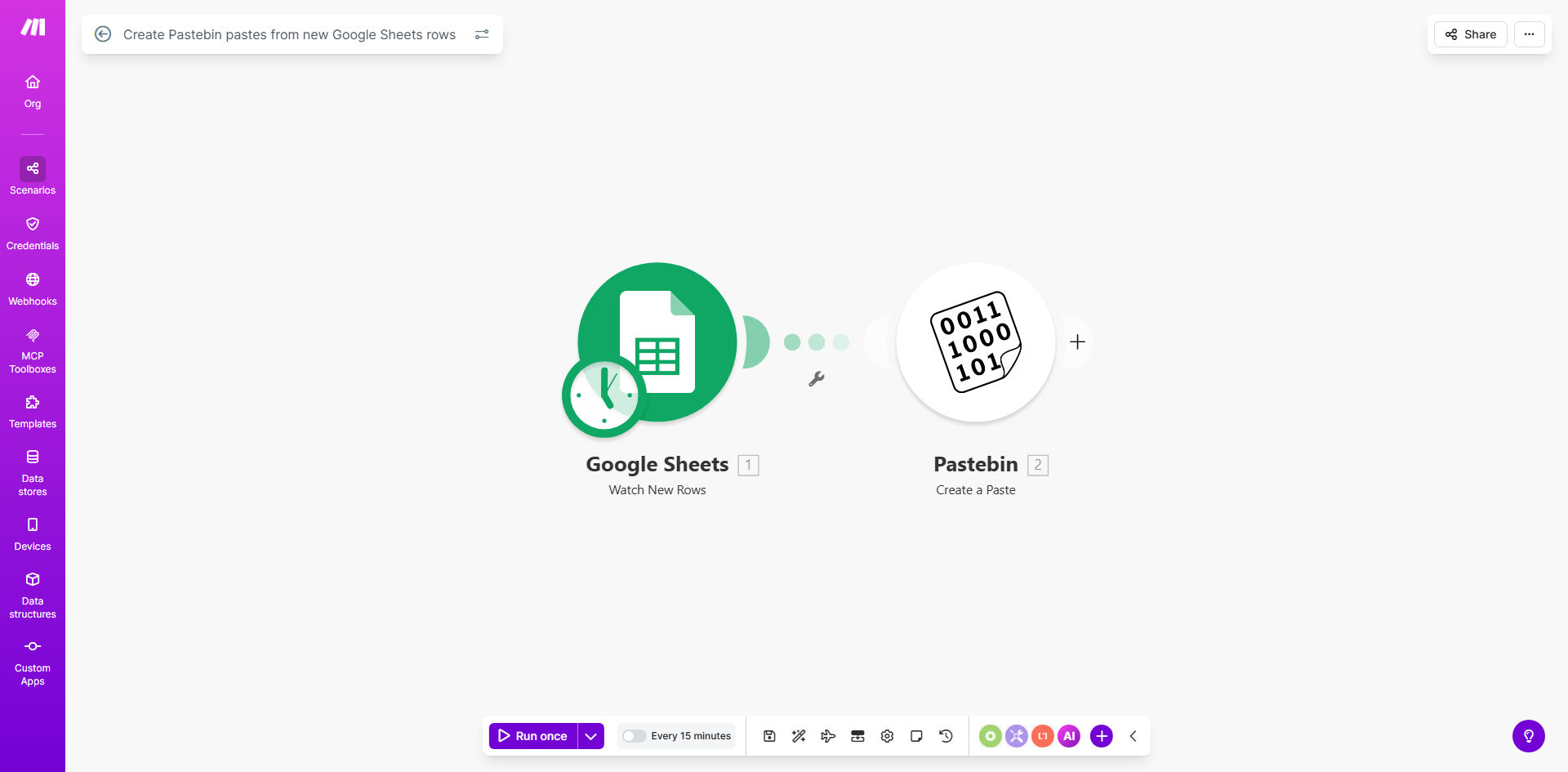
Make.com workflow diagram showing Google Sheets to Pastebin automation

What This Workflow Does

This automation solves the tedious process of manually copying data from Google Sheets and creating Pastebin entries. It's perfect for teams that need to frequently share spreadsheet content as text snippets with clients, collaborators, or support teams without granting direct access to the spreadsheet itself.

The workflow monitors your specified Google Sheet for new rows. When detected, it automatically formats the content and creates a Pastebin paste with your preferred settings (private/unlisted/public, expiration time, syntax highlighting). This eliminates repetitive manual work while maintaining control over what gets shared.

How It Works

1. New row detection

The workflow constantly monitors your Google Sheet for new additions using Make.com's Google Sheets trigger. You can specify which columns to include and set filters to only process relevant rows.

2. Data formatting

Before creating the paste, the workflow formats your spreadsheet data into clean text. It handles line breaks, removes unnecessary formatting, and can apply custom transformations based on your needs.

3. Pastebin creation

Using Pastebin's API, the workflow creates a new paste with your configured settings. You can set default parameters like visibility and expiration, or dynamically control them based on spreadsheet values.

4. Link management

Optionally, the workflow can store the generated Pastebin URLs back in your spreadsheet, send them via email or Slack, or add them to a link management system.

Pro tip: Use a dedicated "Status" column in your spreadsheet to track which rows have been processed. This prevents duplicates and helps with troubleshooting.

Who This Is For

This automation is ideal for:

  • Development teams sharing code snippets from spreadsheets
  • Support teams creating shareable troubleshooting notes
  • Content managers distributing text assets to writers/translators
  • Businesses that need to share configuration data without spreadsheet access
  • Anyone who regularly converts spreadsheet rows to text formats

What You'll Need

  1. A Google Sheets spreadsheet with data you want to share
  2. A Pastebin account (free or pro)
  3. A Make.com account (free tier works for basic usage)
  4. API access enabled for both services

Quick Setup Guide

  1. Copy this template to your Make.com account
  2. Connect your Google Sheets account and select your spreadsheet
  3. Configure which columns to include and any row filters
  4. Connect your Pastebin account and set default paste settings
  5. Test with sample data to verify formatting
  6. Activate the scenario to begin automatic processing

Key Benefits

Saves hours of manual work by eliminating the copy-paste cycle between spreadsheets and Pastebin. What used to take minutes per entry now happens instantly.

Ensures consistency in how your spreadsheet data appears in Pastebin. Every paste follows the same formatting rules and settings.

Reduces errors that come from manual data transfer. The automation handles the conversion precisely every time.

Provides tracking through optional logging features. Know exactly which spreadsheet rows have been shared and when.

Scales effortlessly from a few pastes per week to hundreds per day without additional effort.

Frequently Asked Questions

Common questions about Google Sheets to Pastebin automation

Automating Pastebin creation from Google Sheets saves significant time when you need to frequently share spreadsheet data as text snippets. Common use cases include sharing code snippets, configuration data, or temporary notes with teams or clients without granting direct spreadsheet access.

For example, a software team might maintain a spreadsheet of error codes and solutions. Instead of copying each solution manually, this workflow automatically creates Pastebin links that support agents can reference when helping customers.

This automation works best with text-based data like code snippets, configuration files, or notes. The workflow can format the spreadsheet data before creating the paste, ensuring proper line breaks and structure for readability in Pastebin.

While it can handle any spreadsheet content, structured text data benefits most. The system automatically handles conversions like:

  • Converting spreadsheet columns into formatted text sections
  • Preserving code indentation and syntax
  • Maintaining list structures from spreadsheet cells

Yes, the Make.com template allows customization of Pastebin settings like paste expiration, visibility (public/unlisted/private), and formatting. You can set these parameters based on spreadsheet values or use consistent defaults for all pastes.

For instance, you might have a column in your spreadsheet specifying "Public" or "Private" for each entry. The workflow reads this value and applies the corresponding Pastebin visibility setting automatically.

The connection is secure when properly configured. Make.com uses OAuth for Google Sheets access, and Pastebin API keys are encrypted. For sensitive data, always use private pastes and consider additional spreadsheet access controls.

Security best practices include:

  • Using private pastes for confidential information
  • Setting appropriate expiration times
  • Limiting Google Sheets access to only necessary users
  • Regularly reviewing Pastebin API usage

The workflow includes error handling to skip problematic rows and can notify you via email or Slack if paste creation fails. You can configure retry attempts or manual review processes for failed items.

Common error scenarios include missing required fields, invalid formatting, or API rate limits. The template provides options to handle each case appropriately based on your specific needs.

Yes, the template includes an optional tracking system that marks processed rows in your spreadsheet. This prevents duplicate pastes and provides an audit trail of what content has been shared.

You can choose to simply mark rows as processed or add detailed tracking information like:

  • Timestamp of paste creation
  • Pastebin URL
  • Status (success/failed)
  • Error messages if applicable

Absolutely! GrowwStacks specializes in building tailored automation solutions. We can create a custom workflow that matches your specific data formatting needs, adds approval workflows, integrates with additional tools, and handles your exact security requirements.

Our custom automation services include:

  • Multi-step approval processes before sharing
  • Integration with your existing tools (CRM, helpdesk, etc.)
  • Advanced error handling and notifications
  • Custom reporting and analytics
  • Ongoing maintenance and support

Need a Custom Google Sheets Automation?

This free template is a starting point. Our team builds fully tailored automation systems for your specific business needs.