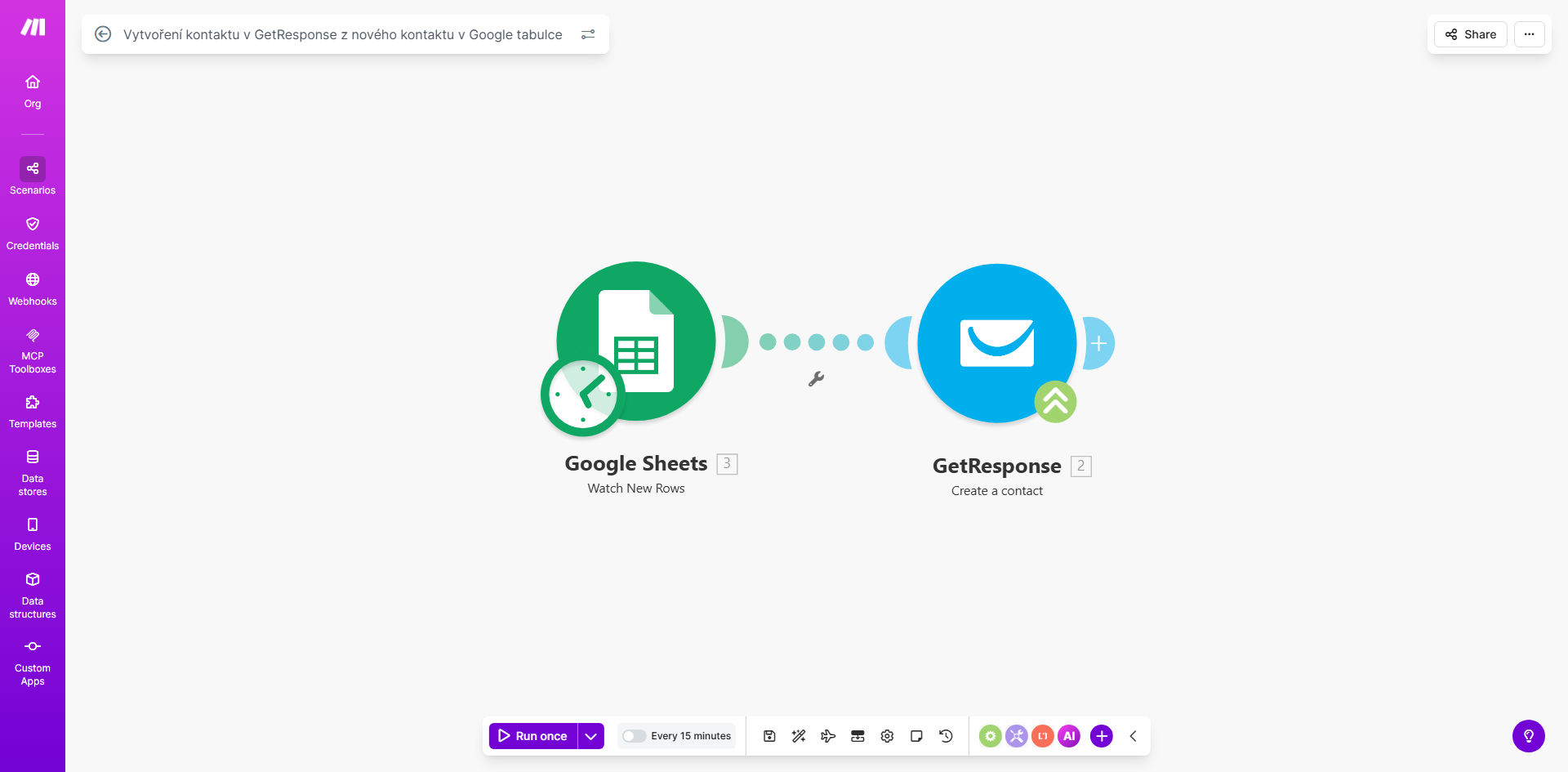
What This Workflow Does
For marketers, founders, and sales teams, manually transferring leads from signup forms, event lists, or customer spreadsheets into your email marketing platform is a tedious, error-prone chore. It creates delays in nurturing leads, leads to data entry mistakes, and wastes valuable time that could be spent on strategy.
This automated workflow solves that by creating a live bridge between Google Sheets and GetResponse. Every time a new row is added to your designated spreadsheet—whether from a form submission, a team member, or an imported list—the system instantly captures that data and creates a corresponding contact in your GetResponse account. It turns your spreadsheet into a powerful, real-time lead ingestion tool.
The business value is clear: your email list grows automatically, new leads receive welcome sequences faster, and your team reclaims hours every week. It ensures data consistency and allows you to scale your lead capture processes without adding manual overhead.
How It Works
The automation follows a simple but powerful sequence, triggered by new data and executed without any human intervention.
Step 1: Monitor Google Sheets for New Rows
The workflow starts by watching a specific Google Sheets spreadsheet. It uses the "Watch New Rows" trigger module in Make.com. You simply connect your Google account and select the spreadsheet and worksheet you want to monitor. The moment a new row is populated, the automation is activated.
Pro tip: Use a dedicated "Leads" or "Signups" sheet that is populated by Google Forms or other integrations. This keeps your source data clean and structured for the automation.
Step 2: Parse the Row Data
Make.com reads all the column values from the new row. This data could include the contact's email, first name, last name, phone number, company, and any custom fields you've set up (like "Lead Source" or "Interest"). The automation maps each column to a corresponding data point.
Step 3: Create or Update Contact in GetResponse
The workflow then connects to your GetResponse account via the "Create a Contact" module. It passes the mapped data from the Sheets row into the appropriate fields in GetResponse. You can specify which mailing list the contact should be added to, add tags, and even set custom field values. The contact is created in GetResponse within seconds of the row being added.
Who This Is For
This automation is a game-changer for any business that collects leads or customer information in spreadsheets and uses email marketing.
- Digital Marketers & Agencies: Automatically add webinar attendees, ebook downloaders, or quiz respondents from Sheets to nurture sequences.
- Event Organizers: Sync event registration lists (collected via Forms to Sheets) directly into GetResponse for pre- and post-event communication.
- Small Business Owners: Capture leads from business cards entered into a shared sheet and instantly add them to your newsletter.
- Sales Teams: Automatically add new prospects from a shared CRM-like spreadsheet into a targeted email campaign in GetResponse.
- Course Creators & Coaches: Seamlessly integrate waitlist or application form responses into your email marketing funnel.
What You'll Need
- A Make.com account (free tier available).
- A Google account with access to the spreadsheet containing your contact data.
- A GetResponse account with an active mailing list ready to receive new contacts.
- A Google Sheets spreadsheet structured with clear column headers (e.g., Email, First Name, Last Name).
- (Recommended) A consistent process for adding data to the sheet, such as a linked Google Form.
Quick Setup Guide
You can have this automation running in under 15 minutes by following these steps.
- Get the Template: Click the "Get This Workflow" button above to clone the template into your Make.com account.
- Connect Google Sheets: In the first module, click to add a connection. Authorize Make.com to access your Google account and select the specific spreadsheet and worksheet you want to monitor.
- Connect GetResponse: In the second module, add your GetResponse account connection. You'll need your API key from your GetResponse account settings.
- Map Your Data: Inside the GetResponse module, map the columns from your Sheets row to the correct GetResponse contact fields. For example, map column B to "First Name," column C to "Email," etc.
- Choose Your List: Select the GetResponse mailing list where new contacts should be added.
- Turn It On: Activate the scenario in Make.com. Add a test row to your Google Sheet to trigger the automation and verify a contact appears in your GetResponse list.
Pro tip: Start with a test spreadsheet and a small, dedicated GetResponse list for your first run. This lets you verify the data flow works perfectly before connecting it to your main list.
Key Benefits
Save 5-10 hours per month on manual data entry. Eliminate the repetitive task of copying and pasting contact information between platforms. This time can be reinvested into creating better email content or analyzing campaign performance.
Improve lead response time from days to minutes. New leads can be added to a welcome or nurture sequence immediately after they sign up, significantly increasing engagement and conversion rates.
Eliminate human error and ensure data accuracy. Automated data transfer removes typos, missed rows, and incorrect field mappings that are common with manual processes.
Scale your lead capture efforts effortlessly. Whether you get 10 or 1,000 new signups a day, the automation handles them all instantly without any additional work from your team.
Create a single source of truth. Your Google Sheet remains your raw data log, while GetResponse becomes your active marketing list, perfectly synchronized.