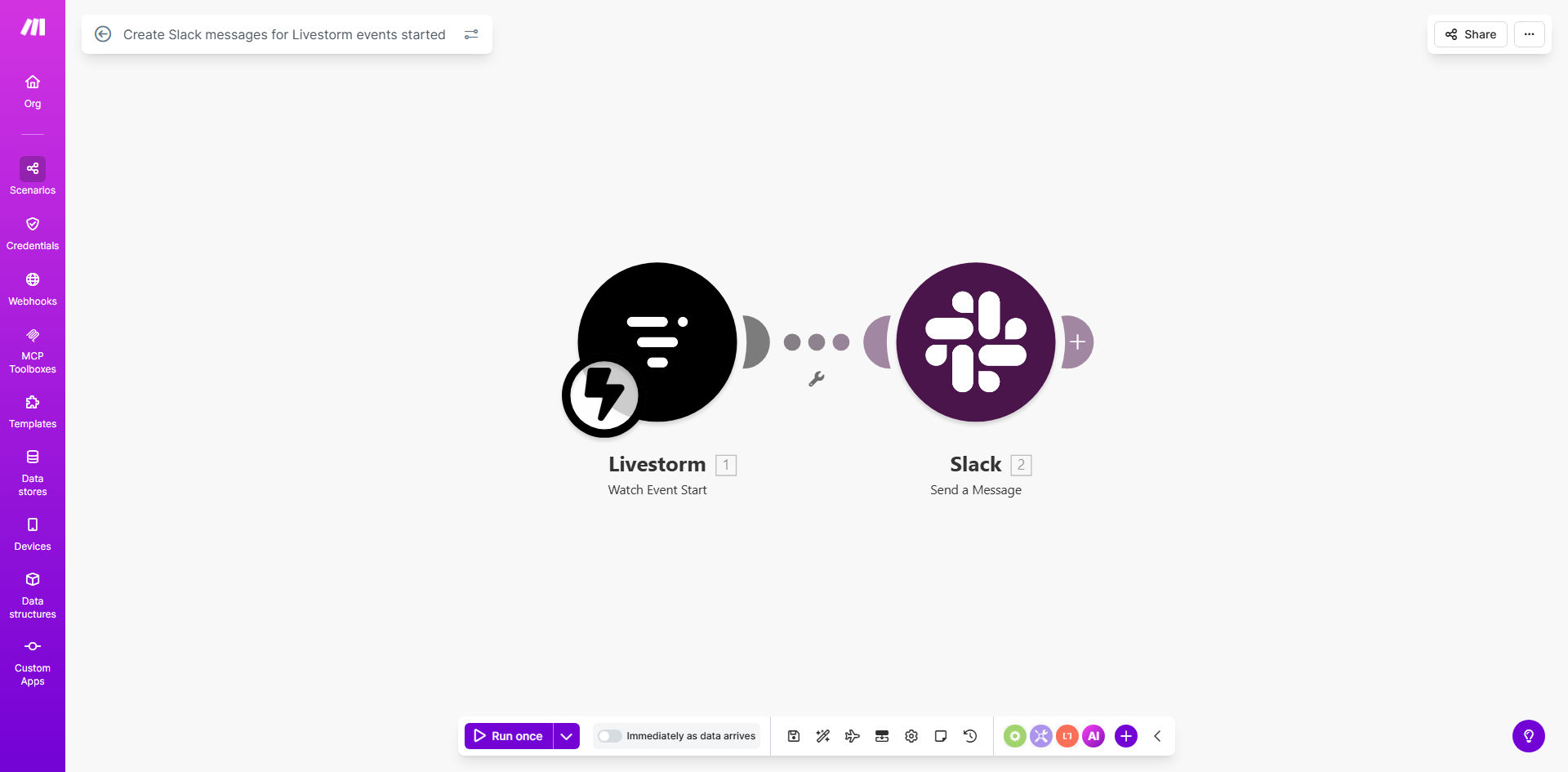
What This Workflow Does
In today's remote and hybrid work environments, keeping everyone synchronized during live events is a common challenge. When a webinar starts, a sales demo begins, or a company all-hands meeting goes live in Livestorm, key team members—like support staff, co-hosts, or managers—often miss the initial moments because they weren't manually notified. This leads to delayed responses, poor attendee experience, and a fragmented team presence.
This automation solves that by creating a seamless, real-time bridge between Livestorm and Slack. Every time an event is triggered as "started" in your Livestorm account, this Make.com workflow automatically crafts a detailed message and posts it directly to a designated Slack channel. It eliminates the need for an event host or coordinator to remember to send a manual "we've started!" message, ensuring your entire team is informed simultaneously and instantly.
The business value is clear: improved operational coordination, enhanced professionalism for customer-facing events, and time saved for your event organizers. It turns a reactive process into a proactive, automated system that supports your team's efficiency.
How It Works
The workflow acts as an intelligent relay between two powerful platforms. Here’s the step-by-step process:
Step 1: Livestorm Triggers the Workflow
The automation is initiated the moment Livestorm detects that one of your scheduled events has transitioned to a "live" or "started" state. Make.com watches for this specific webhook trigger from Livestorm, which contains all the essential event data.
Step 2: Make.com Processes the Event Data
Make.com receives the trigger payload, which includes information like the event title, start time, host name, and a direct join link. The workflow can filter or route events based on your criteria—for example, sending internal meeting alerts to a different channel than customer webinars.
Step 3: A Custom Slack Message is Formatted & Sent
Using Slack's API module, Make.com formats a clear, actionable message. You can customize this message to include emojis, format text as bold or italic, tag specific user groups (like @support-team), and even add quick-action buttons. The message is then instantly posted to your pre-configured Slack channel.
Pro tip: Use different Slack channels for different event types (e.g., #webinars-live, #internal-meetings). You can set up filters in Make.com to route notifications accordingly, keeping your team's focus clear.
Who This Is For
This automation is a game-changer for any business or team that relies on Livestorm for communication and needs to keep stakeholders in the loop instantly.
Marketing & Sales Teams: Perfect for notifying the sales team when a prospect webinar begins, ensuring demo support staff are ready to assist. Marketing teams can alert the social media or content team when a public event goes live for real-time promotion.
Customer Success & Support: When a customer onboarding or training session starts, instantly alert your support channel. This allows agents to monitor for common technical issues and jump in to help attendees immediately, drastically improving customer satisfaction.
Internal Operations & HR: For all-hands meetings, company announcements, or internal training, automatically post to general channels like #announcements or #company. This guarantees maximum attendance and ensures remote employees don't miss important live updates.
Event & Webinar Coordinators: Free yourself from the manual task of sending "we're live!" messages across multiple platforms. This automation handles the notification, letting you focus on hosting and engaging with your audience.
What You'll Need
To implement this workflow, you'll need a few accounts and permissions set up. Gather these before starting:
- A Make.com Account: A free or paid Make.com plan to build and run the automation.
- A Livestorm Account: With admin or editor permissions to create and manage webhooks for your events.
- A Slack Workspace: Where you have permission to create incoming webhooks or add apps to a channel.
- Slack Channel Access: Decide which Slack channel (e.g., #events, #support) will receive the notifications and ensure you have posting rights.
- Basic Event Info: Have a Livestorm event ready to test with, so you can verify the notification works correctly.
Quick Setup Guide
You can have this automation running in under 10 minutes by following these simple steps:
- Clone the Template: Click "Get This Workflow" to copy the ready-made template into your Make.com account.
- Connect Livestorm: In the first module, authorize Make.com to access your Livestorm account. You'll need your Livestorm API key, which can be found in your account settings.
- Connect Slack: In the Slack module, authorize Make.com to post to your workspace. Select the specific channel where you want the notifications to appear.
- Customize Your Message: Edit the "Create a Message" module in Make.com. Use the data from Livestorm (like `Event Title` and `Join Link`) to build a helpful Slack message. Add emojis or user mentions as needed.
- Test & Activate: Turn on the scenario in Make.com. Start a test event in Livestorm to trigger the workflow. Check your Slack channel for the instant notification. Once confirmed, your automation is live!
Key Benefits
Eliminate Manual Notification Overhead: Save 5-10 minutes per event that your team would spend switching apps, copying links, and typing alerts. For teams running multiple events weekly, this adds up to hours of recovered productivity each month.
Improve Team Response Time & Coordination: Instant alerts mean your support, sales, or co-host team members join critical events within seconds, not minutes. This leads to faster problem resolution and a more professional attendee experience.
Ensure No Event Starts Unnoticed: Automating this process removes human error. You'll never have a webinar start with key team members unaware because someone forgot to send a Slack message.
Centralize Communication: By posting all event start alerts to a dedicated Slack channel, you create a single source of truth for what's live. This is invaluable for distributed teams and provides a searchable log of event activity.
Scale Your Event Operations Effortlessly: As your business grows and you host more events, this automation scales with you. There's no additional manual work required—every new event automatically benefits from the same instant notification system.