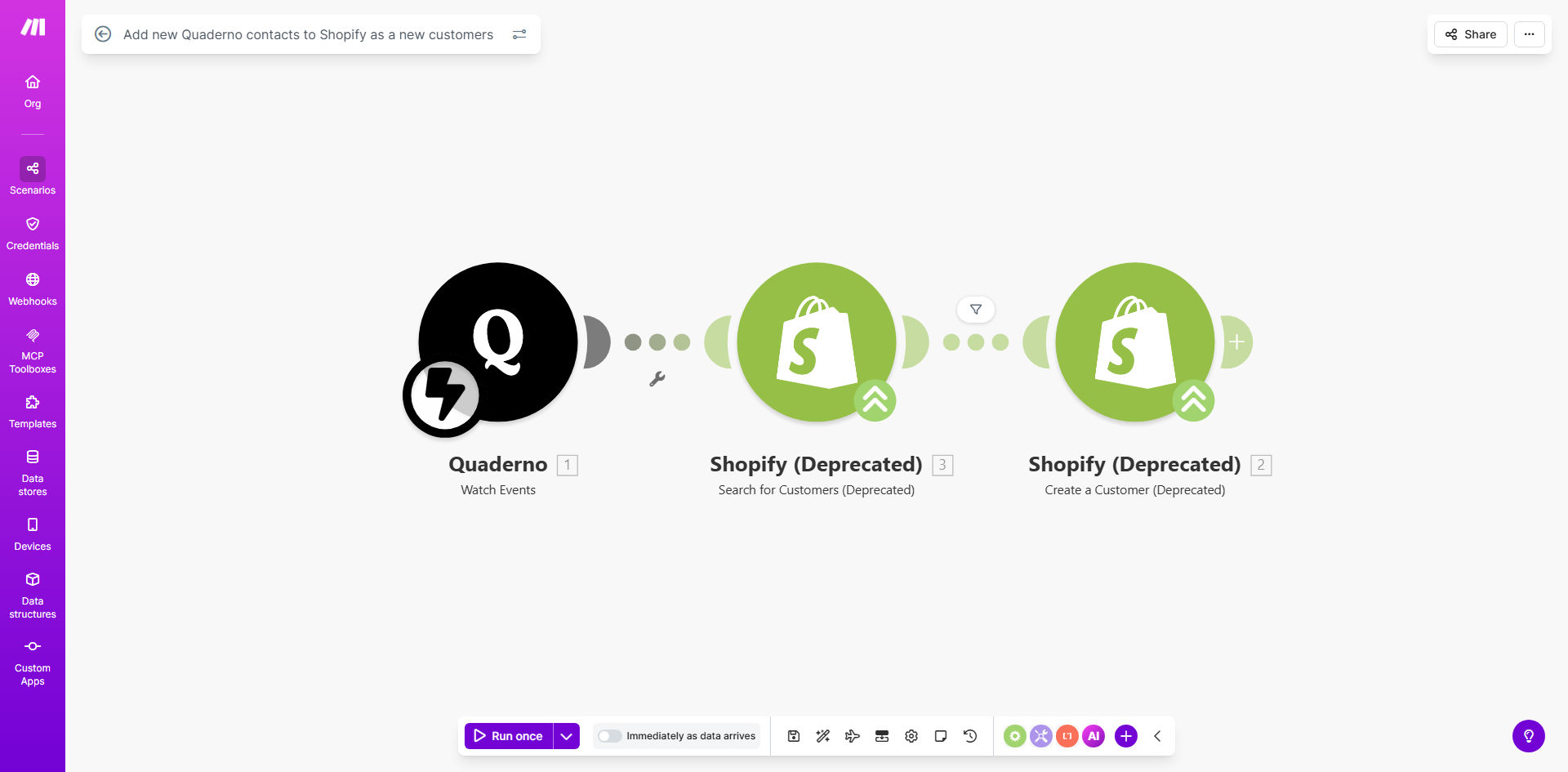
What This Workflow Does
For businesses using Quaderno for invoicing and tax compliance and Shopify for e-commerce, managing two separate customer lists is a common headache. A contact created in Quaderno after issuing an invoice is often also a potential or existing customer for your online store. Manually transferring their details into Shopify is repetitive, error-prone, and wastes valuable time that could be spent on growth.
This automated workflow solves that problem instantly. Every time a new contact is created in your Quaderno account, Make.com detects the event and automatically creates a corresponding customer record in your Shopify store. It maps key fields like name, email address, and billing details, ensuring your Shopify customer database is always current and synchronized with your invoicing system. This creates a unified customer profile across your financial and sales platforms.
The result is a seamless operational flow. Your sales, support, and marketing teams can rely on a single, accurate source of customer information in Shopify. More importantly, it enables personalized marketing, as new contacts from Quaderno immediately become available for segmented email campaigns or loyalty programs within Shopify, turning invoicing interactions into sales opportunities.
How It Works
The automation acts as a intelligent bridge between Quaderno and Shopify, handling the data transfer securely and reliably without any manual intervention.
Step 1: Trigger on New Quaderno Contact
The workflow is initiated by the "Watch Contacts" module in Make.com, which monitors your Quaderno account for the creation of any new contact. This could be triggered by you manually adding a contact, or by an automated action from another system that creates a Quaderno contact via an API.
Step 2: Map and Format Contact Data
Once triggered, the workflow extracts the relevant data from the new Quaderno contact. This typically includes the contact's full name, email address, phone number, and billing address. Make.com's router and data transformation tools can be used to format this data to match Shopify's expected customer field structure, handling any differences in field names or data formats.
Step 3: Check for Existing Shopify Customer
Before creating a duplicate, a crucial step is to search the Shopify customer list using the contact's email address. If a customer with that email already exists, the workflow can be configured to either update the existing record with new information from Quaderno or simply stop, preventing list clutter.
Step 4: Create Customer in Shopify
If the contact is new to Shopify, the workflow uses the "Create a Customer" module to add them to your store. The mapped data from Quaderno populates the customer's profile in Shopify, instantly making them available for order history, marketing lists, and customer service lookups.
Pro tip: Enhance this workflow by adding a step to tag the new Shopify customer based on the Quaderno contact's tags or the invoice country. For example, tag them as "Quaderno-Synced" or "EU-Customer" for targeted email flows.
Who This Is For
This automation is ideal for any business that uses Quaderno for invoicing and Shopify for selling products or services online. It's particularly valuable for:
- E-commerce Stores & Digital Product Sellers: Who issue invoices for custom orders, wholesale, or B2B sales via Quaderno and need those clients in their Shopify store for future purchases.
- Agencies & Freelancers: Who bill clients through Quaderno and also sell retainers, templates, or digital downloads through a Shopify store.
- Businesses with Hybrid Sales Models: That have both direct Shopify checkout sales and custom invoiced sales, leading to two separate customer entry points.
- Teams Focused on Data Accuracy: Where manual data entry between systems leads to errors, outdated information, and frustrated team members.
What You'll Need
- A Make.com account (free or paid plan).
- An active Quaderno account with API access enabled.
- A Shopify store (any plan that provides customer management and API access).
- Your API keys or login credentials for both Quaderno and Shopify to connect them to Make.com.
- A basic understanding of the customer data fields you want to sync (e.g., email, first name, last name, address).
Quick Setup Guide
You can have this automation running in under 15 minutes by following these steps.
- Get the Template: Click the "Get This Workflow" button above to clone the ready-made template into your Make.com account.
- Connect Your Apps: In the Make.com scenario, click on the Quaderno and Shopify modules. Authorize the connections by logging into your accounts when prompted.
- Configure the Trigger: In the Quaderno "Watch Contacts" module, ensure it's set to watch for "Created" events.
- Map Your Data: Review the data mapping between the Quaderno contact fields and the Shopify customer fields. Adjust if necessary to match your specific field names.
- Set Up Duplicate Check (Optional but Recommended): Add a "Search Customers" module from Shopify using the contact's email as the search key before the "Create Customer" step. Route the flow to update existing customers if found.
- Test & Activate: Turn on the scenario and create a test contact in Quaderno. Verify that a new customer appears correctly in your Shopify admin.
Key Benefits
Eliminate 100% of manual customer data entry between Quaderno and Shopify. This directly saves administrative hours each week, allowing your team to focus on higher-value tasks like customer service or sales strategy.
Ensure 100% data accuracy and consistency. Automated sync removes typos, forgotten updates, and missed entries, giving every department a reliable, single view of the customer.
Accelerate customer onboarding for marketing. New invoiced contacts become Shopify customers instantly, enabling you to add them to welcome sequences, promotional campaigns, or loyalty programs without delay.
Improve the customer experience. When a client receives an invoice from Quaderno and later shops on your Shopify store, their information is already on file, creating a seamless and professional brand experience.
Build a scalable foundation. As your business grows and the volume of contacts increases, this automation scales effortlessly, handling one or one thousand syncs with the same reliability.