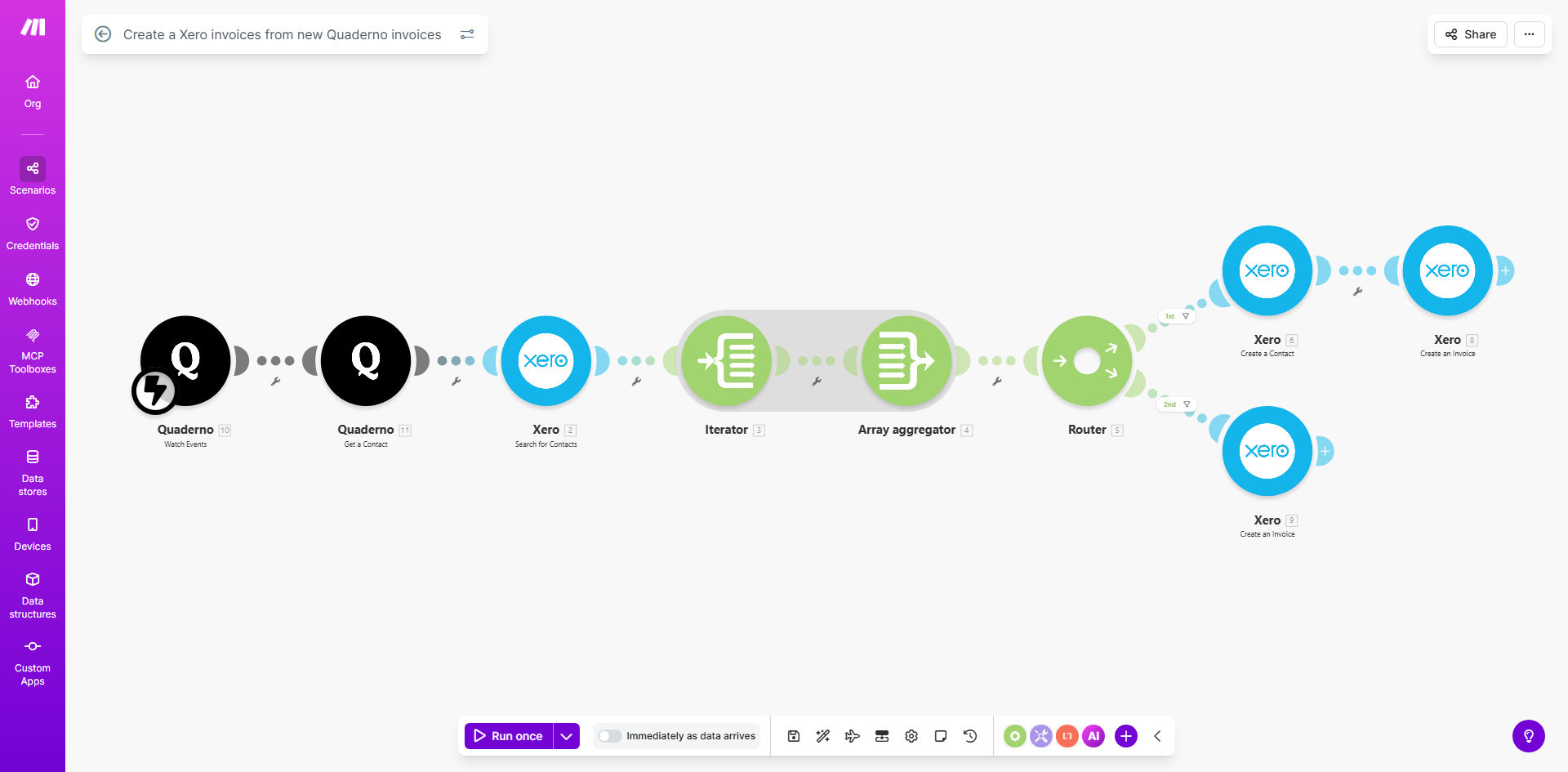
What This Workflow Does
For businesses using Quaderno for tax-compliant invoicing and Xero for accounting, manually transferring invoice data is a repetitive, error-prone task. This disconnect creates a high risk of mismatched records, delayed revenue recognition, and hours wasted on reconciliation each month.
This automated workflow solves that by creating a seamless bridge between Quaderno and Xero. Every time a new invoice is issued in Quaderno, the workflow instantly captures the details—customer information, line items, amounts, taxes—and creates a corresponding, perfectly formatted invoice in your Xero account. It turns a manual, multi-step process into a silent, reliable background operation.
The result is a single source of truth for your finances. Your sales data from Quaderno flows directly into your general ledger in Xero, ensuring accuracy, saving administrative time, and providing real-time visibility into your financial performance without any lag.
How It Works
The automation acts as a intelligent connector, listening for events in Quaderno and taking precise action in Xero.
Step 1: Monitoring Quaderno for New Invoices
The workflow starts by watching your Quaderno account for the "Invoice Created" event. This can be set to trigger instantly or at scheduled intervals, ensuring no invoice slips through.
Step 2: Extracting and Structuring Invoice Data
When a new invoice is detected, the automation pulls all relevant data: the client's name and contact details, invoice date and number, a detailed breakdown of products/services, subtotals, tax calculations, and the final total amount.
Step 3: Preparing and Creating the Xero Invoice
The workflow then maps this extracted data into the exact format Xero requires. It finds or creates the contact in Xero, assigns the correct account codes, applies the proper tax rates, and populates all line item descriptions. Finally, it sends a request to Xero's API to create the draft or approved invoice.
Step 4: Error Handling and Notifications
If anything goes wrong—like a missing client in Xero or an API error—the workflow can be configured to send an immediate alert (via email, Slack, or SMS) to your team. This allows for quick manual intervention while logging the issue for audit purposes.
Pro tip: Configure the workflow to only sync "Paid" or "Sent" invoices from Quaderno to avoid cluttering Xero with drafts or estimates, keeping your accounting records clean and actionable.
Who This Is For
This automation is ideal for any business that relies on Quaderno for tax-aware billing and Xero for accounting. This is particularly powerful for:
- SaaS Companies & Digital Agencies: Who issue recurring invoices to numerous clients and need precise revenue tracking.
- E-commerce & Online Sellers: Who generate high volumes of invoices and require seamless integration between sales tax handling (Quaderno) and overall financial management (Xero).
- Freelancers & Consultants: Who want to spend time on client work, not on copying invoice data between platforms.
- Finance Teams & Bookkeepers: Who are responsible for month-end close and need to eliminate manual entry errors to ensure accurate reporting.
What You'll Need
To implement this workflow, you will need the following accounts and access:
- A Make.com account (free tier may suffice for moderate volume).
- An active Quaderno account with API access enabled.
- An active Xero subscription with permission to create invoices and manage contacts.
- Your Quaderno and Xero API keys or OAuth credentials (the workflow will guide you through connecting these services securely).
- Basic understanding of your chart of accounts in Xero to ensure invoices are posted to the correct revenue accounts.
Quick Setup Guide
You can have this automation running in under 30 minutes by following these steps:
- Get the Template: Click "Get This Workflow" to duplicate the ready-made scenario into your Make.com account.
- Connect Your Apps: In the Make.com editor, authorize the connections to your Quaderno and Xero accounts. This is a secure, one-time process.
- Configure the Trigger: Set the Quaderno module to watch for "New Invoice" events. You can filter by status (e.g., "sent" or "paid") if desired.
- Map the Data: Review the data mapping between Quaderno fields and Xero fields. The template provides sensible defaults, but you can customize them (e.g., mapping a Quaderno product to a specific Xero account code).
- Test and Activate: Use the "Run once" feature to test with an existing Quaderno invoice. Verify the invoice appears correctly in Xero. Once confirmed, activate the scenario to run automatically.
Key Benefits
Eliminate 2–5 hours of manual data entry per week. By automating the transfer, your team reclaims time for higher-value tasks like financial analysis, client communication, or strategic planning.
Achieve 100% data accuracy between systems. Remove the risk of human error from typos, missed line items, or incorrect tax calculations, ensuring your financial statements are always reliable.
Accelerate your month-end close process. With invoices flowing into Xero in real-time, reconciliation becomes faster and simpler, giving you quicker insights into your financial position.
Improve cash flow visibility. See all your issued invoices and their statuses directly within Xero's reporting dashboard, enabling better forecasting and management.
Scale your billing operations effortlessly. As your business grows and invoice volume increases, the automation handles the extra load without requiring additional staff or creating bottlenecks.