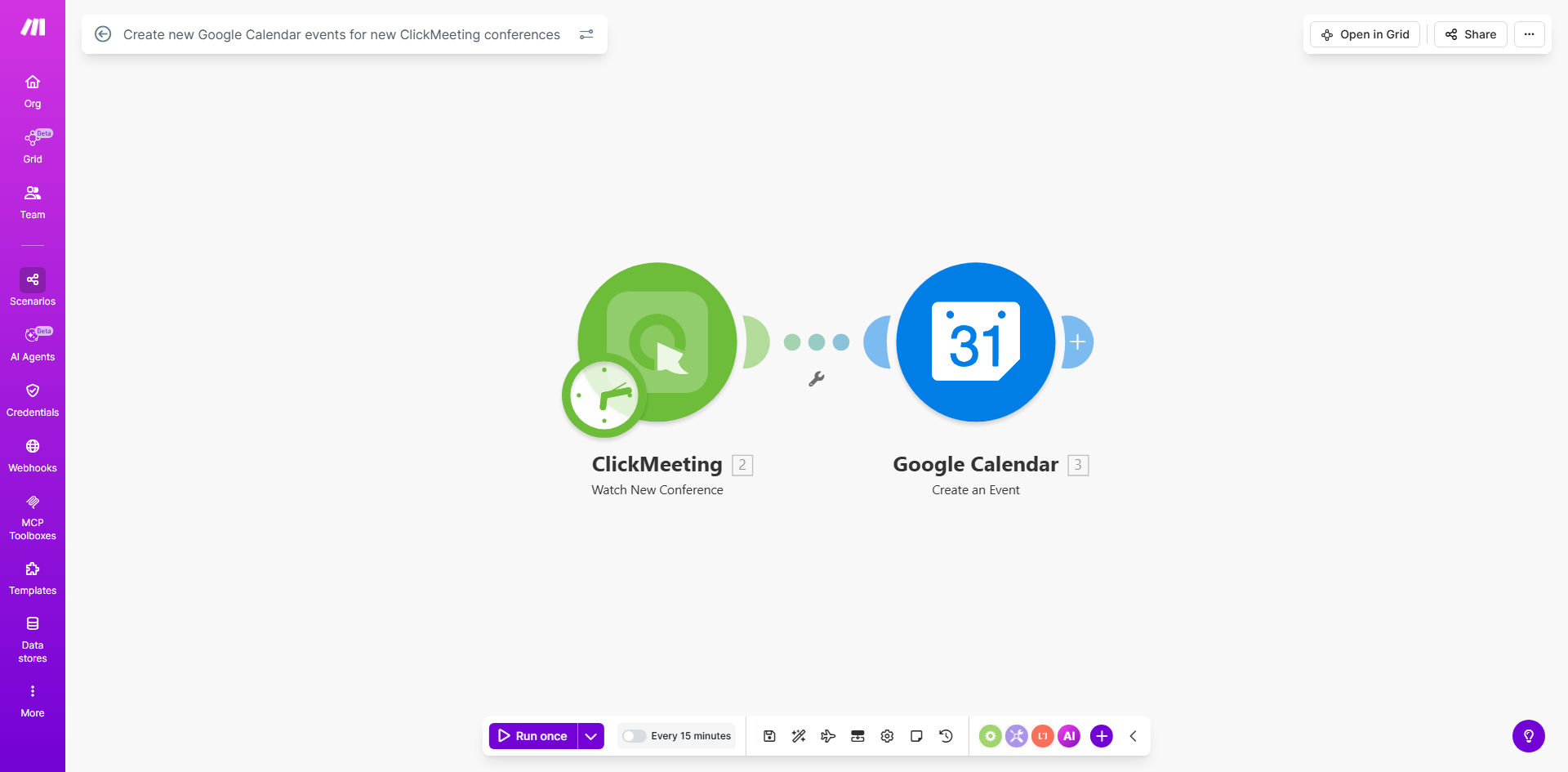
What This Workflow Does
For coaches, consultants, and businesses that run frequent webinars or virtual meetings, managing two separate calendars—one for scheduling (ClickMeeting) and one for your daily agenda (Google Calendar)—creates a major administrative headache. It's frustratingly easy to forget to manually copy a meeting over, leading to missed appointments, double-booked time slots, and a scattered view of your day.
This automation solves that problem completely. It acts as a silent, reliable bridge between ClickMeeting and Google Calendar. Every time you create a new conference, workshop, or client call in ClickMeeting, this workflow instantly captures the details and creates a corresponding event in your designated Google Calendar. The result is a perfectly synchronized schedule where every commitment is visible in one place, eliminating manual work and the risk of human error.
How It Works
The workflow is a straightforward, trigger-based automation built on Make.com. It listens for new events in one platform and intelligently creates them in another.
Step 1: The Trigger – A New ClickMeeting Conference
The automation is activated the moment you (or your system) create a new conference room in ClickMeeting. Make.com watches for this specific event using the ClickMeeting module's "Watch Conferences" trigger.
Step 2: Data Mapping & Formatting
Once triggered, the workflow extracts all relevant data from the new ClickMeeting conference: the event title, start date and time, duration, description, and the unique access link for participants. It then formats this data to match Google Calendar's required structure.
Pro tip: You can customize this step to add your company branding to the calendar event description or include specific instructions for attendees automatically.
Step 3: Creating the Google Calendar Event
The formatted data is then sent to Google Calendar via the "Create an Event" module. The workflow specifies which calendar to use (e.g., your primary calendar or a specific business calendar), sets the correct time zone, and inserts all the meeting details. Within seconds, the event appears in your Google Calendar, complete with the ClickMeeting join link.
Who This Is For
This automation is a game-changer for any professional or team that relies on ClickMeeting for client interactions or audience engagement. It's ideal for:
- Online Coaches & Trainers: Who host regular group coaching sessions or webinars and need their teaching schedule perfectly reflected in their personal calendar.
- Sales Teams: Who use ClickMeeting for product demos and client consultations, ensuring every sales call is automatically blocked on the team's shared calendar.
- Consultants & Freelancers: Who book discovery calls and project meetings through ClickMeeting and want to avoid manual calendar entry to save billable time.
- Marketing Teams: Running a series of promotional webinars, needing each event in the series to be automatically scheduled for the host and key participants.
What You'll Need
- A Make.com account (a free plan is sufficient to run this template).
- A ClickMeeting account with existing conferences or the ability to create new ones.
- A Google account with access to Google Calendar.
- The necessary API connections (Make.com calls them "connections") set up between Make.com and both ClickMeeting and Google Calendar. This is a simple, one-time authentication process.
Quick Setup Guide
You can have this automation running in under 10 minutes.
- Get the Template: Click the "Get This Workflow" button above to copy the template to your Make.com account.
- Authorize Connections: In your new Make scenario, click on the ClickMeeting and Google Calendar modules. Follow the prompts to log in and grant Make.com permission to access your accounts.
- Select Your Calendar: In the Google Calendar module, choose which specific calendar (e.g., "Work," "Primary") you want the new events to be created in.
- Test the Flow: Turn on the scenario and create a test conference in ClickMeeting. Check your Google Calendar within a minute to confirm the event was created successfully.
- Activate & Relax: Once confirmed, the automation is live. Every future ClickMeeting conference will now auto-populate in your calendar.
Key Benefits
Save 2-5 minutes per meeting on manual data entry. For someone hosting 10 meetings a week, that's nearly an hour saved every month—time better spent on high-value work instead of administrative copy-pasting.
Eliminate 100% of scheduling conflicts caused by forgotten calendar entries. The automation guarantees that every scheduled commitment is visible in your main planning tool, protecting your time and professional reputation.
Provide a better client experience with accurate, instantly available calendar invites. When your schedule is always accurate, you can confidently share your calendar or invite attendees, knowing the event details and link are correct.
Create a single source of truth for your daily agenda. End the mental fatigue of checking multiple platforms. Your Google Calendar becomes the complete, reliable view of everything you have scheduled, from internal tasks to client webinars.
Scale your meeting scheduling without adding administrative overhead. As your business grows and you host more meetings, this automation scales effortlessly with you, maintaining perfect organization without any extra effort.