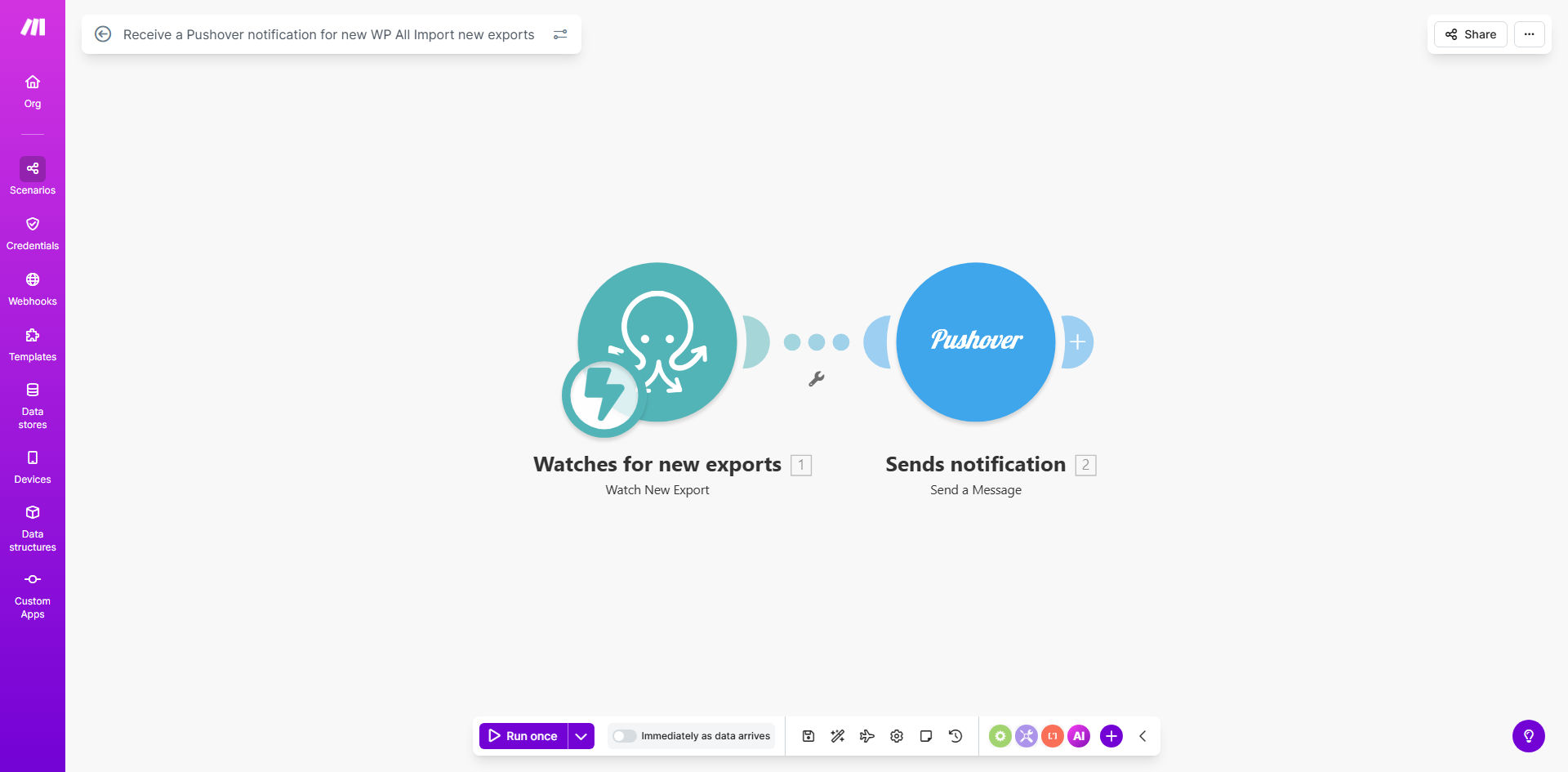
What This Workflow Does
Managing data exports from WordPress plugins like WP All Import is a common yet time-consuming task for website administrators, content managers, and e-commerce operators. Without automation, you must manually log into your WordPress dashboard, check the export logs, and download files—a process that often leads to delays, missed updates, and inefficient use of team time. This workflow solves that problem by creating a seamless bridge between WP All Import and Pushover.
Whenever a new export is generated by WP All Import, this automation instantly triggers a customizable notification sent directly to your Pushover account. You receive the alert on your smartphone, desktop, or any other device configured with Pushover, complete with details about the export. This ensures that fresh data—whether it's product lists, user data, or content batches—is acted upon immediately, without any manual monitoring.
The business value is clear: you save hours each week previously spent on routine checks, reduce the risk of data stagnation, and empower your team to respond to new information in real-time. It transforms a reactive, manual process into a proactive, automated system that keeps your data workflows flowing smoothly.
How It Works
Step 1: Monitoring WP All Import for New Exports
The scenario begins by watching your WP All Import instance for new export events. Using Make.com's monitoring module, it polls or listens for the completion of an export job. This trigger is the starting point—the moment your data is ready and available for download or further processing.
Step 2: Capturing Export Details
Once a new export is detected, the workflow captures key details such as the export filename, timestamp, size, and potentially a summary of the data contained. These details are parsed and structured to be included in the notification, providing context to the recipient about what the export contains and its importance.
Step 3: Formatting and Sending the Pushover Notification
The captured details are then formatted into a clear, actionable message. Make.com connects to your Pushover account via its API and sends the notification. You can customize the message title, content, priority (from low to emergency), and even specify a particular sound on your device, ensuring the alert fits your operational urgency.
Step 4: Delivery and Team Action
The notification arrives on all devices linked to your Pushover application. Your team sees it instantly, understands what new data is available, and can proceed to download, import, or analyze the export without delay. The loop is closed—from export creation to team awareness in seconds.
Pro tip: Use different Pushover priority levels for different export types. A high-priority alert for urgent inventory updates and a normal priority for routine content exports helps your team triage notifications effectively.
Who This Is For
This automation is ideal for any business or individual relying on WP All Import to manage WordPress data. E-commerce store managers can get instant alerts when product inventory or order lists are exported for syncing with external platforms. Content agencies and publishers can notify editors when new article batches are ready for distribution. Marketing teams benefit from immediate pings when lead list or campaign data exports are generated, enabling rapid follow-up.
It's also perfect for solopreneurs and administrators who manage multiple sites and cannot constantly monitor each dashboard. By centralizing alerts on one device, they stay informed across all projects without the cognitive load of manual checking. Teams with remote or distributed members find this invaluable, as it ensures everyone receives the same real-time update, fostering coordinated action.
What You'll Need
- A Make.com account (free tier sufficient for this workflow).
- WP All Import installed and configured on your WordPress site, with exports being generated.
- A Pushover account and the Pushover app installed on your preferred devices (iOS, Android, Desktop).
- Your Pushover User Key and API Token (available in your Pushover dashboard).
- Basic access to your WordPress site to verify export events (for initial testing).
Quick Setup Guide
1. Clone the Template: Use the "Get This Workflow" button above to open the template on Make.com and create a copy in your own account.
2. Connect WP All Import: In the first module, configure the trigger to monitor your WP All Import instance. You may need to set up a webhook or use scheduled checks depending on your export frequency.
3. Configure Pushover: In the notification module, add your Pushover User Key and API Token. Customize the notification message template to include variables like export name and time.
4. Test the Flow: Generate a test export in WP All Import. Verify that the notification appears correctly on your Pushover devices. Adjust message formatting if needed.
5. Activate and Monitor: Turn the scenario on. It will now run automatically, sending alerts for every new export. You can review logs in Make.com to ensure reliability.
Key Benefits
Save 2–5 hours per week on manual export monitoring. No more logging into WordPress to check for new files. The automation does the watching, freeing your team for higher-value tasks like data analysis or strategy.
Reduce data latency from hours to seconds. Fresh exports are acted upon immediately, ensuring your downstream processes (like CRM updates or content publishing) never stall due to outdated information.
Improve team coordination with centralized alerts. Everyone receives the same notification at the same time, eliminating confusion about who saw the export and who should handle it.
Minimize human error in export logging. Automated alerts are consistent and reliable, removing the risk of missed exports or incorrect manual entries in tracking sheets.
Enable proactive data management across devices. Whether you're on your phone, tablet, or computer, you're always informed, allowing you to manage data workflows flexibly from anywhere.