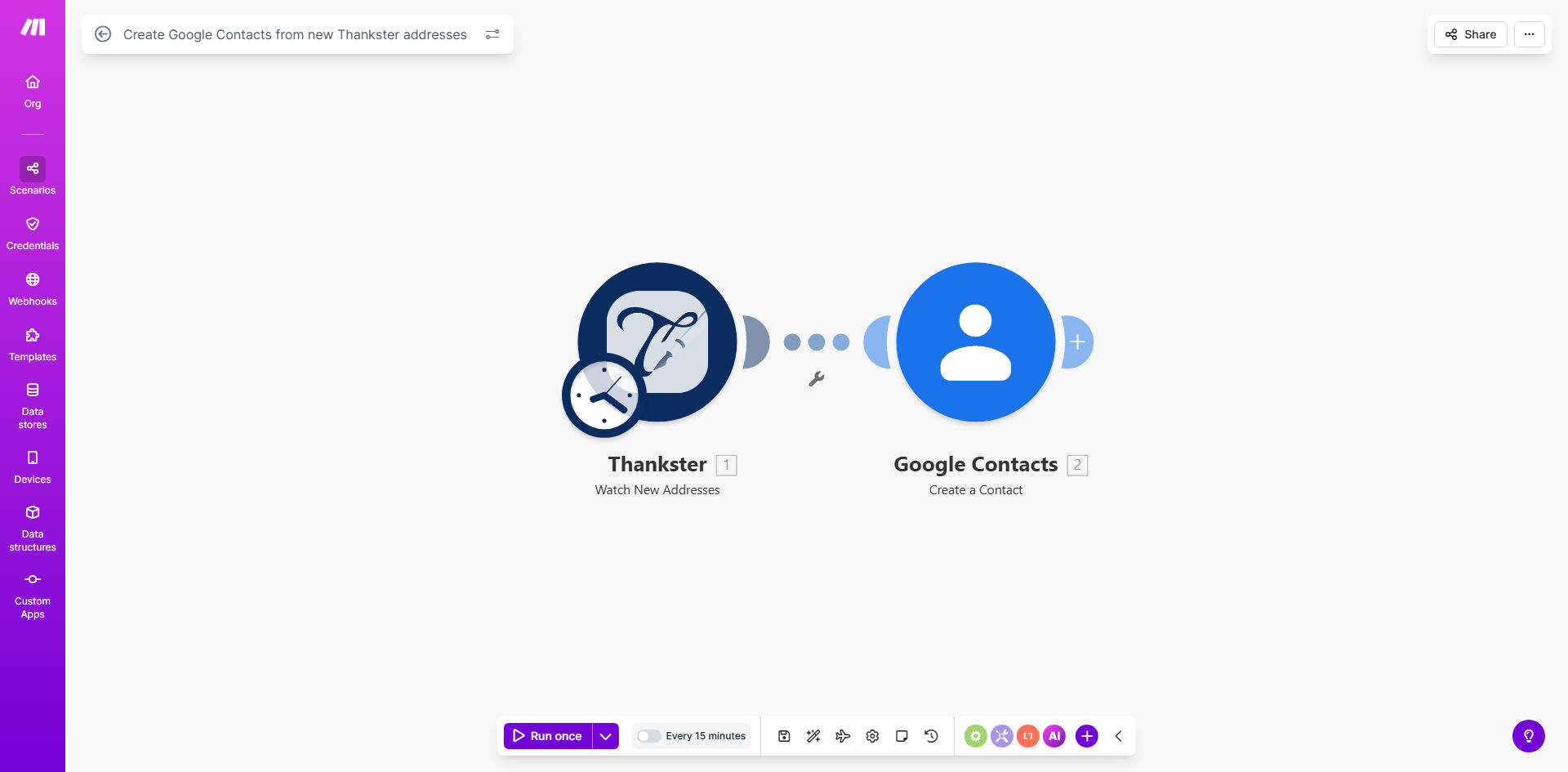
What This Workflow Does
If you use Thankster to send personalized cards or gifts, you know the value of building relationships. But manually copying each recipient's address from Thankster into your Google Contacts is a tedious, error-prone task that steals time from more important work. This disconnect means customer data often sits siloed, missing from your central CRM where it could fuel future marketing campaigns or client follow-ups.
This free Make.com workflow solves that problem permanently. It acts as a digital bridge between Thankster and Google Contacts. Every single time a new address is created in your Thankster account—whether for a holiday card, a thank-you note, or a client gift—the automation instantly captures that data and creates a corresponding, fully-formed contact in your Google Contacts. The process is seamless, accurate, and runs 24/7.
The result is a self-maintaining customer database. Your Google Contacts list grows organically with every relationship-building touchpoint, giving you a unified view of clients, prospects, and partners without any extra effort from you or your team.
How It Works
The automation follows a simple, reliable sequence. Once set up, it operates silently in the background.
Step 1: Trigger on New Thankster Address
The workflow is activated the moment a new address entry is saved in your connected Thankster account. Make.com watches for this event continuously, ensuring no recipient is ever missed.
Step 2: Extract and Format Contact Data
The automation pulls the relevant details from the Thankster address, such as the recipient's full name, street address, city, state, and ZIP code. It intelligently parses and structures this data to match the field requirements of Google Contacts.
Pro tip: You can easily modify the workflow to capture additional data points from Thankster, like phone numbers or custom notes, and map them to corresponding fields in Google Contacts.
Step 3: Create Contact in Google Contacts
Using the formatted data, the workflow instructs Google Contacts via a secure connection to create a new contact. The contact is saved instantly to your designated Google account, complete with all address information.
Step 4: Optional Logging or Notification
For peace of mind, the workflow can be configured to send you a brief notification (e.g., via email or Slack) confirming a new contact was added, or to log the activity in a Google Sheet for audit purposes.
Who This Is For
This automation is a game-changer for any business or professional that uses Thankster for outreach and values organized contact management. It's ideal for small business owners who send thank-you cards to clients, real estate agents nurturing leads and past clients, marketing agencies running direct mail campaigns for clients, and sales professionals building personal connections. If you find yourself repeatedly copying and pasting addresses, this workflow is for you.
What You'll Need
- A Make.com account (free tier available).
- An active Thankster account with addresses you wish to sync.
- A Google account with Google Contacts enabled.
- API connection access (Make.com will guide you through authorizing Thankster and Google Contacts securely).
Quick Setup Guide
You can have this automation running in under 10 minutes.
- Get the Template: Click the "Get This Workflow" button above to clone the template into your Make.com account.
- Authorize Connections: In the Make.com scenario editor, click on the Thankster module and connect your account. Repeat the process for the Google Contacts module, signing into your Google account to grant necessary permissions.
- Test the Flow: Use the "Run once" feature to test the automation with an existing Thankster address. Verify the contact appears correctly in your Google Contacts.
- Activate: Turn on the scheduler (or webhook) to run the scenario automatically. For Thankster, you'll typically set the module to "Watch Addresses" periodically.
- Monitor: The workflow will now run automatically. Check the scenario's history log occasionally to ensure it's processing smoothly.
Key Benefits
Eliminate 100% of manual data entry. This workflow completely removes the need for you or your team to ever manually transfer an address from Thankster again, freeing up valuable time for core business activities.
Ensure 100% data accuracy and consistency. Automated transfers prevent typos, missed fields, and formatting errors that are common with manual entry, guaranteeing your contact information is reliable.
Build a comprehensive CRM effortlessly. Every relationship touchpoint through Thankster automatically enriches your central contact database, providing a fuller picture of your network for future marketing, sales, or service interactions.
Scale your personal outreach without administrative burden. You can send cards to hundreds of contacts without worrying about the backend data management. The automation handles the volume effortlessly.
Improve team efficiency. By automating a routine administrative task, you allow your team to focus on higher-value work, improving overall operational productivity and morale.