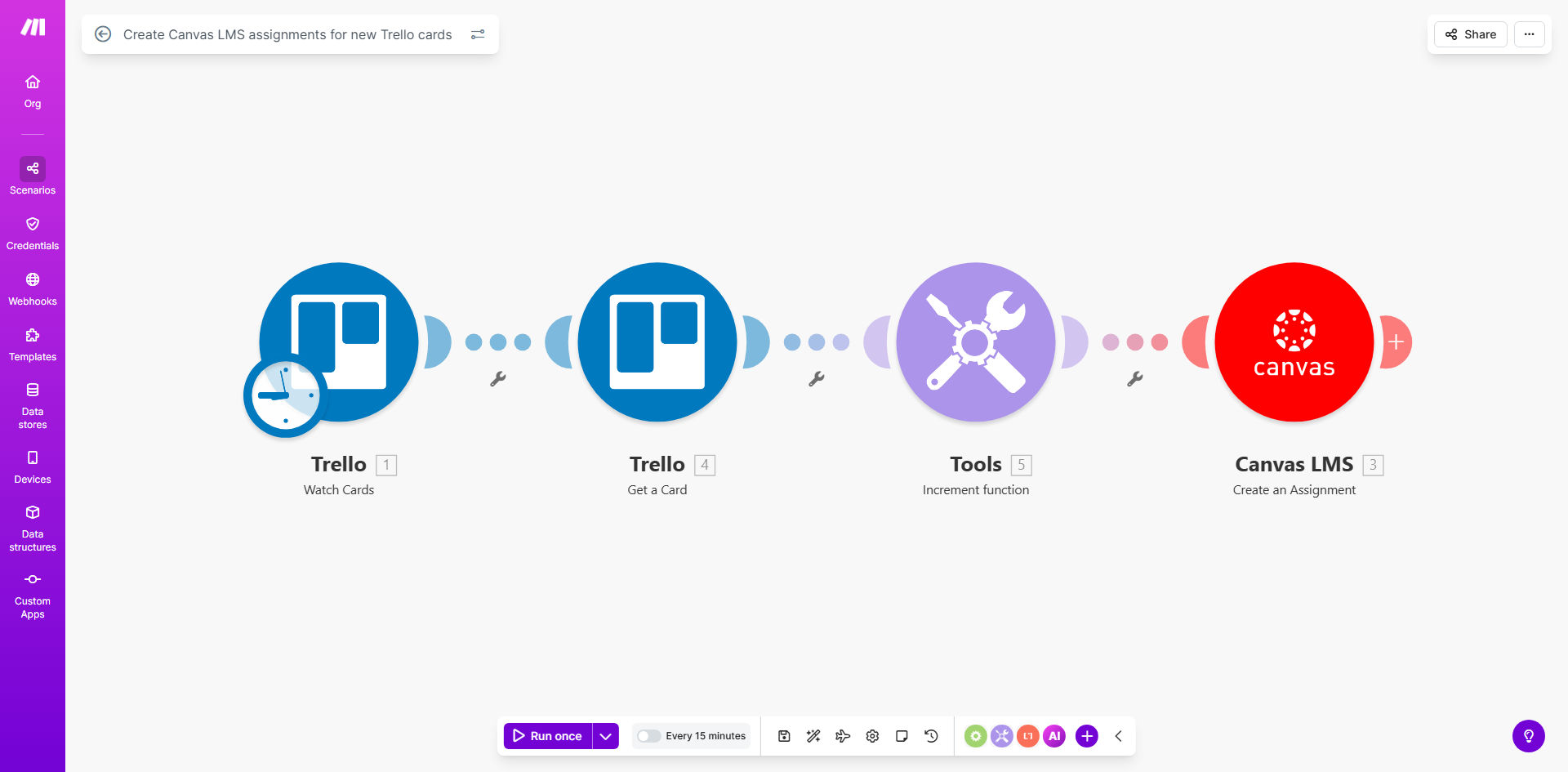
What This Workflow Does
For educators, instructional designers, and training managers, a significant time sink is the manual process of transferring planned tasks and projects into a formal assignment within a Learning Management System (LMS) like Canvas. You might meticulously plan a course module in Trello, with cards for each assignment, due dates, descriptions, and resources. Then comes the repetitive work: logging into Canvas, navigating to the correct course, creating a new assignment, and copying over all the details. This not only consumes precious hours each week but also introduces the risk of human error, where due dates or instructions might not match.
This automation solves that problem by creating a direct, real-time bridge between Trello and Canvas LMS. Whenever a new card is added to a specific Trello board or list (e.g., "Ready for Canvas"), this workflow automatically triggers and creates a corresponding assignment in your designated Canvas course. It maps the Trello card's title, description, due date, and other metadata to the appropriate fields in Canvas, publishing a fully-formed assignment without you lifting a finger. The result is a seamless flow from project planning to student delivery, ensuring consistency and freeing up your time for more impactful work like student engagement and content development.
How It Works
The workflow operates on a simple but powerful trigger-action principle, orchestrated by Make.com. Here is the step-by-step process:
Step 1: Monitoring Trello for New Cards
The scenario starts by watching a specific Trello board. You can configure it to monitor an entire board or a specific list (like "This Week's Assignments"). Using Make.com's Trello module, it checks for new cards at regular intervals you set (e.g., every 15 minutes). When a new card is detected, the workflow captures all its data, including the name, description, due date, member assignments, labels, and any checklists or attachments.
Pro tip: Use Trello labels like "Quiz," "Essay," or "Group Project" to categorize assignments. The automation can later use these labels to set assignment types or point values automatically in Canvas.
Step 2: Structuring the Data for Canvas
Before creating the assignment, the workflow often includes a "Router" or data formatting step. This is where you can add logic. For example, if a card has no due date, the scenario might assign a default date or send a notification. It formats the description from Trello's markdown into HTML if needed for Canvas and extracts key details to map to Canvas's API fields.
Step 3: Creating the Assignment in Canvas LMS
This is the core action. The workflow uses the Canvas LMS module in Make.com to authenticate with your Canvas instance and make an API call to create an assignment within a specified course. It passes the formatted data: the card title becomes the assignment name, the description becomes the instructions, the due date is set, and point values can be derived from labels or a custom field. The assignment is created and can be immediately published or saved as a draft based on your preference.
Step 4: Confirmation and Error Handling
A robust automation includes confirmation. The workflow can update the original Trello card with a comment like "Assignment created in Canvas: [Link]" providing a direct reference. It can also send a notification to a Slack channel or your email for peace of mind. If an error occurs (e.g., Canvas is down, or a required field is missing), the scenario can be set to retry or send an alert, ensuring no task falls through the cracks.
Who This Is For
This automation is a game-changer for anyone managing the intersection of project planning and course delivery:
- University Instructors & Professors: Who plan their semester in Trello and want to automatically populate their Canvas course shell with weekly readings, discussions, and submissions.
- Corporate Training Managers: Who develop training programs in Trello sprints and need to deploy modules and tasks to employee learning paths in Canvas for Business.
- Online Course Creators & Instructional Designers: Who use Trello for content development workflows and want to instantly create placeholder or final assignments in their course platform as each piece is completed.
- Teaching Assistants & Course Coordinators: Who are responsible for the administrative setup of multiple courses and need to ensure consistency and save time on repetitive data entry.
What You'll Need
To implement this template successfully, you will need the following accounts and information ready:
- A Make.com account (free tier available) to host and run the automation scenario.
- Administrator or instructor access to a Canvas LMS instance, along with a generated API token from your Canvas account settings.
- A Trello account with a board where you plan your assignments or course tasks.
- The Course ID from your Canvas course where assignments should be created. This can be found in the course URL.
- Basic understanding of which Trello list or board should trigger the assignment creation.
Quick Setup Guide
Follow these steps to configure your free template and get it running in under 20 minutes:
- Clone the Template: Click "Get This Workflow" to open the template in your Make.com account and create a copy.
- Connect Trello: In the first module, authorize Make.com to access your Trello account and select the specific board and list you want to monitor.
- Connect Canvas LMS: In the Canvas module, add your Canvas instance URL and paste the API token you generated. Then, enter the Course ID where assignments will live.
- Map the Data: Review the data mapping between Trello fields and Canvas fields. Ensure the assignment title, description, due date, and points are pulling from the correct Trello data points.
- Test Run: Turn the scenario on and create a test card in your chosen Trello list. Watch as Make.com processes it and creates a corresponding assignment in your Canvas course. Verify all details are correct.
- Activate & Monitor: Once testing is successful, let the scenario run continuously. You can set the schedule to check Trello as frequently as every 5 minutes for real-time updates.
Key Benefits
Save 5-10 hours per course each semester by eliminating the manual copy-pasting of assignment details from your planning tool into your LMS. This time can be redirected to student support and curriculum innovation.
Ensure 100% consistency between your project plan and published coursework, removing the risk of typos, incorrect due dates, or missing instructions that can confuse students and undermine your professionalism.
Accelerate course updates and agile teaching methods by allowing you to adjust your Trello plan and have those changes reflected automatically in Canvas, making your teaching more responsive and dynamic.
Reduce administrative overhead for teaching teams by creating a single source of truth in Trello that automatically propagates tasks to Canvas, simplifying coordination among instructors and TAs.
Improve the student experience with faster assignment publication and reliable, consistent information, allowing them to plan their workload more effectively from day one.