Make.com ClickUp Email Automation Project Management Notifications

Send an email when a ClickUp task's status is changed

Automate project updates. Get instant email alerts for task completions, reviews, or any status change in ClickUp—no manual checking required.

Get This Workflow Make.com · ClickUp · Free Template
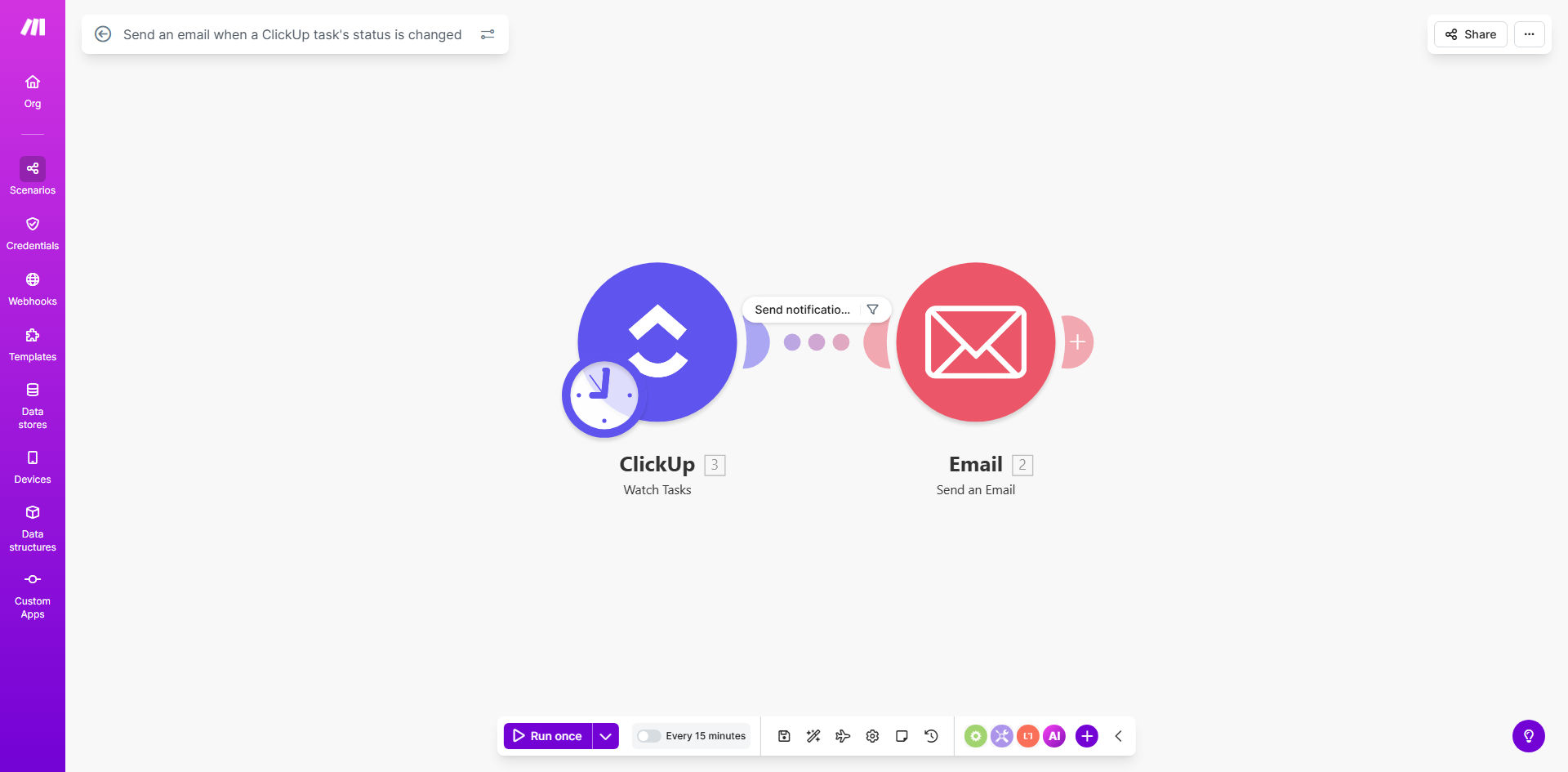
Make.com automation scenario diagram for ClickUp task status email alerts

What This Workflow Does

In today's fast-paced work environment, manually tracking task progress and notifying team members or clients creates bottlenecks and leads to communication gaps. This automation solves that by creating a direct, real-time link between your ClickUp project board and your email inbox.

Whenever a task's status changes—whether it's marked complete, moved to review, or hits a blocker—this workflow automatically triggers a personalized email notification. It pulls key task details like the task name, assignee, due date, and a direct link, then sends it to predefined recipients. This means project managers get instant updates, clients stay informed without login hassles, and teams can focus on execution instead of status reporting.

The business value is clear: it turns your project management tool into a proactive communication hub. You eliminate the need for daily stand-ups just for status updates, reduce the risk of missed handoffs, and provide a transparent audit trail of project milestones for stakeholders.

How It Works

This automated workflow acts as a bridge between ClickUp and your email service, orchestrating communication without any manual intervention.

Step 1: Monitor ClickUp for Changes

The scenario starts by watching a specific ClickUp list, folder, or space for any changes to task statuses. You can set filters to only trigger on certain statuses (like "Done" or "In Review") to avoid notification overload.

Step 2: Gather Task Details

Once a change is detected, the workflow fetches all relevant information about the task: its name, description, assignee, priority, due date, and the new status. It also captures the task URL for one-click access.

Step 3: Format & Send the Email

Using an email module (like Gmail, Outlook, or SMTP), the scenario composes a professional email. It inserts the dynamic task data into a pre-designed template, addressing the recipient personally and clearly stating the update. The email is then sent instantly to your chosen recipients.

Who This Is For

This automation is invaluable for any business or team using ClickUp to manage work. Project Managers and Agency Owners can use it to automatically notify clients when their deliverables hit key milestones. Internal Operations Teams can alert managers when approval tasks are ready or when critical items are completed.

Freelancers and Consultants can keep their clients updated without sending manual "just finished" messages. Software Development Teams can notify product managers when a bug fix is deployed or a feature is ready for QA. Essentially, anyone who needs to communicate task progress outside of the immediate ClickUp workspace will benefit from this seamless integration.

What You'll Need

  1. A Make.com account (free tier available).
  2. A ClickUp account with tasks you want to monitor.
  3. Access to an email sending service (e.g., Gmail, Outlook, Office 365, or an SMTP server).
  4. A list of recipient email addresses (team members, clients, stakeholders).
  5. Basic knowledge of your ClickUp workspace structure (Spaces, Folders, Lists) to set the watch trigger.

Pro tip: Start by automating notifications for just one critical status, like "Completed" or "Client Review." This lets you test the system and demonstrate value before expanding it to other statuses.

Quick Setup Guide

  1. Clone the Template: Click "Get This Workflow" to copy the scenario into your Make.com account.
  2. Connect ClickUp: In the first module, authorize Make.com to access your ClickUp account and select the specific List or Space you want to monitor.
  3. Set Your Filter: Configure the watch module to only trigger for the specific task status changes you care about (e.g., when status becomes "Done").
  4. Connect Your Email: In the email module, connect your Gmail, Outlook, or SMTP service and specify the "To," "Subject," and "Body" fields.
  5. Map the Data: Use the dynamic data from the ClickUp module (task name, assignee, URL) to populate your email template. Personalize the message.
  6. Test & Activate: Turn on the scenario and change a task's status in ClickUp. Check your inbox to confirm the email arrives correctly.

Key Benefits

Eliminate Manual Status Reporting: Save 5–10 hours per month per project manager by automating client and stakeholder updates. This time can be redirected to higher-value strategic work.

Improve Client Satisfaction & Transparency: Clients receive instant, professional notifications when their work progresses, building trust and reducing "where are we?" emails by up to 80%.

Accelerate Project Handoffs: When a task moves to "Ready for Next Phase," the next person in the workflow is notified immediately, reducing idle time between stages and speeding up project delivery.

Reduce Human Error: Automated emails are sent every single time, without fail. You never forget to notify someone about a critical status change, preventing costly miscommunications.

Create a Searchable Audit Trail: Every status change generates a timestamped email, creating an external record of project progress that's easy to search and reference during reviews or retrospectives.

Frequently Asked Questions

Common questions about ClickUp and email automation and integration

Automating ClickUp task status notifications saves time, reduces human error, and ensures stakeholders are instantly informed of critical project changes. Instead of manually checking dashboards or sending update emails, this automation pushes real-time alerts directly to inboxes, keeping clients, managers, and team members aligned without any manual effort.

For example, a marketing agency can automatically notify a client the moment their campaign assets are approved, eliminating a back-and-forth email chain and providing a superior client experience.

  • Saves hours on manual status reporting each week.
  • Ensures no critical update is ever missed.
  • Improves stakeholder trust with instant transparency.

You can send a wide variety of emails, including notifications for task completion, status changes to 'In Review' or 'Approved', deadline alerts, and assignment updates. The email content can be customized to include task details like name, assignee, due date, priority, and a direct link back to the task in ClickUp for quick action.

The flexibility allows for different templates for different audiences. A technical update for a developer might include Git commit links, while a client update focuses on deliverables and next steps.

  • Completion alerts with summary of work done.
  • Review requests with clear action items.
  • Urgent alerts for blocked or overdue tasks.

Yes, absolutely. This automation is perfect for keeping external stakeholders like clients, freelancers, or partners in the loop. You can configure the workflow to send professional, branded emails to any email address, providing them with real-time project updates without granting them direct access to your ClickUp workspace.

This external communication builds professionalism and trust. Clients appreciate the proactive updates, and freelancers know exactly when their input is required, streamlining collaboration.

  • Maintains data security by not sharing login credentials.
  • Provides a polished, branded communication channel.
  • Reduces client anxiety with consistent, timely updates.

Automating task updates creates a self-reporting project system. It eliminates status meeting overhead, reduces follow-up messages, and ensures accountability. Team members know their status changes are communicated instantly, managers get a clear audit trail of progress, and projects move faster because everyone has the information they need without asking.

This transforms project management from a reactive, chasing-people activity into a proactive, information-flow system. It allows managers to focus on removing blockers and strategic planning instead of gathering status reports.

  • Cuts down daily stand-up time by focusing on exceptions.
  • Creates automatic accountability for task completion.
  • Provides data for analyzing team velocity and bottlenecks.

Common use cases include notifying a client when their project milestone is marked complete, alerting a manager when a task is ready for review, informing a finance team when an invoice request task is finalized, updating a sales team when a lead follow-up task is done, and reminding an assignee when a high-priority task's status changes.

Beyond these, creative teams use it to notify designers when copy is ready, support teams to alert engineers of a critical bug, and operations to inform procurement when an order is placed. The pattern works for any handoff between people or departments.

  • Client deliverable completion notifications.
  • Internal approval and review workflows.
  • Cross-departmental task handoff alerts.

Yes, you can set up filters within the Make.com scenario to only send emails for specific status changes. For example, you might only want emails when a task moves to 'Done' or 'Blocked', but not for every minor update. This prevents email overload and ensures only the most important updates generate notifications.

This granular control is crucial for adoption. Teams can start with broad notifications and then refine them to match their communication culture, ensuring the automation adds value without becoming noise.

  • Focus notifications on business-critical statuses only.
  • Prevent inbox fatigue for recipients.
  • Tailor the system to match your team's workflow stages.

No, using a pre-built template like this makes setup straightforward. You primarily need to connect your ClickUp account and your email sending service (like Gmail, Outlook, or SMTP) in Make.com, then map the task data to your email template. The visual interface guides you through the process without requiring any coding skills.

Most users can have a basic version running in under 30 minutes. The template handles the logic, so you just need to provide your account credentials and customize the message. You can then test it immediately with a single task status change.

  • No-code, visual builder makes it accessible.
  • Step-by-step instructions are built into the platform.
  • You can start simple and add complexity later.

Yes, GrowwStacks specializes in building custom ClickUp automations tailored to your unique business processes. Our team can design workflows that connect ClickUp with your CRM, accounting software, communication tools, and more, creating a fully integrated system that saves you hours each week and eliminates manual data entry.

We start by understanding your specific workflows and pain points. For instance, we can build a system where a "Contract Signed" status in ClickUp automatically generates a project in your PSA tool, sends a welcome email to the client, and creates invoice schedules in your accounting software.

  • End-to-end process automation beyond simple notifications.
  • Integration with the other tools in your tech stack.
  • Ongoing support and optimization as your needs evolve.

Need a Custom ClickUp Automation?

This free template is a starting point. Our team builds fully tailored automation systems for your specific business needs.