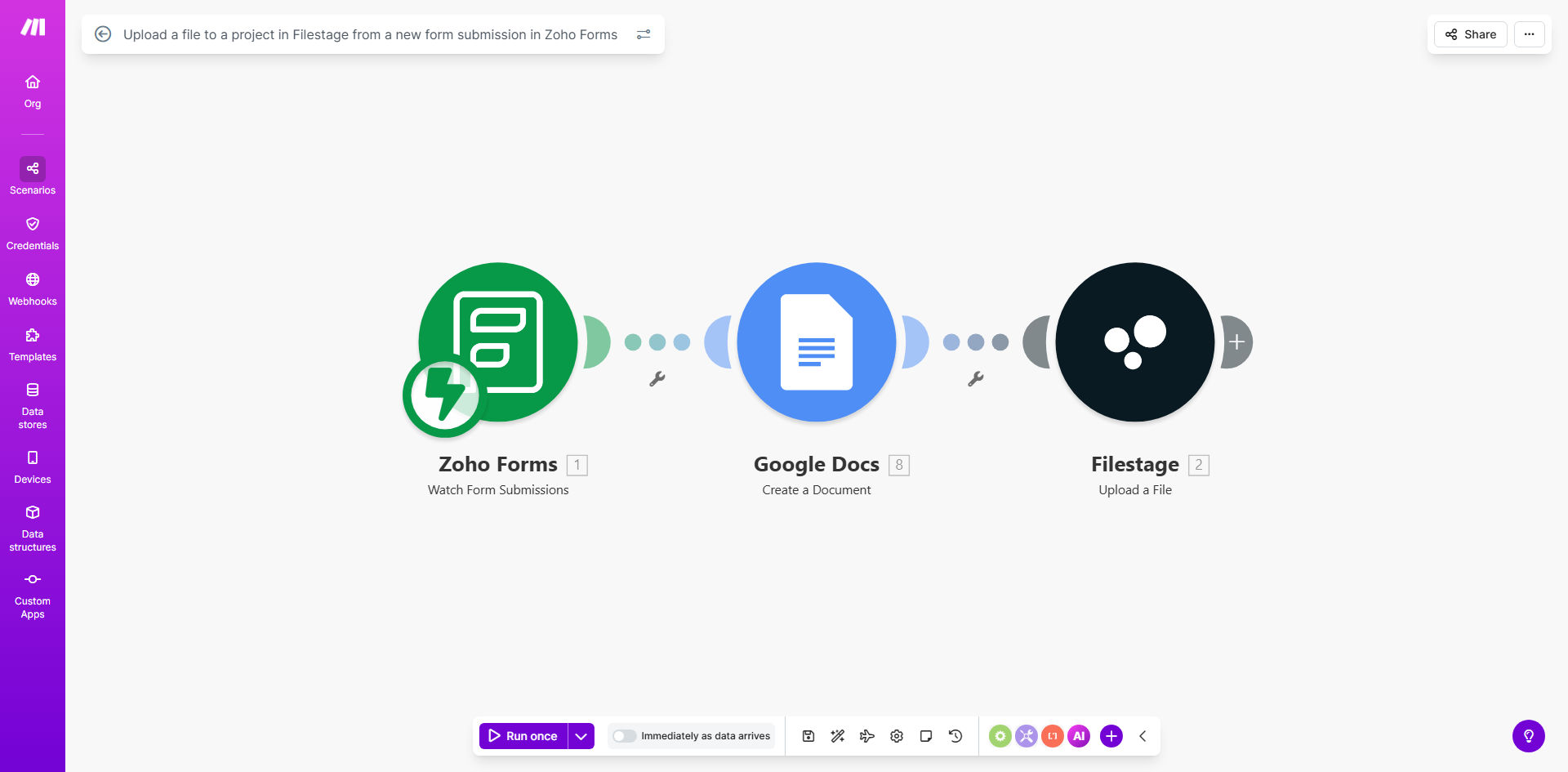
What This Workflow Does
For agencies, consultants, and service-based businesses, collecting client information is just the first step. The real bottleneck begins when that information needs to be turned into a document (like a proposal, creative brief, or project plan) and then sent out for review and approval. Manually copying data from a form, pasting it into a template, saving the file, and uploading it to a review platform like Filestage is tedious, error-prone, and slows down project momentum.
This automated workflow solves that by creating a seamless bridge between your intake form (Zoho Forms), your document creation tool (Google Docs), and your review platform (Filestage). Every time a client submits a form, the workflow is triggered. It takes the submitted data, populates a pre-designed Google Doc template, and then automatically uploads that new document to a specified project in Filestage. This means the review process can begin within minutes of form submission, with zero manual intervention from your team.
How It Works
The automation follows a clear, three-step process that mirrors a manual workflow but executes it instantly.
Step 1: Capture the Submission
The workflow is triggered the moment a new submission arrives in your Zoho Forms account. Make.com instantly receives all the form data—client name, project details, requirements, uploaded files—making it available for the next steps.
Step 2: Generate the Document
Using the data from Zoho Forms, the automation creates a new Google Doc. It can use a pre-existing template, ensuring consistent branding and structure for every client document. The workflow intelligently maps form fields to placeholders in the template, creating a professional, customized document in seconds.
Pro tip: Structure your Zoho Form fields to match the sections in your Google Doc template. For example, have separate fields for "Project Overview," "Target Audience," and "Key Messages" to auto-populate corresponding document sections cleanly.
Step 3: Upload for Review
Once the Google Doc is created, the workflow retrieves it and uploads it directly to a designated project within your Filestage account. You can configure the workflow to name the file intelligently (e.g., "ProjectBrief_[ClientName]_[Date]") and even add relevant reviewers from your team or the client automatically, kicking off the feedback cycle immediately.
Who This Is For
This automation is a game-changer for any business that relies on structured client intake and collaborative review processes. It's perfect for marketing and advertising agencies turning client briefs into creative proposals, design studios onboarding new clients for website projects, consultants creating scopes of work and statements of work, and legal or financial firms that need to generate and review standardized engagement letters or compliance documents from client questionnaires.
What You'll Need
- A Make.com account (free or paid plan) to host and run the automation.
- A Zoho Forms account with an active form collecting the necessary client data.
- A Google Workspace account with Google Docs, and a document template ready to use.
- A Filestage account with at least one project set up to receive the uploaded files.
- API connections between Make.com and each of the three services (Zoho Forms, Google Docs, Filestage), which involves simple OAuth authentication.
Quick Setup Guide
Getting this workflow live in your business takes less than 30 minutes if you have your accounts ready.
- Clone the Template: Click "Get This Workflow" to open the template on Make.com and create a copy in your own account.
- Connect Your Apps: In the Make.com scenario editor, authenticate your Zoho Forms, Google Docs, and Filestage accounts by following the OAuth prompts.
- Configure the Trigger: Select the specific Zoho Form that will start the automation.
- Map Your Google Doc Template: Point the "Create a Document" module to your Google Doc template file ID and map the Zoho Form fields to the correct placeholders in the doc.
- Set the Filestage Destination: Choose the target Filestage project and configure the file naming convention. You can also set default reviewers here.
- Test and Activate: Run a test by submitting your Zoho Form. Check that a doc is created and appears in the correct Filestage project. Once confirmed, activate the scenario.
Key Benefits
Save 2–5 hours per week on administrative tasks. Eliminate the manual copy-pasting, file management, and uploads that eat into your team's productive time.
Reduce human error to zero. Automated data transfer from form to document ensures information is captured accurately, with no typos or missed fields from manual entry.
Accelerate project kickoff and feedback loops by 80%. Documents move into the review stage within minutes instead of hours or days, keeping clients engaged and projects on a fast track.
Ensure brand and process consistency. Every document is generated from the same approved template, maintaining professional standards and a uniform client experience.
Gain full visibility and audit trails. All documents originate from a form submission and live in Filestage, creating a clear, searchable record of all client interactions and approvals.