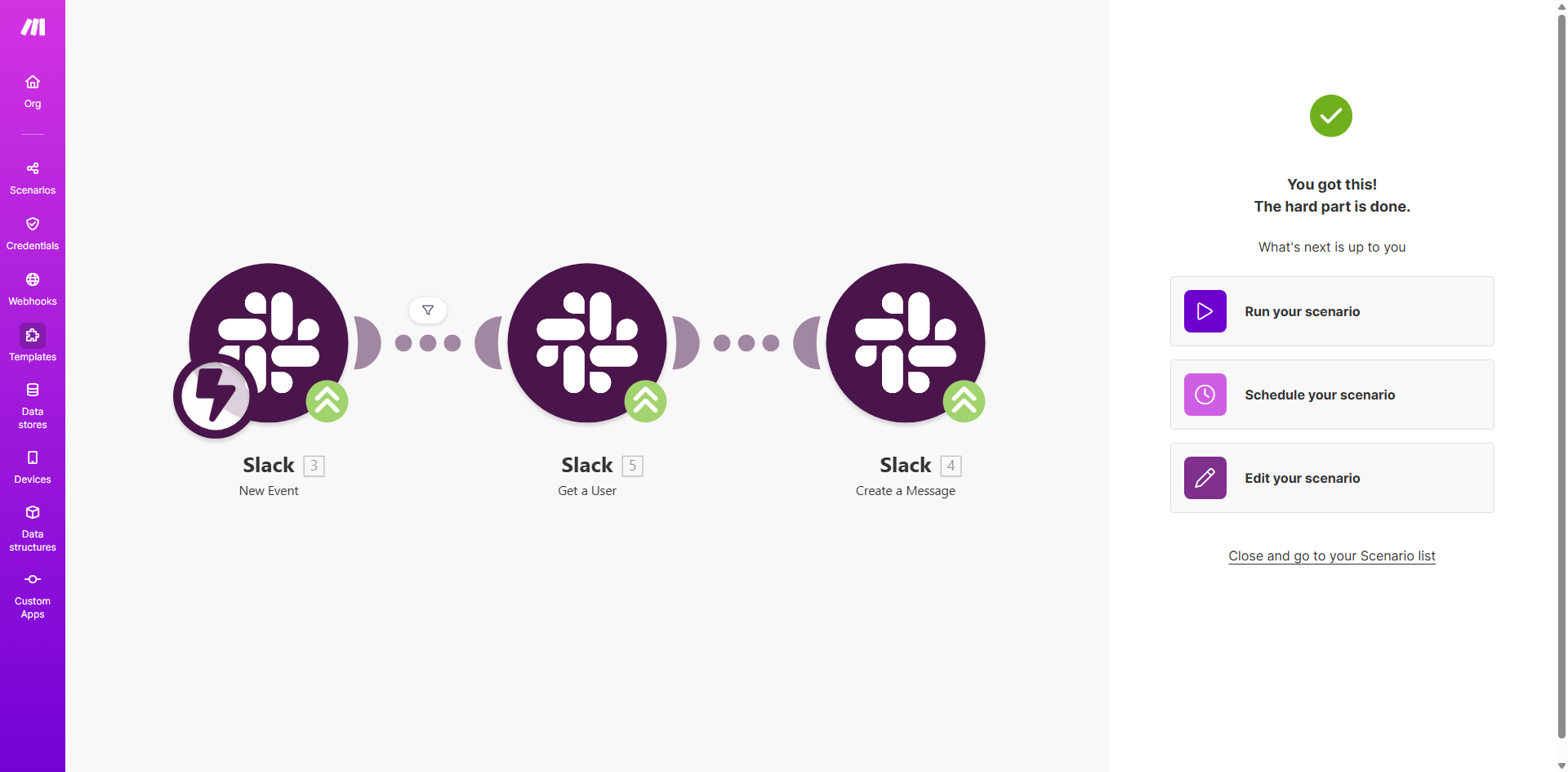
What This Workflow Does
In today's fast-paced work environment, critical information often gets trapped in specific Slack channels. Team members in other departments or projects miss important announcements, policy updates, or milestone celebrations because they aren't members of every single channel. Manually copying and pasting messages is a tedious, error-prone solution that wastes valuable time.
This automated workflow solves that problem. It acts as a silent bridge between your Slack channels. Every time a new message is posted in a designated source channel, Make.com detects it and instantly posts a copy to one or more destination channels. This ensures consistent information flow, keeps distributed teams on the same page, and eliminates the need for anyone to play "message relay."
The business value is clear: reduced communication overhead, guaranteed delivery of key information, and a more aligned organizational culture. Leaders can broadcast updates from a leadership channel to relevant team channels automatically, support can share resolved issues with engineering, and sales can celebrate wins with the entire company—all without lifting a finger after setup.
How It Works
The automation follows a simple but powerful sequence, triggered the moment a new message appears.
Step 1: Trigger on New Slack Message
The workflow is initiated by the "Watch Public Channel" or "Watch Instant Message" module in Make.com. It monitors your specified source Slack channel in real-time. As soon as a user posts a message, the trigger activates and captures the message's content, sender, timestamp, and channel details.
Pro tip: You can filter this trigger to only activate for messages from specific users, containing certain keywords, or posted in threads. This prevents spam and ensures only relevant messages are copied.
Step 2: Process the Message Data
Make.com takes the captured data and prepares it for forwarding. This step can involve simple data routing or more complex operations like reformatting the message, adding a prefix (e.g., "[FYI from Leadership]"), or extracting specific pieces of information if the message is structured.
Step 3: Post to Destination Channel
The final action uses Slack's "Create a Message" module. Make.com authenticates with your Slack workspace and posts the processed message into the target channel(s) you've configured. The message appears as coming from the Make.com app you connected, often with the original sender's name referenced in the text for context.
Who This Is For
This automation is a game-changer for any organization that relies on Slack for internal communication and struggles with information silos.
Company Leadership & HR: Automatically broadcast company-wide announcements from a dedicated #leadership or #announcements channel to all departmental channels (#engineering, #marketing, #sales), ensuring no one misses important news.
Project & Operations Managers: Keep stakeholders updated by mirroring key updates from a project's main channel into a #client-updates or #executive-summary channel. This is perfect for agencies and consultancies.
Support & Success Teams: Share resolved technical issues or valuable customer feedback from #support to the #product-feedback channel, helping product teams stay informed without monitoring support channels constantly.
Marketing & Sales Teams: Automatically copy new lead notifications or closed-won celebrations from a CRM-integrated channel into a general #sales-wins channel to boost morale and transparency.
What You'll Need
- A Make.com account (free tier available).
- Admin or appropriate permissions in your Slack workspace to install apps and create webhooks.
- Access to both the source channel (where messages originate) and the destination channel(s) (where they will be copied to).
- The Slack app for Make.com connected to your workspace with the necessary scopes (channels:read, groups:read, chat:write).
Quick Setup Guide
You can have this automation running in under 10 minutes.
- Clone the Template: Click the "Get This Workflow" button above to open the template on Make.com and create a copy in your own account.
- Connect Your Slack: In the first module, click to add a connection. Authorize Make.com to access your Slack workspace. Repeat this for the "Create a Message" module if prompted.
- Configure the Trigger: Select the specific Slack channel you want to monitor from the dropdown menu in the "Watch Public Channel" module.
- Set the Destination: In the "Create a Message" module, choose the channel where messages should be copied. You can hardcode a channel name (e.g., #general) or use a variable.
- Test and Activate: Turn on the scenario (workflow). Post a test message in your source Slack channel. Within seconds, you should see it appear in the destination channel. Once confirmed, your automation is live.
Key Benefits
Save 2–5 hours per week per team by eliminating the manual task of reading and forwarding important messages across channels. This time can be reinvested in core job functions.
Ensure 100% consistency in communication by automatically distributing identical messages to multiple teams, removing the risk of human error or omission during manual copying.
Improve cross-departmental alignment instantly by breaking down information silos. Teams stay informed about relevant updates from other parts of the business without being added to dozens of channels.
Scale your internal communications effortlessly as your company grows. The same automation works for 10 people or 10,000, ensuring important messages never get lost as your channel list expands.
Create a reliable audit trail of key announcements by ensuring they are duplicated in dedicated archive or record-keeping channels automatically.