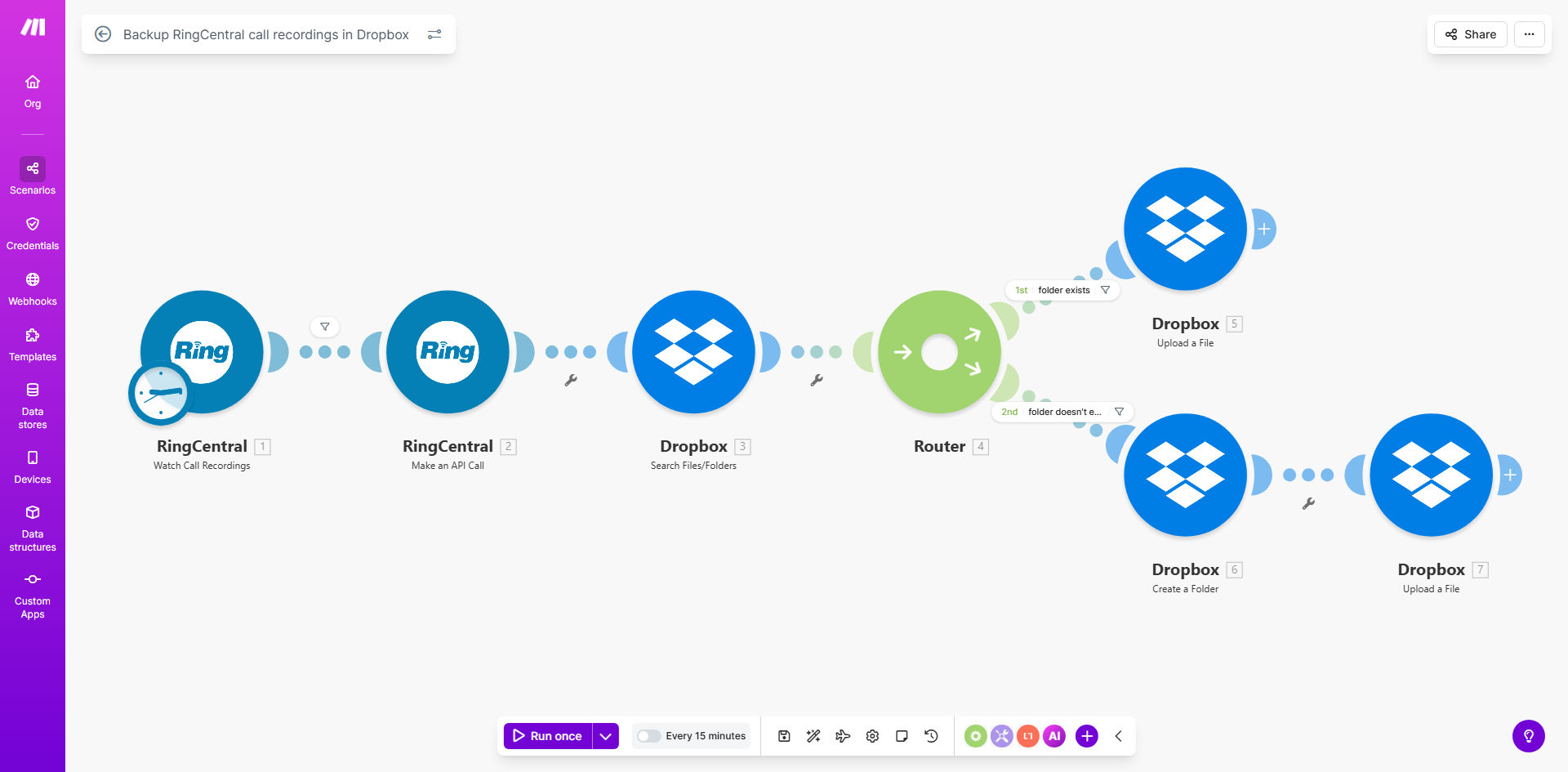
What This Workflow Does
Every customer call holds valuable data—insights, agreements, and service history. Relying solely on RingCentral's cloud storage for these recordings is a business risk. This automation solves that by creating a secure, organized, and automatic backup of every call recording directly into your Dropbox account.
The workflow doesn't just dump files into a folder. It intelligently organizes them. It creates a main folder for your call archive, then subfolders for each customer or phone number. Recordings are filed using the customer's name and number, turning a chaotic pile of audio files into a structured, searchable database of client interactions. This eliminates hours of manual downloading, renaming, and sorting, while providing a compliant, off-platform archive for legal protection and quality assurance.
How It Works
The automation acts as a silent, reliable bridge between RingCentral and Dropbox, triggered by every new recording.
Step 1: Trigger on New Recording
The workflow is activated the moment a call recording is completed and available in your RingCentral account. The automation platform (Make.com) watches for this event in real-time or on a scheduled basis, capturing the recording's metadata like call time, duration, and participant details.
Step 2: Fetch & Prepare the File
The system retrieves the actual recording file from RingCentral's servers. It processes the associated data—such as the caller's phone number and name—to determine the correct destination folder. This logic ensures files are categorized correctly from the start.
Step 3: Create Customer Folder & Upload
The workflow checks your designated Dropbox folder. If a subfolder for that specific customer or phone number doesn't exist, it creates one. Then, it uploads the recording file into that folder, often using a consistent naming convention like "Date_Time_CustomerName.mp3". The file is now securely stored in your controlled cloud storage.
Pro tip: Enhance this workflow by adding a step to send a confirmation Slack message or log the backup to a Google Sheet for a full audit trail.
Who This Is For
This automation delivers immediate value to any business that relies on RingCentral for customer communications and needs to retain those records.
- Customer Support Teams: To archive support calls for quality review, training, and dispute resolution.
- Sales Organizations: To keep a record of sales pitches, client agreements, and follow-up conversations for coaching and deal tracking.
- Legal & Financial Services Firms: To maintain a compliant, tamper-evident archive of client communications for regulatory requirements.
- Healthcare Providers (with proper compliance): To securely store patient consultation calls, following data governance protocols.
- Any Business Concerned with Data Sovereignty: To keep a secondary copy of critical communication data in a storage location they directly control.
What You'll Need
To implement this template, you will need the following accounts and permissions set up:
- A RingCentral account with admin or API access to retrieve call recordings and metadata.
- A Dropbox Business or personal account, with sufficient storage space for your recordings.
- A Make.com account (free tier may suffice for moderate call volume).
- Basic understanding of how to connect APIs in Make.com (the template provides the blueprint).
- A designated main folder in Dropbox where you want the archived recordings to reside.
Quick Setup Guide
You can have this automation running in under 30 minutes.
- Clone the Template: Use the "Get This Workflow" button to copy the template into your Make.com account.
- Connect RingCentral: In the first module, authenticate your RingCentral account by following Make.com's OAuth steps.
- Connect Dropbox: Similarly, authenticate your Dropbox account in the relevant module.
- Configure the Path: Set your desired main Dropbox folder path (e.g., "/Business/Call Recordings/"). The template will handle subfolder creation.
- Test the Flow: Manually trigger the scenario or place a test call to generate a recording. Verify that the file appears correctly in your Dropbox, organized in a customer-named subfolder.
- Activate & Schedule: Turn on the scenario and set a schedule (e.g., every hour) to check for new recordings, or use the instant webhook trigger if supported.
Key Benefits
Eliminate Manual Data Entry: Save 5-15 hours per month per employee previously spent manually downloading, naming, and filing call recordings. This time is reinvested into core business activities.
Enhanced Data Security & Compliance: Maintain a redundant copy of sensitive communications outside your primary VoIP platform. This meets data retention policies and provides a secure archive for legal holds or audits.
Superior Customer Intelligence: Build a searchable library of all customer interactions. New team members can listen to past calls to get up to speed, and managers can easily pull recordings for performance reviews or to resolve disputes.
Scalable & Reliable: The automation handles 10 calls or 10,000 calls with the same reliability. It works 24/7 without supervision, ensuring no recording is missed due to human oversight or vacation.
Foundation for Advanced Analytics: A structured archive of call recordings is the first step toward more advanced analysis, such as sentiment tracking, keyword spotting, or integrating with transcription services.