What This Workflow Does
For product and support teams, the gap between collecting user feedback and acting on it is where customer frustration grows. Users post suggestions, bug reports, and questions on your Canny boards, but without a direct link to your support system, these valuable insights can get lost, forgotten, or manually triaged too slowly. This disconnect leads to delayed responses, missed critical issues, and a feeling among your users that their feedback goes into a black hole.
This automated workflow bridges that gap seamlessly. It acts as a real-time connector between Canny and Help Scout. Whenever a user creates a new post on a designated Canny board, this automation instantly creates a corresponding conversation in your Help Scout mailbox. The post's title, description, author details, and other metadata are automatically mapped into a new ticket, providing your support agents with full context the moment feedback is submitted. This turns passive feedback collection into an active, managed support process.
The business value is profound: you reduce manual data entry to zero, cut down initial response time from hours to minutes, and ensure every single piece of user feedback is logged, tracked, and actionable. It transforms your Canny board from a suggestion box into a direct pipeline for customer success and product improvement.
How It Works
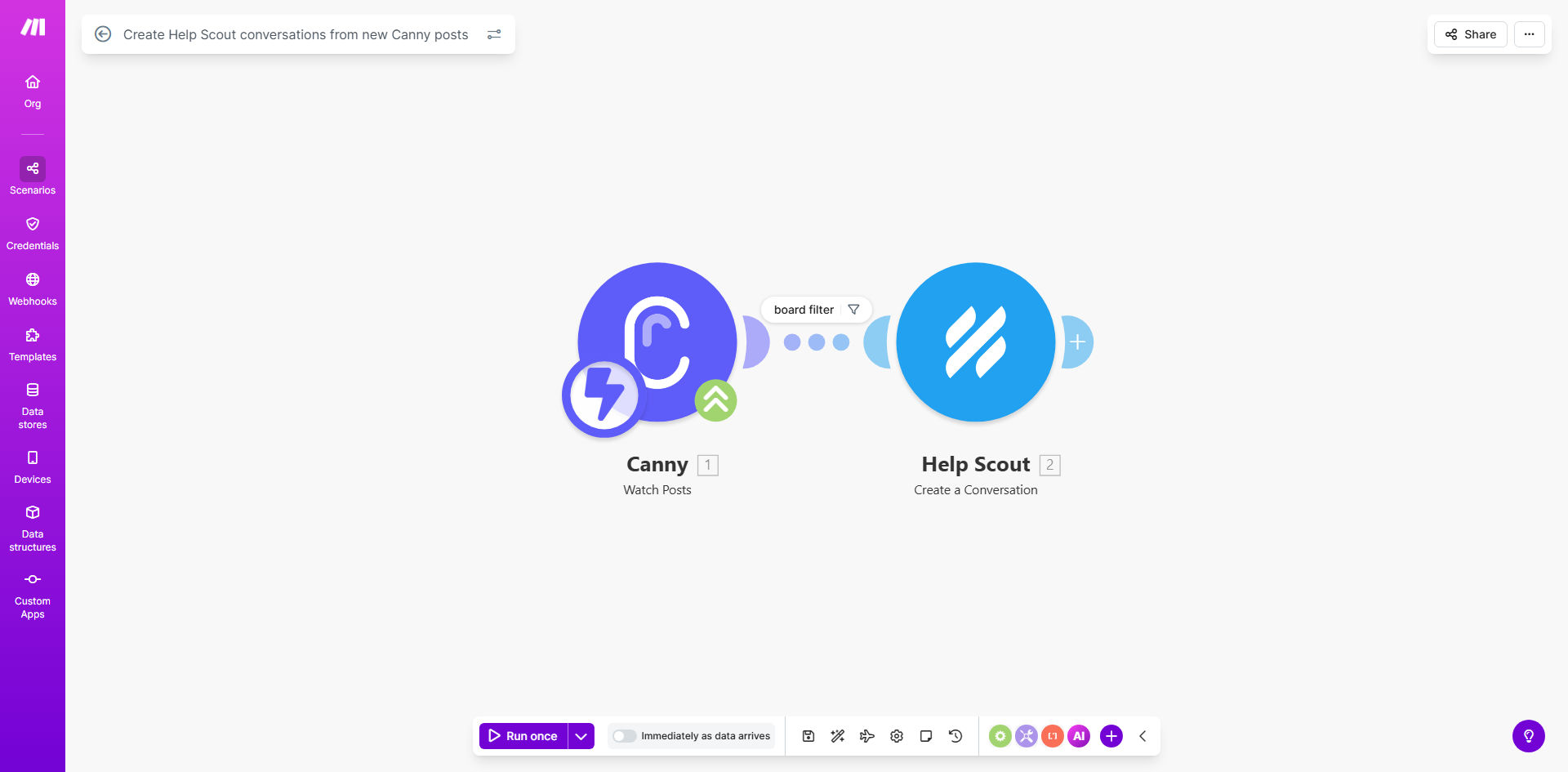
The automation is built on a simple but powerful trigger-action principle, orchestrated by Make.com. It continuously monitors your Canny space for new activity and translates it into structured tasks for your Help Scout team.
Step 1: Monitoring Canny for New Posts
The workflow starts with a Canny module set to watch for the "New Post" event. You can configure it to monitor all boards or specific ones, like "Bug Reports" or "Feature Requests." Each time a user submits a post, the automation captures the entire payload: the post title, detailed description, the creator's name and email, board name, tags, vote count, and any attached images or comments.
Step 2: Processing and Filtering the Data
Before creating a ticket, the workflow can apply intelligent filters. You can set rules to only process posts with certain tags, from specific boards, or containing keywords like "urgent" or "broken." This step ensures your support team isn't flooded with low-priority feature requests and can focus on critical bug reports or customer problems that need immediate attention.
Pro tip: Use filters to create separate automation scenarios for different boards. Route "Bug Reports" to a high-priority support mailbox and "Feature Requests" to a product team mailbox for review.
Step 3: Creating the Help Scout Conversation
The core action is the "Create Conversation" module in Help Scout. The automation maps the Canny post data into the required Help Scout fields. The post title becomes the conversation subject. The description, along with the author's Canny profile link, forms the initial message. The customer's email is attached, and custom properties can be set—like adding a "Source: Canny" tag or setting the priority based on votes.
Step 4: Enriching and Routing the Ticket
Once the conversation is created, additional steps can enrich it. The workflow can add internal notes for agents, tag the conversation based on Canny board, assign it to a specific team or agent, or even trigger a notification in Slack or email to alert the team of a high-priority incoming ticket. This creates a fully formed, actionable item in your support workflow without any human intervention.
Who This Is For
This automation is a game-changer for any business that uses Canny for feedback and Help Scout for support. It's ideal for Product-Led Growth (PLG) companies where user feedback directly influences the roadmap. SaaS startups with small support teams can use it to scale their responsiveness without adding headcount. Customer Success teams benefit by proactively addressing user pain points before they escalate. Product managers gain a streamlined feed of validated user requests to prioritize development. Even community managers can use it to ensure user voices are formally heard by the right internal teams.
What You'll Need
To implement this workflow, you'll need a few accounts and permissions set up:
- A Make.com account: The free plan is sufficient to run this automation.
- A Canny account with Admin/Integrator access: You'll need API keys or OAuth access to allow Make.com to read posts from your Canny space.
- A Help Scout account with Admin permissions: You need to generate an API key and have permission to create mailboxes and conversations via the API.
- Clear decision rules: Determine which Canny boards or tags should trigger ticket creation to avoid creating noise in your support queue.
Quick Setup Guide
Getting this automation live takes about 15 minutes. Follow these steps:
- Clone the Template: Click "Get This Workflow" to copy the ready-made scenario to your Make.com account.
- Connect Canny: In the first module, authenticate your Canny account and select the specific board(s) you want to monitor.
- Connect Help Scout: Authenticate your Help Scout account in the second module and select the target mailbox (e.g., "Support" or "Feedback").
- Map the Data: Review the data mapping. The template pre-maps common fields like Title → Subject and Post Body → Conversation Thread. You can customize this, adding the author's email as the customer address.
- Add Filters (Optional): Insert a filter module between Canny and Help Scout if you only want to process posts with certain tags or from specific authors.
- Test and Activate: Use the "Run once" feature to test with an existing Canny post. Check that a conversation appears correctly in Help Scout. Once confirmed, turn the scenario "ON."
Key Benefits
Eliminate Manual Triage & Reduce Response Time by 80%: The moment feedback is posted, a ticket is created. This removes the need for a team member to monitor Canny, copy-paste details, and manually create a ticket, shaving hours or even days off your initial response time.
Ensure No Feedback Is Ever Lost: Automating the process guarantees that every single post is logged in your central support system. This is critical for tracking issues, spotting trends, and demonstrating to your user community that their input is valued and acted upon systematically.
Gain Richer Context for Support Agents: Agents receive tickets containing the full original post, comments, and vote count directly in Help Scout. They don't need to switch contexts or ask the user for clarification, enabling faster, more informed resolutions.
Scale Support Without Scaling Headcount: As your user base grows, so does feedback volume. This automation handles the influx seamlessly, allowing your existing team to focus on solving problems rather than administrative data entry.
Close the Product Feedback Loop Systematically: By funneling feedback directly into your operational support tool, you create a traceable pipeline from user suggestion to agent action to product update. This data-driven approach builds better products and fosters stronger customer loyalty.