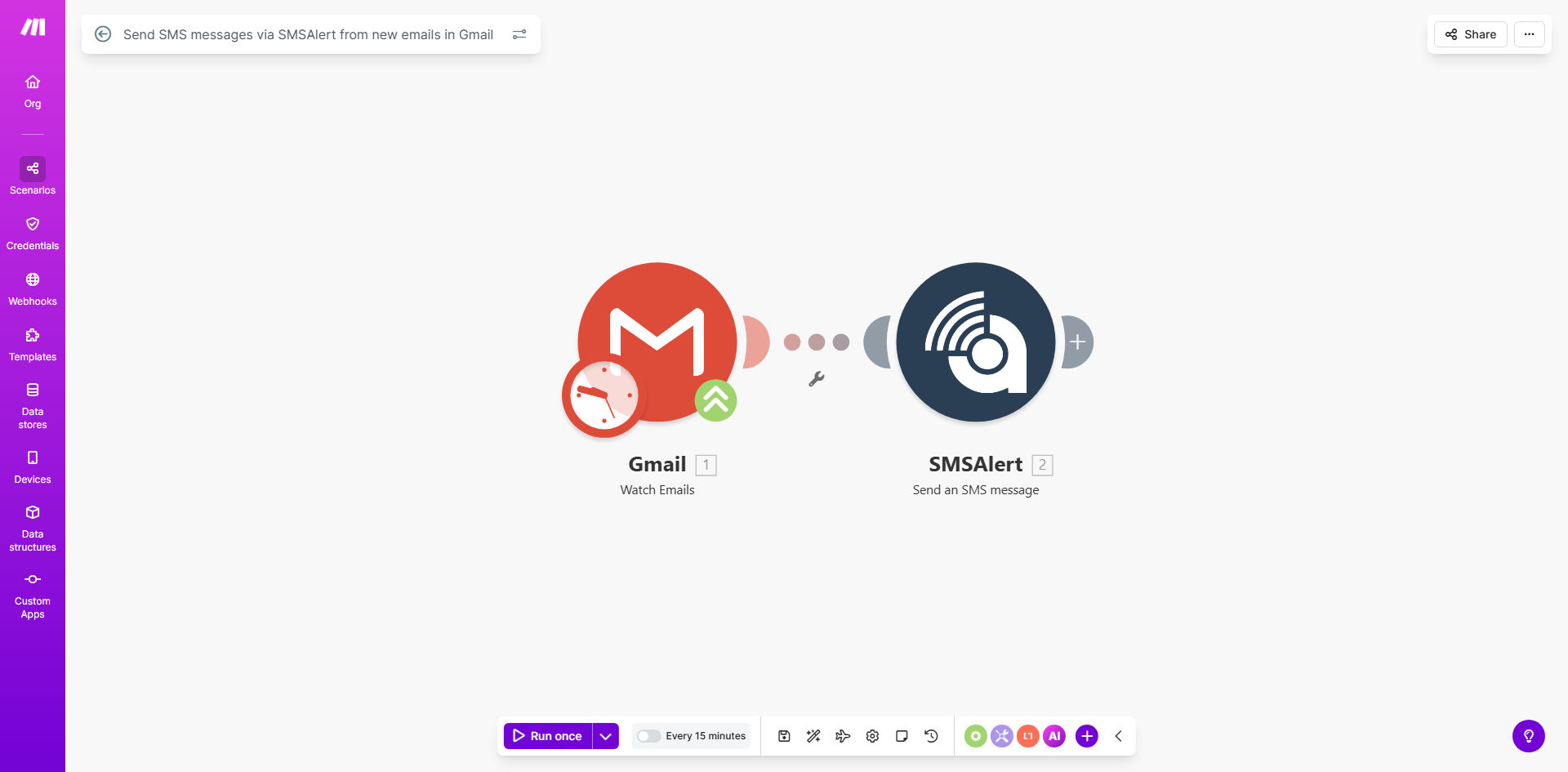
What This Workflow Does
In today's fast-paced business environment, critical emails can get buried in a crowded inbox. A missed urgent client request, a high-priority support ticket, or a time-sensitive sales inquiry can lead to lost revenue and damaged relationships. This automation solves that problem by bridging your email and mobile communication.
This Make.com template creates a direct pipeline from your Gmail account to your phone via SMS. It periodically checks for new emails and uses the retrieved information—like the sender's name, subject line, or a snippet of the body—to compose and send an instant SMS notification through SMSAlert. You receive a text message the moment an important email arrives, ensuring you can respond immediately, no matter where you are.
Pro tip: Configure the workflow to only trigger for emails from specific senders (like key clients) or containing certain keywords (like "URGENT" or "Invoice"). This prevents SMS spam and ensures you're only alerted for what truly matters.
How It Works
The workflow operates on a simple yet powerful sequence, automating what would otherwise be a manual and error-prone process.
Step 1: Scheduled Email Check
The automation is triggered on a schedule (default: every 15 minutes). It connects to your Gmail account via Make.com's Gmail module and searches for new, unread emails since the last check.
Step 2: Email Data Processing
For each new email found, the workflow extracts key data points: the sender's email address and name, the email subject, and often the first few lines of the message body. This data is formatted and prepared for the next step.
Step 3: SMS Composition & Dispatch
The formatted email data is sent to the SMSAlert module. Here, a concise SMS message is crafted—for example, "New email from [Sender]: [Subject]". This message is then instantly delivered to your pre-defined mobile number via SMSAlert's reliable gateway.
Step 4: Logging & Completion
The workflow marks the email as processed (optional) and logs the action, ensuring you have a record of notifications sent. It then waits for the next scheduled cycle to begin again.
Who This Is For
This automation is invaluable for any professional or team for whom immediate email response is critical.
- Sales Teams & Executives: Get instant alerts for new lead inquiries or emails from top-tier clients to capitalize on opportunities immediately.
- Support & Customer Service Managers: Be notified the moment a high-priority or negative feedback ticket arrives, enabling swift intervention.
- Freelancers & Consultants: Never miss a new project brief, contract, or urgent client question, even when away from your desk.
- On-the-Go Service Providers: Plumbers, electricians, and field technicians can receive instant SMS alerts for new booking emails or schedule changes.
- Small Business Owners: Stay on top of all critical communication without being chained to your email client, improving operational responsiveness.
What You'll Need
- A Make.com account (free tier available).
- A Gmail account (or Google Workspace) with access to the inbox you want to monitor.
- An SMSAlert account with available credits and a verified sender ID.
- The mobile phone number you wish to receive the SMS notifications on.
- Basic understanding of how to connect apps (modules) in Make.com (the template guides you).
Quick Setup Guide
You can have this automation running in under 10 minutes.
- Clone the Template: Click "Get This Workflow" to copy the template into your Make.com account.
- Connect Gmail: In the first module, authorize Make.com to access your Gmail account. You can restrict access to specific labels or just the inbox.
- Configure SMSAlert: In the SMS module, connect your SMSAlert account by entering your API credentials. Set the recipient phone number in the correct international format (e.g., +1XXXXXXXXXX).
- Customize the Message: Edit the text template for the SMS. Use data placeholders like the sender's name or email subject to make alerts informative.
- Set the Schedule: Adjust the schedule module from the default 15 minutes to an interval that suits your needs (e.g., every 5 minutes for real-time, or hourly for less critical alerts).
- Test & Activate: Run the scenario once manually to send a test SMS. If successful, activate the scenario to let it run automatically on its schedule.
Key Benefits
Reduce email response time from hours to seconds. By receiving an SMS the moment a critical email arrives, you can triage and respond immediately, dramatically improving client satisfaction and closing windows of opportunity.
Eliminate the risk of missing high-priority messages. Email overload is real. This system acts as a fail-safe, ensuring the most important communications always get your attention, regardless of inbox clutter.
Gain peace of mind and freedom from your inbox. You no longer need to compulsively check email throughout the day or after hours. The automation works as your personal assistant, alerting you only when necessary.
Create a scalable notification system for teams. This template can be duplicated and modified to alert different team members based on different email rules (e.g., sales emails go to the sales lead, support emails go to the manager).
Leverage a 98%+ open rate channel. While emails can go unread, SMS messages have an exceptionally high open rate, guaranteeing your critical alert is seen almost instantly.