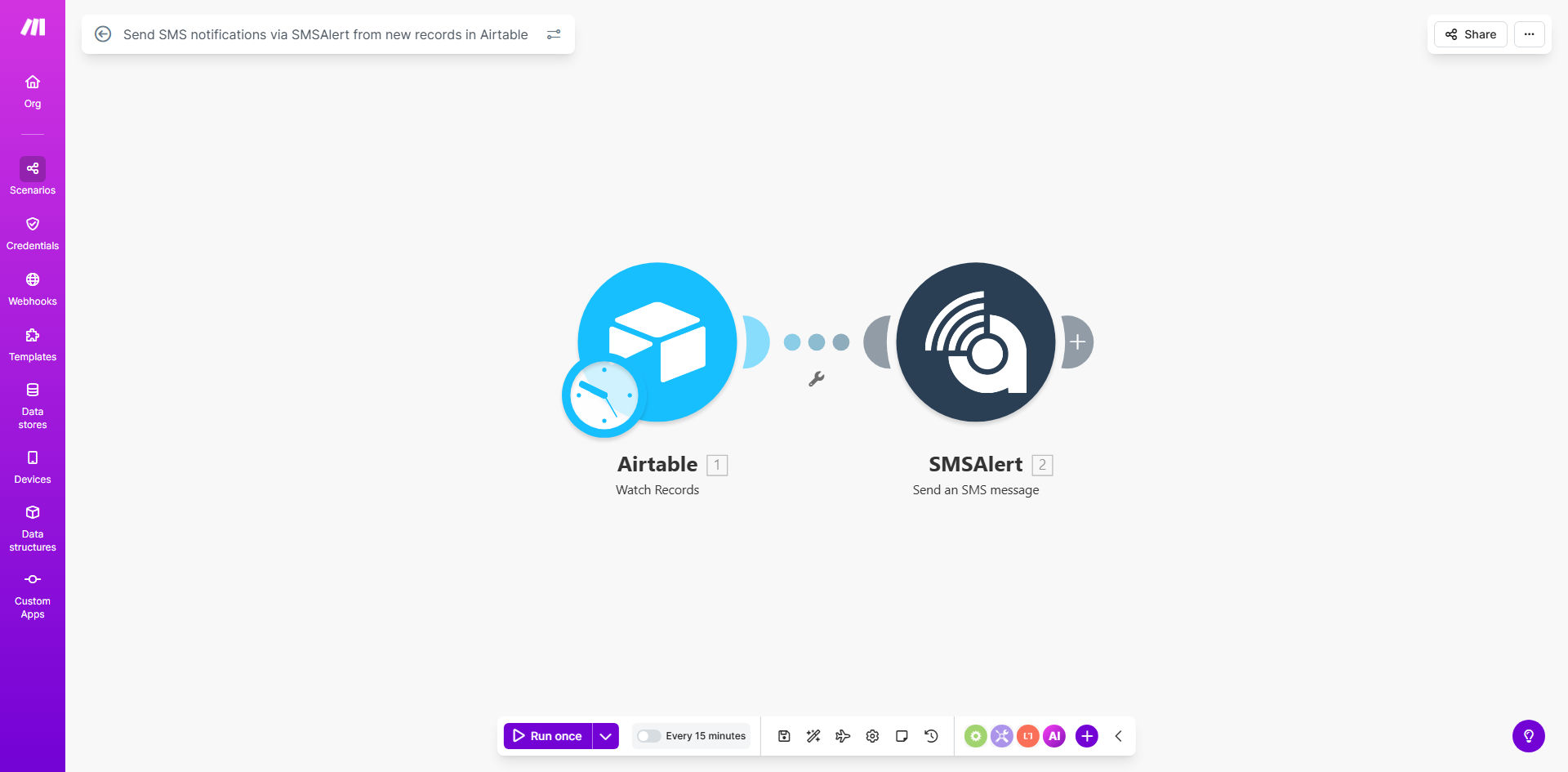
What This Workflow Does
Manual communication is a major bottleneck for growing businesses. When a new customer signs up, an appointment is booked, or an order is placed, someone has to stop their work, find the contact details, and send a message. This process is slow, prone to errors, and doesn't scale.
This automation solves that by creating a direct bridge between your data in Airtable and your customers' phones via SMSAlert. The moment a new record with a name and phone number is added to your specified Airtable table, the workflow springs into action. It formats a personalized message and sends it as an SMS, all without any human intervention. This ensures timely, reliable, and professional communication for every new entry.
Whether you're confirming appointments, notifying teams of new leads, or alerting customers about order status, this workflow turns your Airtable base into a powerful notification hub. It runs on a schedule you control (default every 15 minutes), guaranteeing that no new record is ever missed.
How It Works
The workflow is a simple yet powerful sequence on Make.com, acting as the conductor between your data and your messaging.
Step 1: Scheduled Check for New Records
A "Schedule" module is set to trigger the workflow at regular intervals. By default, it checks your Airtable base every 15 minutes. This module kicks off the entire process, ensuring the automation runs consistently and reliably.
Step 2: Fetch New Data from Airtable
Immediately after the schedule triggers, an "Airtable" module searches your specified table for new records. It is configured to look for records that haven't been processed yet—often by checking a "Status" field or by identifying the most recently created entries. It retrieves the crucial data: the recipient's name and their phone number.
Step 3: Format and Send the SMS via SMSAlert
The workflow then takes the retrieved data and passes it to an "SMSAlert" module. Here, you define your message template. You can personalize it by inserting the customer's name or other details from Airtable (e.g., "Hi [Name], your appointment is confirmed for tomorrow at 3 PM."). The module uses your SMSAlert API credentials to send the formatted message to the provided phone number instantly.
Step 4: Logging and Error Handling (Optional)
For robustness, you can extend the workflow to log successful sends back to Airtable (e.g., updating a "Notification Sent" field) or to handle errors. If an SMS fails to send—perhaps due to an invalid number—the workflow can route that record to an error log or send an alert to your team, ensuring you can fix issues promptly.
Pro tip: Use a dedicated "Status" field in your Airtable (like "SMS Sent") and have the workflow update it after successful sending. This prevents duplicate messages if the same record is fetched again on the next run.
Who This Is For
This automation is a game-changer for any business or team that uses Airtable as a source of truth for customer or operational data and needs to communicate updates quickly.
Service Businesses: Salons, clinics, consultants, and tradespeople can automatically send appointment reminders or confirmations as soon as a booking is logged in their Airtable calendar.
E-commerce & Retail: Small online stores can notify customers about order dispatch or delivery updates directly from their order management base in Airtable.
Sales & Marketing Teams: Instantly send a welcome or follow-up text to new leads captured from a website form into Airtable, dramatically increasing engagement rates.
Community Organizers & Non-Profits: Send urgent alerts or meeting reminders to members whose contact details are managed in a community directory on Airtable.
What You'll Need
- A Make.com Account: A free or paid plan to build and run the automation.
- An Airtable Base: With at least one table containing a "Name" (text) field and a "Phone Number" field formatted correctly for your region.
- An SMSAlert Account: You'll need an API key from SMSAlert to authorize the connection and send messages. Most providers offer pay-as-you-go credits.
- Basic Understanding of Your Data: Know which Airtable table and view you want to monitor for new records.
Quick Setup Guide
You can have this workflow live in under 15 minutes by following these steps:
- Clone the Template: Click "Get This Workflow" to copy the template into your own Make.com account.
- Connect Airtable: In the first Airtable module, click to add a connection. Authorize Make.com to access your Airtable workspace and select the correct base and table.
- Configure the Search: Set the module to search for records in a specific view. You may want to add a filter, like "Where Status is empty," to only fetch unprocessed records.
- Connect SMSAlert: In the SMSAlert module, add your API credentials from your SMSAlert account dashboard.
- Craft Your Message: In the SMSAlert module, write your message template. Use the mapping panel to insert data from Airtable (e.g., the customer's name) by clicking on the fields from the previous module.
- Set the Schedule: Adjust the Schedule module's interval from 15 minutes to whatever suits your needs—instant, hourly, or daily.
- Test and Activate: Run the scenario once to test it. Add a test record to your Airtable and see if the SMS comes through. Once confirmed, activate the scenario to run automatically.
Key Benefits
Eliminate Manual Work & Save Hours: This automation removes the tedious task of copying phone numbers and sending texts manually. For a business adding 20 new records a day, that saves over 5 hours of administrative work per month, allowing staff to focus on higher-value activities.
Improve Customer Experience with Instant Communication: SMS has a 98% open rate, with most messages read within 3 minutes. Sending confirmations or updates immediately after a record is created builds trust and professionalism, reducing uncertainty and "where is my..." support calls.
Ensure 100% Consistency and Reliability: The workflow never forgets, gets distracted, or makes a typo. Every new record that meets your criteria triggers a perfectly formatted message, guaranteeing that your communication process is executed flawlessly every single time.
Scale Your Operations Effortlessly: Whether you're sending 10 notifications a day or 1,000, the automation handles the volume without any additional cost in labor. Your business can grow without needing to hire someone just to manage communications.
Gain a Competitive Edge with Proactive Service: Automating this touchpoint makes your business feel more responsive and technologically advanced. Customers appreciate the immediate acknowledgment, which can set you apart from competitors who rely on slower, manual processes.