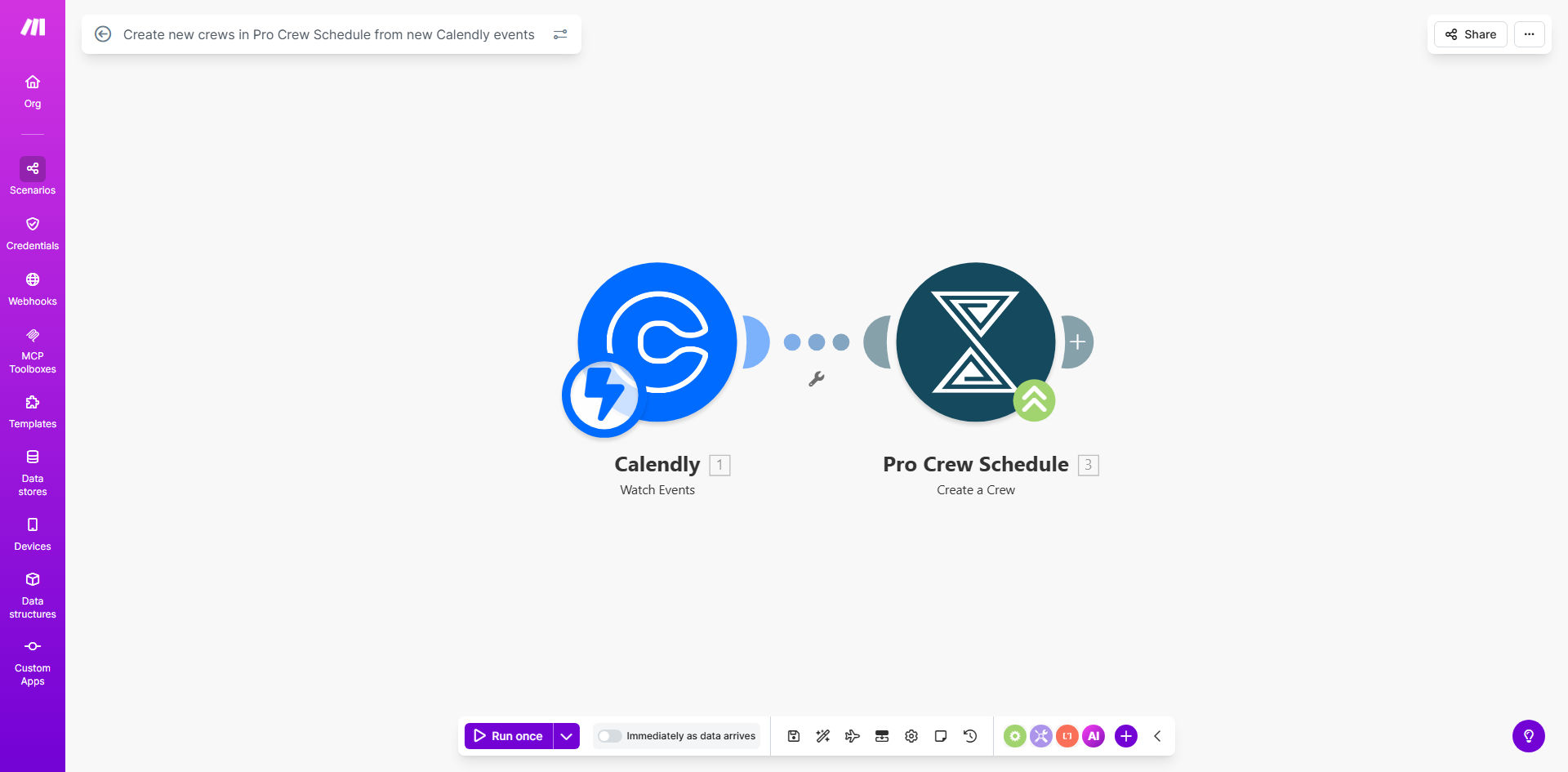
What This Workflow Does
For service businesses that rely on appointments—like HVAC, plumbing, cleaning, or field repair—the gap between booking and dispatching is where mistakes happen. A customer books a time on your Calendly page, but then someone on your team must manually re-enter all that information into your crew scheduling software. This process is slow, prone to typos, and can lead to double-bookings or missed jobs.
This Make.com automation template solves that by creating a seamless bridge between Calendly and Pro Crew Schedule. The moment a new event is scheduled in Calendly, this workflow triggers automatically. It extracts all the appointment details—customer name, contact info, service type, date, time, location, and any custom questions—and uses them to instantly create a new, fully populated crew assignment in Pro Crew Schedule. Your field team gets notified immediately, and the job is ready to go without any human intervention.
The business value is clear: you save hours of administrative work each week, eliminate scheduling errors that damage customer trust, and accelerate your response time so crews can be dispatched sooner. This turns your scheduling from a manual, error-prone task into a competitive advantage.
How It Works
The automation follows a simple, reliable sequence of events, ensuring data flows accurately from the point of booking to the point of dispatch.
Step 1: A New Calendly Event is Scheduled
The workflow is triggered the instant a new event is created in your Calendly account. This could be a first-time booking, a reschedule, or a new event in a recurring series. Make.com listens for this event via a webhook, capturing the complete event payload.
Step 2: Data is Extracted and Formatted
The workflow parses the Calendly data, pulling out the critical details needed for crew creation. This includes the invitee's name, email, phone number, the event name (which often indicates the service type), the start and end times, the location (physical address or video link), and answers to any custom questions on your booking page.
Step 3: A New Crew is Created in Pro Crew Schedule
Using the Pro Crew Schedule module in Make.com, the workflow maps the extracted Calendly data to the corresponding fields in a new crew record. It creates the crew, assigns it based on predefined rules (like service type or location), and populates all job details. The crew is now active in your system, visible to your dispatchers and field team.
Step 4: Confirmation and Error Handling
The workflow can be configured to send a confirmation—like logging the action or sending a notification to a Slack channel—to verify the crew was created successfully. If anything fails (e.g., Pro Crew Schedule is down, a required field is missing), the workflow can trigger an alert so your team can intervene manually, ensuring no booking falls through the cracks.
Pro tip: Use Calendly’s “Custom Questions” feature to gather job-specific details (e.g., “Describe the issue,” “Parking instructions”). Map these answers to the “Notes” or “Custom Fields” in Pro Crew Schedule to give your crew all the context they need before arriving on-site.
Who This Is For
This automation is a game-changer for any business that schedules client appointments and then dispatches a team or individual to fulfill them. Ideal users include:
- Home Service Providers: HVAC, plumbing, electrical, and landscaping companies who book inspections, repairs, or installations.
- Cleaning and Maintenance Services: Residential and commercial cleaning services that operate on scheduled appointments.
- Field Technicians: IT support, appliance repair, solar panel installers, and other mobile technicians.
- Healthcare and Wellness: Mobile healthcare providers, physiotherapists, or fitness trainers who do home visits.
- Event and Delivery Services: Companies that schedule equipment delivery, setup, or pickup crews.
If your business struggles with the manual handoff between the person who takes the booking and the person who dispatches the crew, this template will bring immediate clarity and efficiency.
What You'll Need
To use this template successfully, you'll need the following accounts and permissions set up:
- A Make.com account (free tier may suffice for lower volume).
- A Calendly Premium account, as the integration requires webhook functionality which is not available on the free plan.
- An active Pro Crew Schedule account with administrative access to create crews via API.
- The API keys or access tokens for both Calendly and Pro Crew Schedule, which you'll enter into Make.com to establish the connection.
- A clear understanding of which fields in Calendly (like event type, custom questions) should map to which fields in Pro Crew Schedule (like job type, crew notes, priority).
Quick Setup Guide
Getting this automation live takes about 30 minutes if you have your accounts ready.
- Clone the Template: Click the “Get This Workflow” button above to open the template in your Make.com account and create a copy.
- Connect Your Apps: In the Make.com scenario editor, authorize the connections to your Calendly and Pro Crew Schedule accounts. You'll be prompted to log in and grant permissions.
- Configure the Trigger: In the Calendly module, select the specific event type(s) that should trigger crew creation. You can choose all events or filter by specific Calendly event names.
- Map the Data: In the Pro Crew Schedule “Create Crew” module, map the data from the previous Calendly step. Drag and drop fields like
invitee.nameto the Crew Name field,event.start_timeto the Job Start Time, etc. - Set Up Error Handling (Optional but Recommended): Add an “Else” path after the Pro Crew Schedule module. If the creation fails, you can send an email alert to yourself or log the error.
- Test and Activate: Use the “Run once” feature in Make.com to test the flow. Schedule a dummy event in Calendly and verify a crew appears in Pro Crew Schedule. Once confirmed, toggle the scenario to “On.”
Key Benefits
Eliminate 5–10 hours of manual data entry per week. Dispatchers and administrators no longer need to switch between Calendly and Pro Crew Schedule to copy-paste information. This time can be reinvested in customer service or strategic planning.
Reduce scheduling errors and double-bookings to zero. The automated system ensures every booked appointment is captured and converted into a crew assignment without fail. This improves reliability and customer trust significantly.
Accelerate crew dispatch by up to 90%. Instead of waiting for a human to process the booking, the assignment is created within seconds. Your team can be notified and begin preparing immediately, leading to faster response times.
Improve data accuracy and job details. Automated data transfer removes the risk of typos or missed information from manual entry. Crews arrive with complete, accurate details about the customer and the job.
Scale your operations seamlessly. As booking volume increases, this automation handles the extra load effortlessly. You can book more appointments without needing to hire additional administrative staff to manage the scheduling handoff.