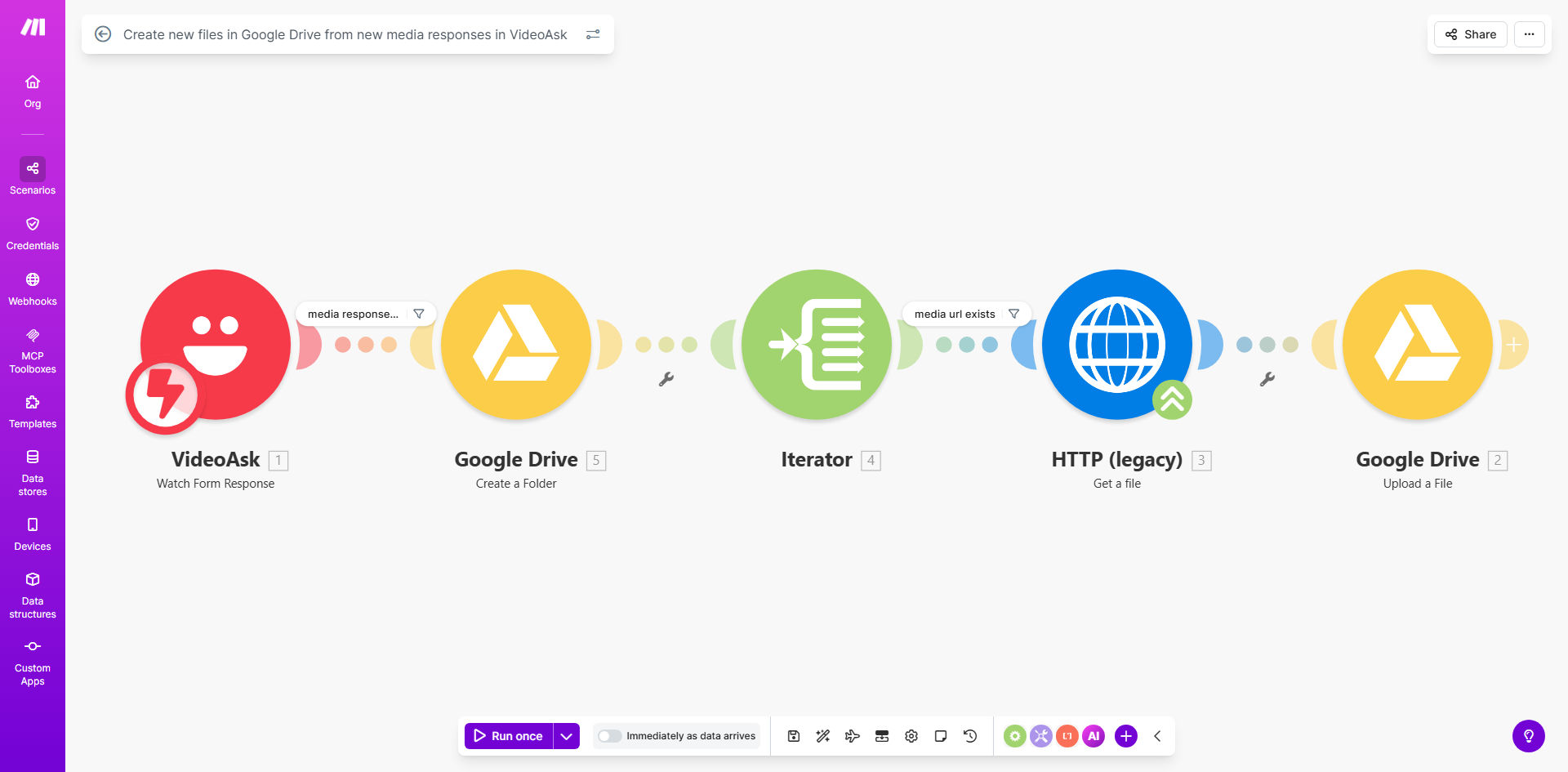
What This Workflow Does
Collecting video and text responses through VideoAsk is powerful for gathering customer feedback, conducting interviews, or running interactive quizzes. However, manually downloading, renaming, and organizing each media file is a tedious, error-prone task that wastes valuable time and risks data loss.
This automation solves that problem completely. It acts as a digital assistant that monitors your VideoAsk account 24/7. The moment a new response arrives—whether it's a heartfelt video testimonial, a detailed text answer, or a quick survey reply—the workflow springs into action. It securely retrieves the media file or text content, intelligently names it, and deposits it into a designated, neatly organized folder in your Google Drive. This creates a permanent, searchable archive of all your interactions without you lifting a finger.
Pro tip: Use this workflow to create a "golden copy" archive. This ensures you always have the original, high-quality media file saved securely, separate from any edited or shared versions, preserving the raw customer voice.
How It Works
The automation follows a clean, logical sequence to transform a new response into a neatly filed asset.
Step 1: Trigger on New VideoAsk Response
The workflow is initiated the instant VideoAsk detects a new submitted response. Make.com receives a webhook with all the response data, including the respondent's information, timestamps, and most importantly, the media file URL or text content.
Step 2: Extract & Prepare Media Data
The system checks the response type. If it's a video or audio file, it fetches the file from VideoAsk's servers. If it's text, it prepares the text content for saving. Simultaneously, it gathers contextual data like the respondent's name, email, the question asked, and the submission date to use for intelligent file naming and folder creation.
Step 3: Create Organized Google Drive Structure
Here’s where the magic of organization happens. The workflow can create a new folder for each respondent, date, or project based on your preferences. For example, it might create a folder named "Customer Testimonials - Q4 2024" and within it, a subfolder for each customer. This structure is built dynamically, ensuring your Drive never becomes a chaotic dump of files.
Step 4: Upload & File the Content
The final step is the save. Video files are uploaded as MP4s, audio as MP3s, and text responses are saved as Google Docs or text files. Each file is named using a consistent format like "John_Doe_Testimonial_2024-11-15.mp4", making it incredibly easy to search and identify later. The workflow confirms the successful upload, completing the cycle.
Who This Is For
This automation is a game-changer for any business or professional using VideoAsk for meaningful interactions. It's ideal for marketing teams collecting video testimonials for campaigns, HR departments conducting recorded candidate screenings, researchers and educators gathering qualitative data, and coaches or consultants who receive client feedback via video. If you value the content you collect through VideoAsk and need it to be safe, organized, and instantly accessible, this workflow is for you.
What You'll Need
- A Make.com account (free tier is sufficient to run this template).
- A VideoAsk account with active forms collecting responses.
- A Google Drive account (personal or Google Workspace) with available storage space.
- API connections (OAuth) set up between Make.com and both VideoAsk and Google Drive. The template guides you through this simple, one-time authorization.
Quick Setup Guide
You can have this automation running in under 10 minutes.
- Clone the Template: Click "Get This Workflow" to copy the template into your Make.com account.
- Authorize Connections: In the Make.com scenario editor, click on the VideoAsk and Google Drive modules. Follow the prompts to log in and grant necessary permissions. This is a secure, standard OAuth process.
- Configure Your Drive Path: Specify where you want files saved. You can set a main folder (e.g., "VideoAsk Archives") and define naming rules for subfolders (e.g., by date or respondent email).
- Test and Activate: Use the "Run once" feature to test with a past response. Verify the file appears correctly in your Drive. Then, simply toggle the scenario to "ON." It will now run automatically for all future responses.
Pro tip: Start by saving all responses to a single test folder. Once you confirm the flow works perfectly, then implement more complex folder structures based on project names or dates to keep your archive scalable.
Key Benefits
Eliminate Manual Work & Save 5+ Hours Per Month: No more downloading, renaming, or dragging files. This automation reclaims hours of administrative time for you or your team every single month, allowing focus on high-value tasks like analyzing feedback.
Zero-Risk Data Preservation: Human error is removed from the equation. Every single response is captured and backed up the moment it's submitted, guaranteeing you never lose a priceless customer testimonial or critical piece of feedback due to an oversight.
Instant Professional Organization: Transform a stream of media files into a professionally organized digital library. With consistent naming and logical folder trees, finding any specific response from weeks or months ago takes seconds, not hours.
<>Enhanced Team Collaboration: With all responses centralized in Google Drive, sharing feedback with team members, clients, or stakeholders becomes effortless. You can set folder permissions to control access, fostering better collaboration without emailing large video files.
Scalable Foundation for Advanced Processes: This workflow is a robust starting point. Once your media is auto-archived, you can easily build upon it—adding AI transcription, sentiment analysis, or automatic notifications to create a powerful, end-to-end media intelligence system.