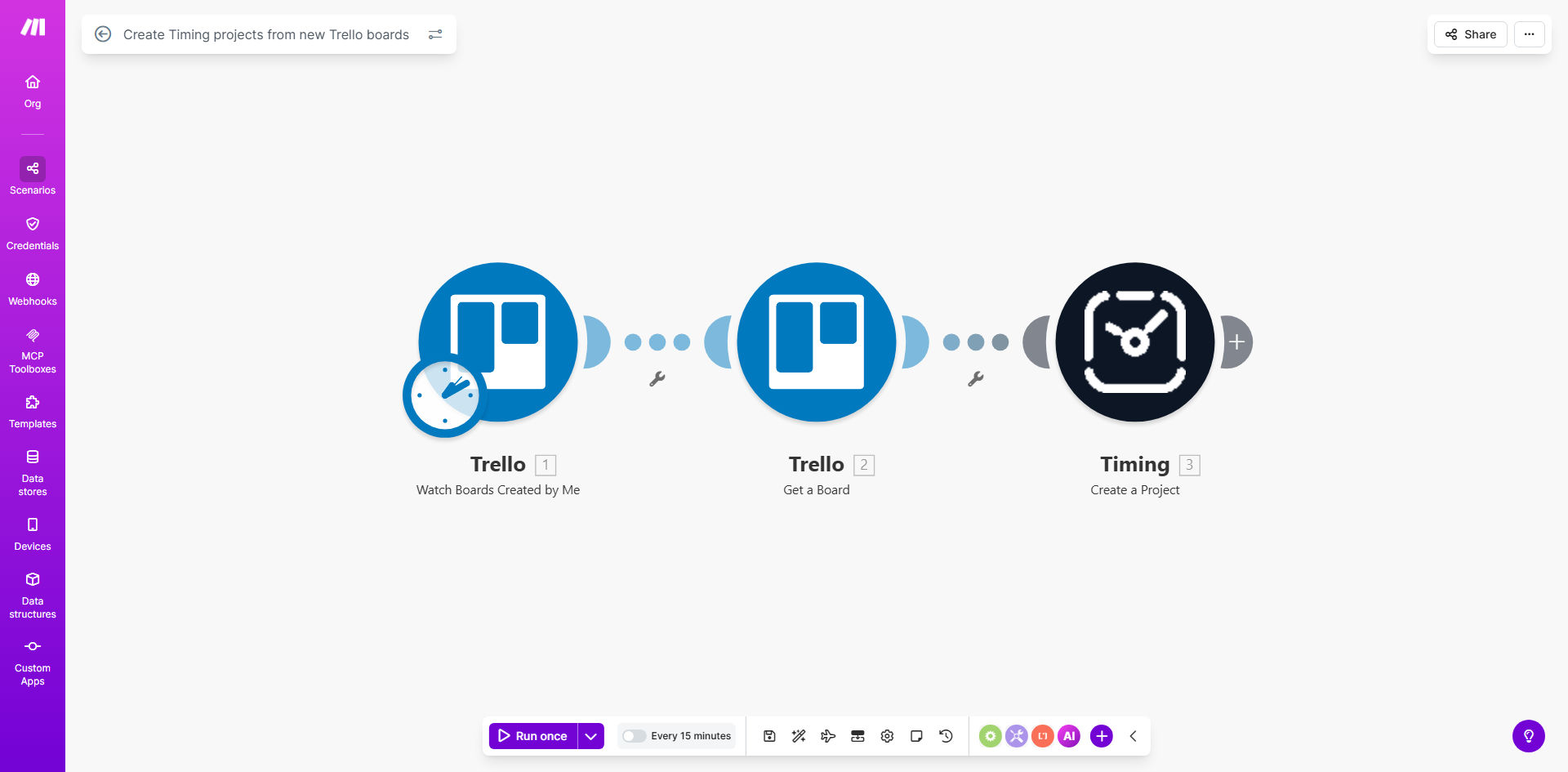
What This Workflow Does
For teams using Trello for project management and Timing for time tracking, a significant operational gap often exists: manual project creation. Every time a new client project, internal initiative, or sprint board is created in Trello, someone must remember to go into Timing and manually set up a corresponding time-tracking project. This step is frequently forgotten, leading to unbilled hours, inaccurate project costing, and messy timesheet corrections.
This free Make.com workflow solves that problem permanently. It acts as an intelligent bridge between the two platforms. The automation continuously monitors your Trello workspace for new boards. The moment one appears—whether created by you, a team member, or even via another automation—it instantly triggers the creation of a perfectly matched project in your Timing account. This ensures that time tracking is available and correctly categorized from the very first minute of work, turning two separate tools into a cohesive operational system.
How It Works
The automation follows a simple, reliable sequence to keep your projects in sync.
Step 1: Monitor Trello for New Boards
The workflow starts with a scheduled "Watch" module in Make.com that polls your Trello account at regular intervals (e.g., every 15 minutes). It checks for any boards created since its last run. This setup is passive and non-intrusive, requiring no changes to how your team uses Trello.
Step 2: Extract Project Details
When a new board is detected, the automation captures its key details: the board name, description, members, and any relevant labels. This information forms the foundation of the new time-tracking project, providing context for your team about what they should be logging time against.
Pro tip: Use Trello board labels like "Client:Acme Corp" or "Project:Q4 Launch". The automation can pass these labels to Timing, allowing for automatic client or project-type categorization in your time reports.
Step 3: Create the Project in Timing
Using Timing's API, the workflow sends a request to create a new project. The Trello board name becomes the Timing project title, and the description is added as notes. The automation can also assign the project to specific team members based on the Trello board members list, ensuring everyone has immediate access.
Step 4: Confirmation & Logging
The final step is about reliability. The workflow can log the successful creation (including the new Timing Project ID) to a Google Sheet or send a silent notification to a Slack channel for admin oversight. This creates an audit trail and confirms the system is working without spamming your main communication channels.
Who This Is For
This automation delivers immense value to any knowledge-based business that bills for time or needs to measure project profitability. It's perfect for digital agencies and consultancies who start a new Trello board for each client engagement. It's equally valuable for software development teams using Trello for sprint planning, ensuring every development cycle is tracked. Freelancers and solo entrepreneurs can use it to maintain discipline, automatically creating a tracking project for each new contract or deliverable. Finally, internal operations teams benefit by tracking time spent on internal initiatives like "Office Relocation" or "ERP Implementation" from the moment the project is greenlit in Trello.
What You'll Need
- A Make.com account (Free plan sufficient for this workflow).
- A Trello account with boards you want to monitor.
- A Timing account (or another time-tracking tool with an API).
- API keys or OAuth access for both Trello and Timing, which you'll securely connect to Make.com.
- Basic understanding of which Trello workspace or boards should trigger the automation.
Quick Setup Guide
You can have this automation running in under 20 minutes.
- Get the Template: Click "Get This Workflow" to copy the template to your Make.com account.
- Connect Your Apps: In the Make.com scenario editor, click on the Trello module and connect your Trello account. Repeat the process for the Timing module.
- Configure the Trigger: Set the schedule for how often you want to check for new boards (e.g., every hour). Specify the Trello workspace or organization you want to monitor.
- Map the Data: Review the data mapping between Trello fields (board name, description) and the Timing project creation fields. Adjust if you want to include labels or member emails.
- Test and Activate: Create a test Trello board. Run the scenario once to see it create a project in Timing. Once confirmed, activate the scenario to run automatically.
Pro tip: Start by monitoring a single, specific Trello board or a test workspace. Once you verify the automation works flawlessly, you can expand it to watch your entire main workspace.
Key Benefits
Eliminate Billable Time Leakage: By ensuring a time-tracking project exists from day one, this automation can help recover an estimated 15-20% of typically lost billable hours that occur during project setup phases.
Save Administrative Time: Remove the manual task of creating timing projects. For a team managing 5-10 new projects a month, this saves 2-3 hours of administrative work monthly that can be redirected to client work.
Improve Project Cost Accuracy: With complete time data from the very start, your project profitability reports and client invoices become significantly more accurate, leading to better pricing decisions and client trust.
Enforce Process Consistency: The automation guarantees that every single Trello project follows the same time-tracking setup procedure, removing human error and variation from your operational workflow.
Scalable Foundation: This workflow is a building block. Once running, it can be easily extended to automatically generate project reports, notify managers when time exceeds budgets, or sync data to accounting software like QuickBooks.