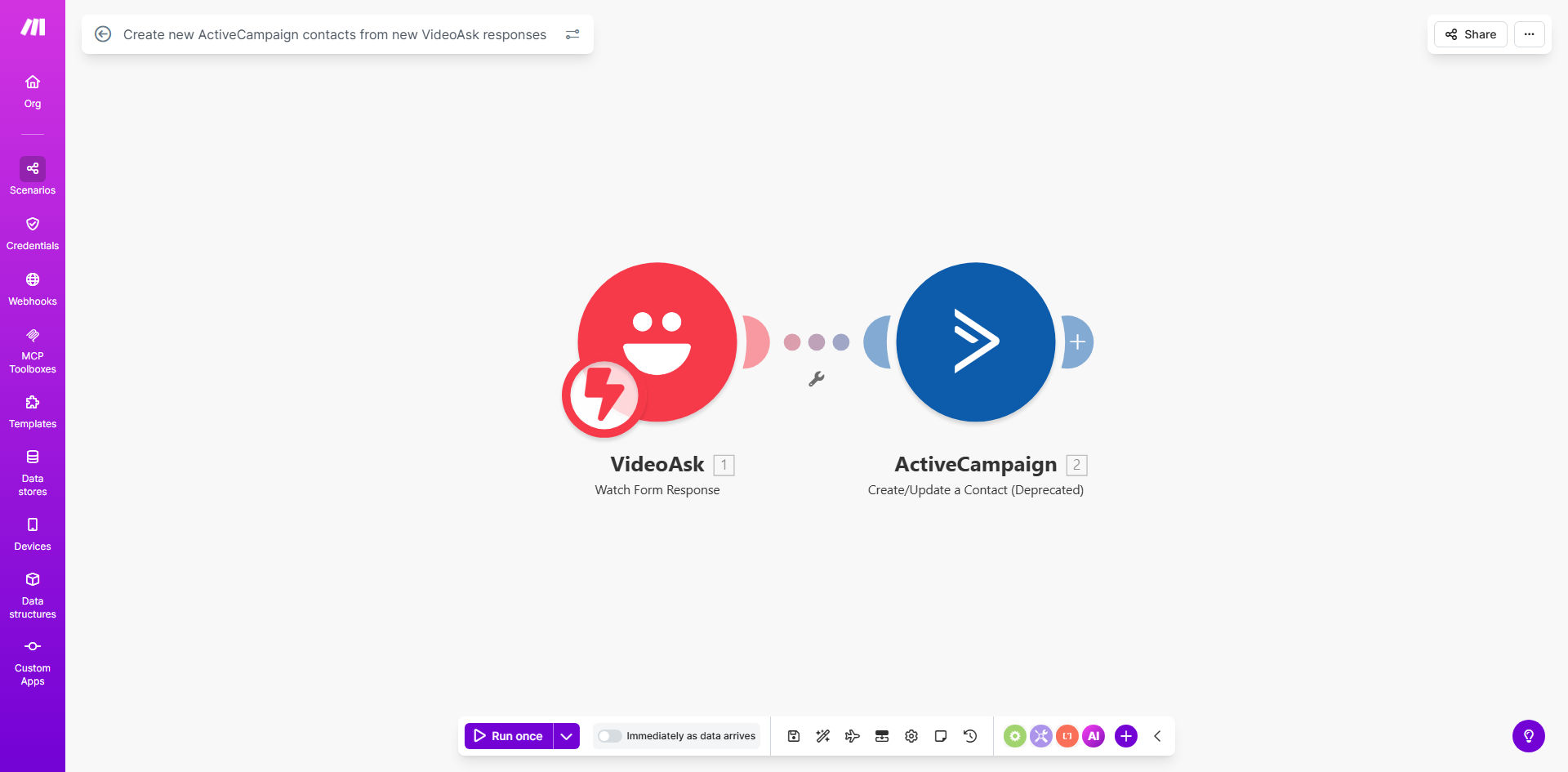
What This Workflow Does
VideoAsk is a powerful tool for engaging potential customers through interactive video, but its value is lost if those leads aren't efficiently captured and nurtured. Manually checking for new responses, exporting data, and importing contacts into your email marketing platform like ActiveCampaign is a repetitive, time-consuming task that leads to delays and errors.
This automation solves that problem by creating a seamless bridge between VideoAsk and ActiveCampaign. Every time someone submits a response to your video—whether it's a contact form, a quiz answer, or a booked call—this Make.com workflow triggers instantly. It takes the respondent's information (name, email, phone, custom answers) and creates a fully-fledged contact in your specified ActiveCampaign list. The lead enters your nurturing funnel the moment they engage, not hours or days later.
The result is a fully automated lead capture system that ensures zero leads fall through the cracks. It transforms your video content from a passive engagement tool into an active, integrated part of your sales and marketing machine, directly fueling your email campaigns with qualified prospects.
How It Works
The workflow operates on a simple trigger-action principle, orchestrated by Make.com to handle the data flow reliably between the two applications.
Step 1: A New VideoAsk Response Arrives
The automation starts the moment a new response is recorded in your VideoAsk account. Make.com monitors your VideoAsk account in real-time via its API. This trigger could be for a specific video or for all videos in your account, depending on your setup.
Step 2: Make.com Captures the Response Data
Make.com receives the webhook or polls VideoAsk for the new response data packet. This packet contains all the information the respondent provided, which typically includes their email address, first name, last name, and any custom field answers from your video form.
Step 3: Data is Formatted for ActiveCampaign
The workflow then maps the data from VideoAsk's format into the specific fields required by ActiveCampaign's "Create a Contact" API. This step is crucial—it ensures the email goes to the right place, the name is split correctly, and any custom answers are placed into corresponding custom fields in ActiveCampaign for later segmentation.
Step 4: Contact is Created in ActiveCampaign
Finally, Make.com sends the formatted data to ActiveCampaign, which creates a new contact record. You can configure the automation to add the contact to a specific list, apply tags (e.g., "Source: VideoAsk"), and even trigger an automation inside ActiveCampaign, like a welcome email sequence, immediately.
Pro tip: Use this automation to segment leads instantly. Configure it to apply different ActiveCampaign tags based on which VideoAsk the response came from (e.g., "Tag: Demo_Request" for your product demo video). This allows for hyper-targeted follow-up campaigns.
Who This Is For
This automation is a game-changer for any business or creator using video to generate leads. It's perfect for coaches and consultants who use VideoAsk for discovery call bookings, ensuring every inquiry is instantly in their CRM. Course creators and educators can capture leads from waitlist or interest videos directly into their email list for launch sequences.
Marketing agencies can implement this for clients to demonstrate tangible value through automated lead systems. E-commerce brands using video for product FAQs or feedback can capture customer emails for retargeting. Essentially, if you use video to interact with your audience and want to grow a qualified email list without manual work, this workflow is for you.
What You'll Need
- A Make.com account (free tier available). This is the automation platform that will execute the workflow.
- An ActiveCampaign account with API access enabled. You'll need your API URL and Key from the ActiveCampaign settings.
- A VideoAsk account with at least one published video form collecting responses.
- The VideoAsk API Key or webhook configuration details to connect it to Make.com.
- Clear mapping plan: Know which VideoAsk form fields (e.g., "email") correspond to which ActiveCampaign contact fields.
Quick Setup Guide
Follow these steps to get your automation live in under 30 minutes:
- Clone the Template: Click "Get This Workflow" above to open the template in your Make.com account and create a copy.
- Connect VideoAsk: In the first module, authorize Make.com to access your VideoAsk account using your API credentials.
- Connect ActiveCampaign: In the second module, authorize Make.com to access your ActiveCampaign account using your API URL and Key.
- Map Your Data: In the ActiveCampaign "Create a Contact" module, map the data from the VideoAsk response. Connect the "Email" field from VideoAsk to the "Email" field in ActiveCampaign, and do the same for First Name, Last Name, etc.
- Configure List & Tags: Select the specific ActiveCampaign list you want contacts added to. Optionally, add static tags like "VideoAsk Lead" for easy segmentation.
- Test and Activate: Turn on the scenario and submit a test response to your VideoAsk. Verify that a contact appears in your chosen ActiveCampaign list within seconds.
Key Benefits
Eliminate 5–10 hours of manual data entry per month. For businesses collecting even a moderate number of leads, the time spent exporting, formatting, and importing CSV files adds up quickly. This automation reclaims that time for higher-value activities.
Capture 100% of your video leads instantly. Manual processes have lag time, during which leads can go cold. By adding contacts to your email list the moment they respond, you can trigger immediate follow-up (like a welcome email), dramatically increasing engagement and conversion rates.
Ensure data accuracy and eliminate human error. Manual copying and pasting or CSV imports often lead to typos, duplicate entries, or misplaced data. An automated, field-mapped transfer guarantees clean, consistent data in your ActiveCampaign database.
Scale your lead generation without scaling overhead. As your video content attracts more responses, your automation handles the increased volume effortlessly. You can generate hundreds of new contacts per day without any additional administrative work or cost.
Create a foundation for advanced segmentation. By automatically tagging contacts based on the video they responded to, you build a rich, segmented audience from day one. This allows for highly personalized email campaigns that resonate better and drive more revenue.