What This Workflow Does
For e-commerce businesses, a clean customer email list is marketing gold. Yet, most companies waste hours manually checking spreadsheets for typos, fake addresses, and invalid domains before importing contacts into Shopify. This manual process is error-prone, scales poorly, and delays your ability to market to new leads.
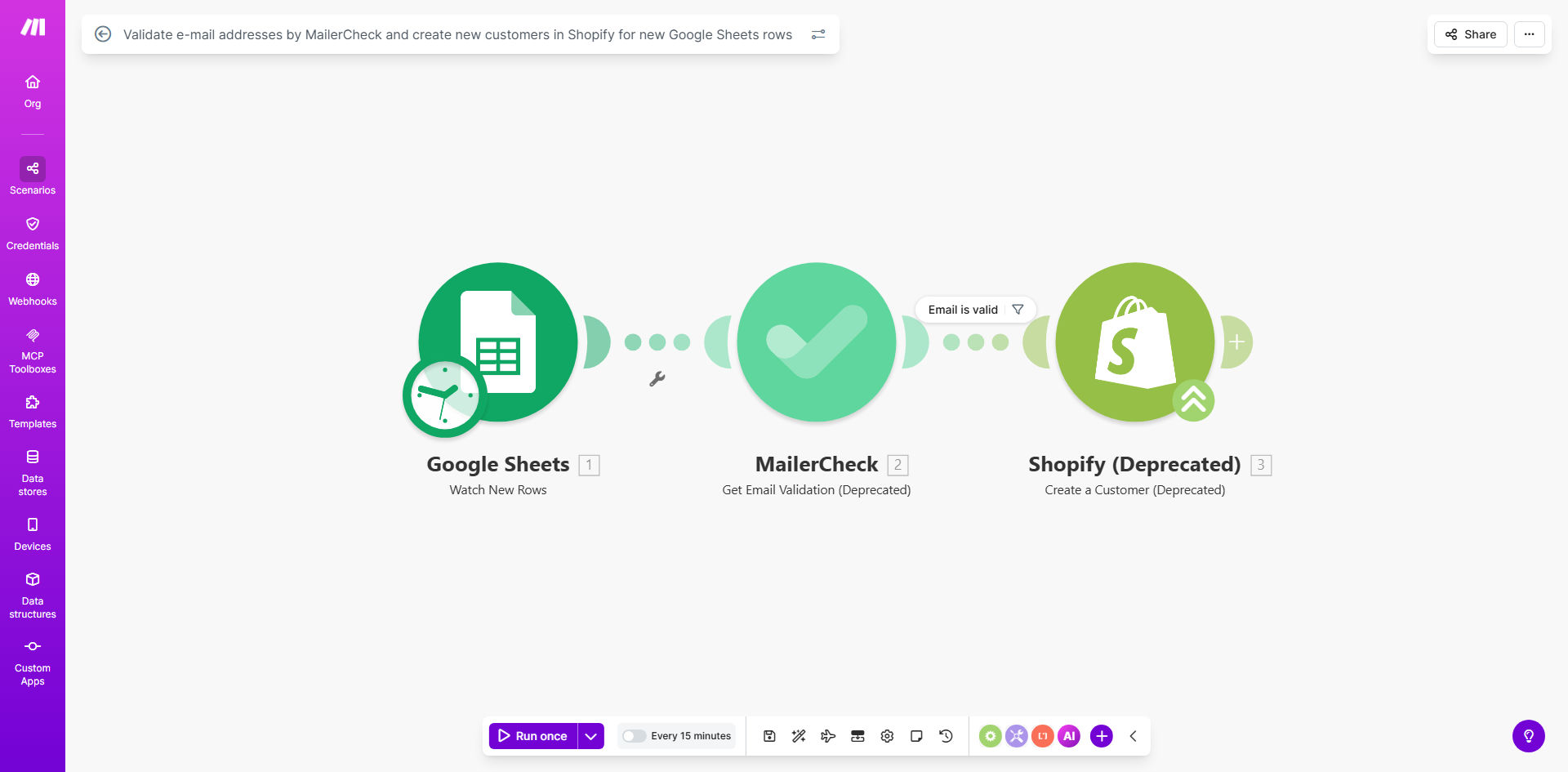
This automation solves that problem completely. Every time a new row is added to your Google Sheet—whether from a form, event, or manual entry—the workflow automatically validates the email address using MailerCheck's professional verification service. Only emails that pass validation are created as new customers in your Shopify store. Invalid addresses are flagged for review, keeping your customer database pristine and your marketing deliverability high.
Beyond just saving time, this system ensures data quality from the moment a lead enters your system. You eliminate bounce rates from bad emails, improve your sender reputation with email providers, and create accurate customer segments for targeted campaigns.
How It Works
The workflow follows a logical three-step process that mirrors how you'd manually clean data, but does it instantly and without mistakes.
Step 1: Detect New Google Sheets Rows
The automation monitors your specified Google Sheet for new rows. This could be a sign-up sheet from an event, a webinar registration list, or a CSV import. Each new row triggers the workflow, capturing the customer's name, email, and any other relevant data you've collected.
Pro tip: Structure your Google Sheet with clear column headers (Name, Email, etc.) to make data mapping in Make.com straightforward. You can add custom fields like "Phone" or "Lead Source" that will flow through to Shopify customer notes.
Step 2: Validate Email with MailerCheck
The email address from the new row is sent to MailerCheck's API for comprehensive validation. MailerCheck checks syntax, verifies the domain exists and accepts mail, pings the mailbox, and screens for disposable/temporary email services. It returns a clear validation status and a quality score.
Step 3: Create Verified Customer in Shopify
If the email passes validation, the workflow immediately creates a new customer in your Shopify store with all the associated data. The customer is tagged with their source (e.g., "Google Sheets Import") and the validation status. If the email fails validation, the workflow can route that data to a separate sheet for follow-up, send you a notification, or simply skip the Shopify creation—you choose the handling logic.
Who This Is For
This automation delivers immediate value for several types of businesses:
- E-commerce stores that collect leads at physical events, trade shows, or pop-up shops and need to quickly add them to their Shopify customer list.
- Marketing teams running webinars, contests, or lead magnets who want to automatically nurture qualified leads by adding them to their store's ecosystem.
- Businesses migrating customer data from spreadsheets or legacy systems into Shopify, needing to clean thousands of records during the import process.
- Agencies managing multiple Shopify stores for clients, looking for a standardized, reliable way to handle customer data imports across accounts.
What You'll Need
- A Make.com account (free tier available).
- A Google Sheets document with your customer/lead data, with edit access for the Make.com connection.
- A MailerCheck account and API key (they offer a free tier with limited credits).
- A Shopify store with admin access to create customers via the API.
- Basic information about your customer fields (what data you want to map from Sheets to Shopify).
Quick Setup Guide
You can have this automation running in under 30 minutes:
- Clone the template: Click "Get This Workflow" and duplicate the scenario into your Make.com account.
- Connect your apps: Authorize Make.com to access your Google Sheets, MailerCheck, and Shopify accounts.
- Configure the trigger: Select the specific Google Sheet and worksheet you want to monitor for new rows.
- Map your data: Match the columns from your sheet (Name, Email, etc.) to the corresponding fields in the MailerCheck and Shopify modules.
- Set up error handling: Decide what happens to invalid emails—send to a different sheet, notify your team, or simply log them.
- Test and activate: Add a test row to your sheet and verify a validated customer appears in Shopify. Then turn the scenario on.
Key Benefits
Eliminate 2–5 hours of manual data cleaning per import. What used to be a tedious, error-prone task now happens automatically in seconds, freeing your team for higher-value work.
Improve email marketing deliverability by 15–30%. By ensuring every email in your Shopify list is valid, you reduce bounce rates, protect your sender reputation, and increase open and click-through rates.
Create a scalable system for lead capture. Whether you get 10 or 10,000 new leads from a campaign, they're all processed with the same accuracy and speed, without any additional effort from your team.
Maintain a pristine customer database. Shopify becomes your single source of truth for clean, verified customer data, improving segmentation, personalization, and customer lifetime value calculations.
Reduce customer service issues from communication failures. When order confirmations, shipping updates, and marketing emails reach real inboxes, customers stay informed and satisfied.