Make.com Accounting Automation Dext Microsoft Excel Data Export

Export Dext Clients to Microsoft Excel Automatically

Stop manually copying client lists. This free Make.com template automatically exports your Dext clients to a Microsoft 365 Excel worksheet daily, saving hours and ensuring accuracy.

Get This Workflow → Make.com · Accounting · Free Template
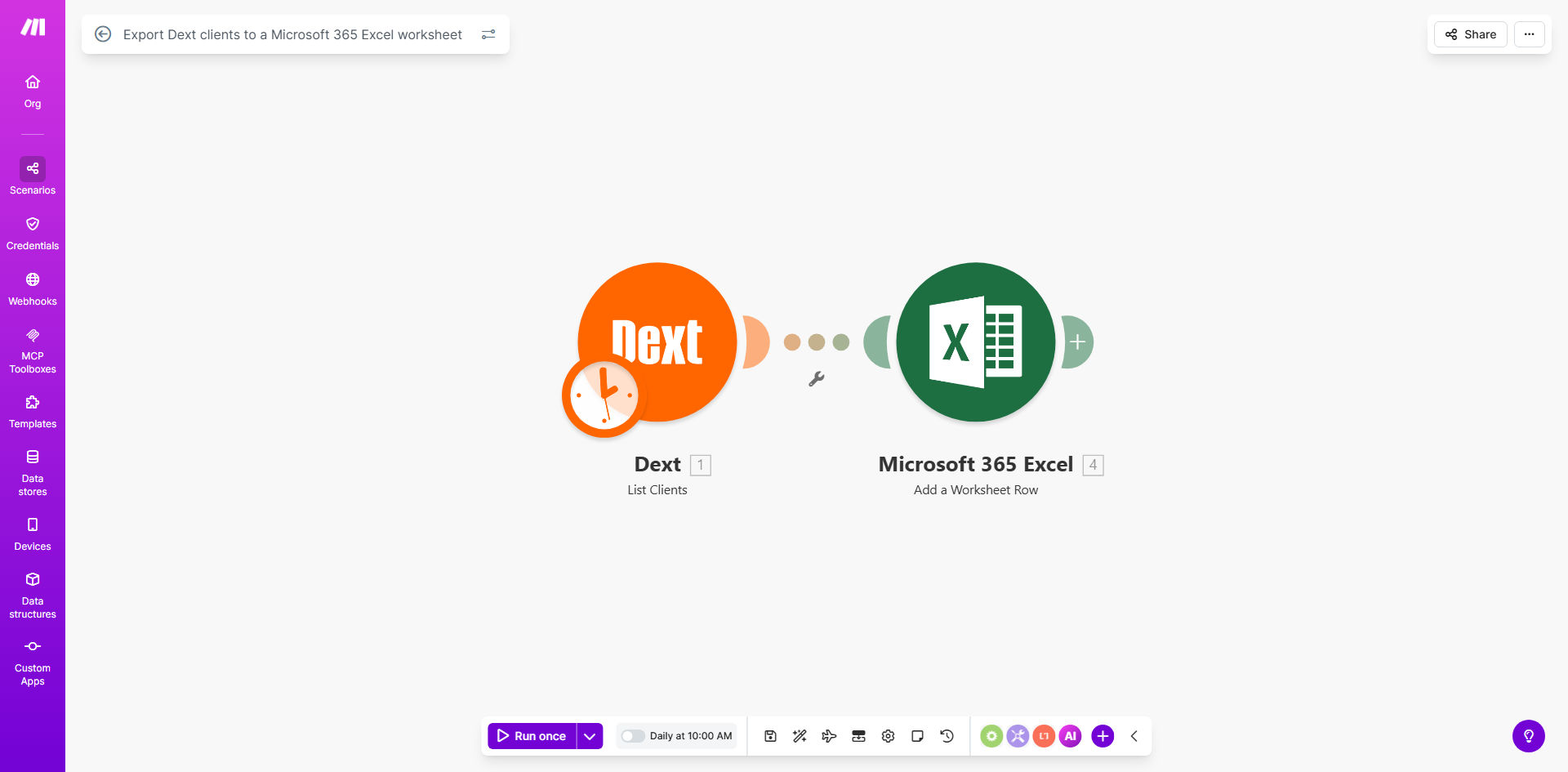
Make.com workflow diagram showing automation between Dext and Microsoft Excel

What This Workflow Does

For accounting firms and bookkeepers using Dext (formerly Receipt Bank), managing a clean, up-to-date client list outside the platform is a common headache. You might need the list for reporting, client segmentation, onboarding new team members, or integrating with other systems like a CRM. Manually exporting this data weekly or monthly is repetitive, error-prone, and eats into valuable billable hours.

This automation solves that by creating a seamless bridge between Dext and Microsoft Excel. It automatically pulls your client database—including names, IDs, contact details, and statuses—and writes it into a structured Excel worksheet in Microsoft 365. The workflow is scheduled to run daily, ensuring your Excel sheet is always current without any manual intervention. It transforms a tedious administrative task into a reliable, background process that delivers accurate data exactly where you need it.

How It Works

The workflow acts as a scheduled data pipeline. It connects to your Dext account, fetches the client list, formats the information, and pushes it into your designated Excel file.

Step 1: Scheduled Trigger

A schedule module initiates the workflow every day at a set time (default 10:00 AM). This ensures the export runs consistently without you having to remember to start it.

Step 2: Fetch Clients from Dext

The automation authenticates with your Dext account via API and retrieves the list of clients. It can filter by active status, date added, or other criteria you configure.

Step 3: Transform Data Structure

The raw client data is mapped and formatted. You can choose which fields to export (e.g., client name, email, business number, last activity date) and how they should be arranged.

Step 4: Write to Microsoft Excel Worksheet

The formatted data is sent to your Microsoft 365 Excel file. The workflow can create a new worksheet, append to an existing one, or update specific rows, keeping the file organized and ready for use.

Pro tip: You can extend this workflow to also send an email notification with a snapshot of the export summary, or trigger a secondary process in another app whenever a new client is added to Dext.

Who This Is For

This template is ideal for accounting practices, bookkeeping services, and financial consultants who use Dext for client receipt management and need a synchronized client list outside the platform.

  • Accounting Firm Managers: Who need a master client dashboard in Excel for firm analytics and reporting.
  • Bookkeepers: Who want to automate client data backup or prepare lists for client review meetings.
  • Operations Teams: Who integrate client data with other systems like CRM, marketing tools, or internal databases.
  • Solo Practitioners: Who want to save time on administrative tasks and focus more on client service.

What You'll Need

To set up this automation, you'll need a few prerequisites ready. These are common tools most businesses already use.

  1. A Dext account with administrator or API access permissions to read client data.
  2. A Microsoft 365 subscription with Excel online, and a specific Excel file (or folder) where you want the client list to be stored.
  3. A Make.com account (free tier works) to host and run the automation workflow.
  4. Basic understanding of your client data structure in Dext (know which fields you want to export).

Quick Setup Guide

Getting the workflow live takes about 15-20 minutes. Follow these steps to configure it for your business.

  1. Copy the template: Click "Get This Workflow" to open the template on Make.com and create a copy in your own account.
  2. Connect your apps: In the Make.com scenario, connect the Dext module to your Dext account and the Microsoft 365 Excel module to your Microsoft account.
  3. Configure data mapping: Select the specific Dext client fields you want to export and match them to the column headers in your Excel worksheet.
  4. Set the destination: Specify the exact Excel file and worksheet name where the data should be written. You can choose to create a new sheet or update an existing one.
  5. Adjust the schedule: Change the trigger time from the default 10:00 AM to a time that suits your workflow (e.g., early morning before work starts).
  6. Test and activate: Run a test execution to verify the data flows correctly. Then activate the scenario to let it run automatically on schedule.

Key Benefits

Save 2–5 hours per month on manual data entry. Eliminate the weekly or monthly ritual of exporting and formatting client lists. The automation does it consistently while you focus on higher-value tasks.

Ensure 100% data accuracy and consistency. Manual copying often leads to missed clients or incorrect details. An automated export pulls data directly from the source, guaranteeing your Excel list matches Dext exactly.

Create a live client database for reporting and analysis. With an always-updated Excel sheet, you can build dashboards, track client growth, segment by engagement, or prepare reports without waiting for manual updates.

Improve team collaboration and onboarding. New team members can access the current client list instantly, without needing Dext training or waiting for an export. It becomes a shared reference point for the entire firm.

Build a foundation for further automation. This exported Excel file can become the source for other automations—like syncing to a CRM, triggering welcome emails for new clients, or generating performance summaries.

Frequently Asked Questions

Common questions about Dext and Excel automation and integration

Automating this process eliminates manual copying and pasting, saving accountants and bookkeepers significant time each week. It ensures your Excel client list is always up-to-date with the latest information from Dext, reducing errors and improving data consistency for reporting and client management.

Beyond time savings, it creates a reliable data pipeline. You no longer need to remember to export; the system does it daily. This accuracy supports better business decisions, as your analysis is based on complete, current data.

This integration creates a seamless flow of client information from your bookkeeping platform to your analysis and reporting tool. You can use the automatically updated Excel sheet for client segmentation, performance tracking, generating custom reports, or preparing data for other systems without manual intervention.

It bridges two critical tools: Dext for daily receipt management and Excel for strategic analysis. This connection turns raw client data into an actionable business asset, helping you understand client engagement, identify growth opportunities, and streamline firm operations.

Typically, you can export client names, IDs, contact information, engagement status, tax details, and financial metrics stored in Dext. The automation can map these fields into organized columns in Excel, creating a structured client database that's ready for analysis or integration with other tools.

Common exported fields include client name, email address, business registration number, last activity date, and subscription status. You can customize the export to include any client attribute available in your Dext account, tailoring the list to your specific reporting needs.

Yes, when using a trusted automation platform like Make.com. The connection uses secure API authentication, and data flows directly between the two services without being stored on intermediate servers. You control the schedule and data fields, ensuring only necessary information is transferred.

Make.com acts as a secure conduit, not a data repository. Your credentials are encrypted, and the transfer occurs over secure channels. This method is often more reliable and secure than manual exports involving downloads and file transfers.

Absolutely. Automation workflows are highly customizable. You can select which Dext fields to export, arrange them in any column order, add calculated columns, format cells, and even create multiple sheets for different client categories. The template is a starting point you can adapt to your exact needs.

For example, you could add a column that calculates the client's average monthly receipt count, or split the list into separate sheets for "Active Clients" and "Archived Clients." The flexibility allows you to build a client register that matches your internal processes perfectly.

Common uses include creating a master client dashboard for firm management, preparing data for client onboarding meetings, syncing client details with CRM systems, generating periodic performance reports, and maintaining a backup client register outside of Dext for redundancy or archival purposes.

Many firms also use the exported list for marketing segmentation (e.g., identifying clients in a specific industry), operational planning (tracking client growth trends), or compliance (keeping an external record of client engagements). The automated list becomes a versatile resource for multiple business functions.

Set up notifications within the workflow to alert you if the export fails. Schedule it to run during off-peak hours. Regularly review the output Excel file to verify data completeness. Use error-handling modules in the automation to retry or log issues, ensuring long-term reliability.

Best practices include a monthly spot-check of the exported data, setting up a simple email alert on failure, and keeping your API connections updated. Automation is meant to reduce oversight, but a light monitoring routine ensures it continues to serve you flawlessly.

Yes, GrowwStacks specializes in building tailored automation systems for accounting and bookkeeping firms. We can design a workflow that exports specific Dext data to your preferred Excel structure, integrates with other tools like your CRM, and includes custom reporting logic—all built to your exact specifications.

Our team will analyze your current process, identify the optimal data flow, and build a robust automation that saves you time and improves data accuracy. We handle the technical setup, testing, and deployment, giving you a ready-to-use system without the complexity.

  • Tailored field mapping and Excel formatting
  • Integration with your existing CRM or reporting tools
  • Error handling and notification systems

Need a Custom Dext & Excel Automation?

This free template is a starting point. Our team builds fully tailored automation systems for your specific business needs.