Make.com Bannerbear Google Drive Asset Management Marketing Automation

Automatically Save Bannerbear Images to Google Drive

Never manually download a graphic again. This free workflow instantly archives every new Bannerbear creation to your chosen Drive folder, keeping your digital assets organized and accessible.

Get This Workflow → Make.com · Bannerbear · Free Template
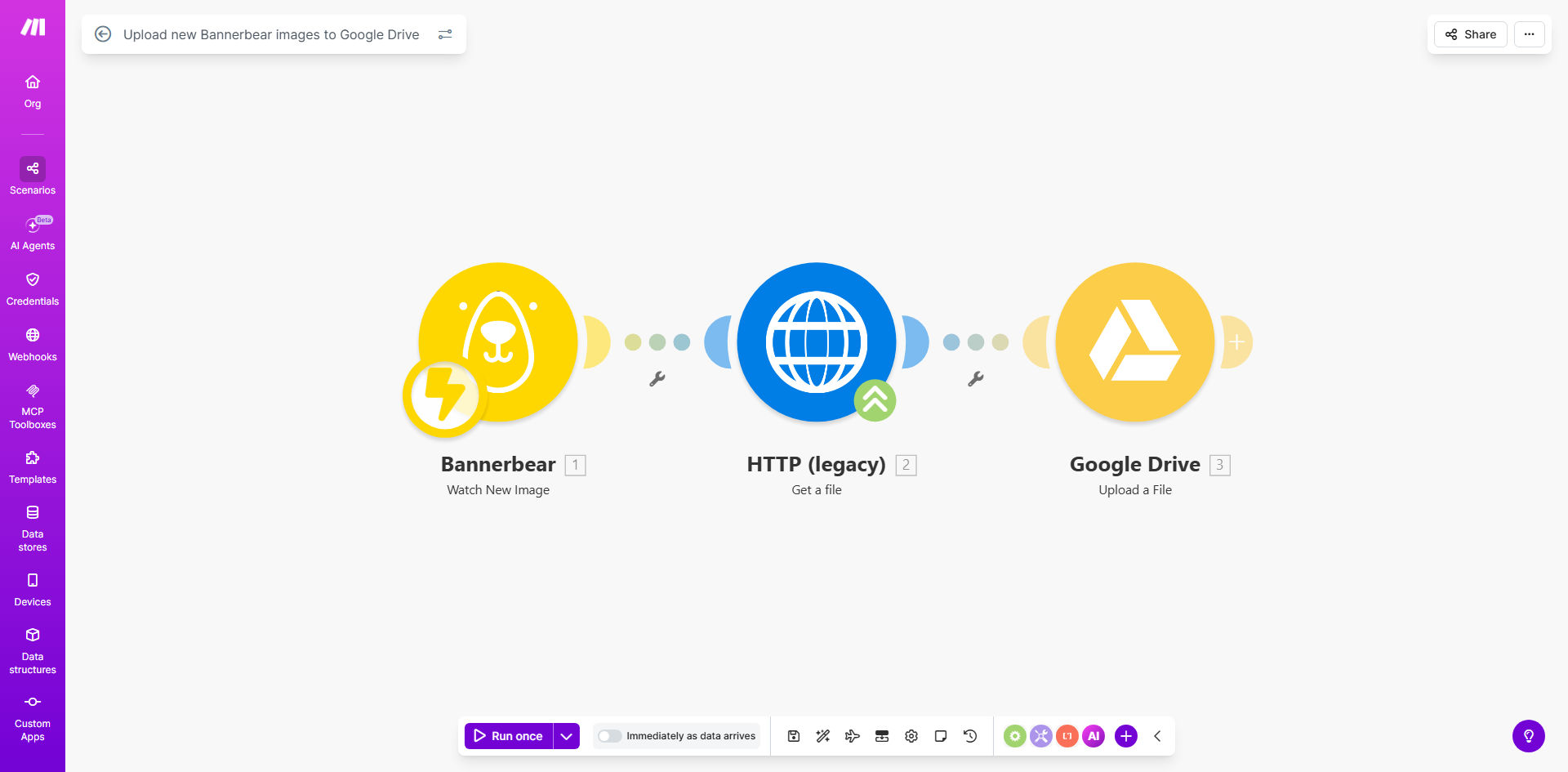
Make.com workflow diagram showing Bannerbear connected to Google Drive for automatic image upload

What This Workflow Does

For marketing teams, designers, and content creators, Bannerbear is a powerful tool for generating on-brand graphics, social media images, and personalized visuals at scale. However, the process of manually downloading each created image and then uploading it to a storage platform like Google Drive is a repetitive, time-consuming task that interrupts creative workflows and risks asset loss.

This automation solves that problem entirely. It creates a seamless bridge between Bannerbear and Google Drive. Every time a new image is generated in Bannerbear—whether it's a single graphic or part of a batch—this workflow automatically detects it, retrieves the file, and uploads it directly to a specified folder in your Google Drive. This eliminates the download-upload middle step, ensuring your growing library of visuals is always backed up, organized, and instantly available to your team.

Pro tip: Use this automation as the foundation of a centralized "brand asset hub." All auto-saved graphics become searchable in Drive, making it easy for anyone on your team to find and reuse approved marketing materials.

How It Works

The workflow operates on a simple trigger-action principle, running reliably in the background on Make.com.

Step 1: Trigger on New Bannerbear Image

The scenario starts by watching Bannerbear for any new "image created" events. This could be triggered by an API call from your app, a scheduled template run, or a manual creation within Bannerbear's interface. Make.com captures the event data, including the unique image URL and its metadata.

Step 2: Fetch the Image File

Once triggered, the workflow uses the image URL provided by Bannerbear to download the actual image file (PNG, JPG, etc.) into the automation. This step happens in milliseconds, securing the asset before any link expiration.

Step 3: Upload to Your Google Drive Folder

The downloaded file is then sent to the Google Drive module. You configure this step to point to your specific team or project folder. The workflow can use dynamic naming, so files are saved with clear names like "Social-Post-2025-04-10.png" or based on the Bannerbear template used, keeping everything organized from the start.

Who This Is For

This automation is a game-changer for any business or individual that relies on consistent visual content creation.

  • Marketing Agencies: Managing graphics for multiple clients. Auto-save all client assets to dedicated Drive folders for easy sharing and review.
  • E-commerce Brands: Generating product banners or promotional graphics. Ensure all ad creatives are archived for performance analysis and reuse.
  • Social Media Managers: Creating daily content. Stop wasting time managing downloads; let automation build your visual content library.
  • SaaS Companies: Using Bannerbear for automated user onboarding graphics or invoice generation. Securely store all customer-facing documents.

What You'll Need

  1. A Make.com account (free tier available).
  2. A Bannerbear account with API access (your API key).
  3. A Google Drive account (personal or Google Workspace) with a folder ready to receive the images.
  4. Basic understanding of how to copy a template and connect your apps in Make.com (we provide a guide below).

Quick Setup Guide

You can have this automation running in under 10 minutes.

  1. Get the Template: Click the "Get This Workflow" button above. This will open the template in your Make.com account.
  2. Create a Copy: In Make.com, click "Copy scenario" to add it to your own workspace.
  3. Connect Your Apps: In the scenario editor, click on the Bannerbear module and authenticate with your API key. Then, click on the Google Drive module and sign in with your Google account.
  4. Set Your Destination: In the Google Drive module, select the specific folder where you want all new images to be saved. You can also customize the file naming convention here.
  5. Turn It On: Save your scenario and toggle the scheduler to "ON." The automation is now live and will process every new Bannerbear image from this moment forward.

Pro tip: Test the workflow immediately by generating a simple image in Bannerbear. Watch the logs in Make.com to see it trigger, process, and successfully save the file to Drive. This confirms everything is connected correctly.

Key Benefits

Save 5–15 hours per month per team member. Eliminate the constant context-switching of downloading, renaming, and uploading graphics. This time can be reinvested in strategic creative work.

Eliminate the risk of lost assets. Manual processes fail. People forget to download, files get saved to random desktop folders, and links expire. Automation guarantees every single graphic is preserved in your central system.

Improve team collaboration and speed. When graphics auto-populate a shared Drive, designers, marketers, and managers have instant access. This accelerates review cycles, content scheduling, and cross-functional projects.

Create a scalable content production system. As you generate more visuals—for ads, social media, blogs, or emails—your storage and organization scale automatically without any additional manual overhead.

Maintain perfect brand consistency. By having all generated graphics in one searchable location, you ensure only the latest, on-brand assets are used across all channels, strengthening your brand identity.

Frequently Asked Questions

Common questions about Bannerbear and Google Drive automation and integration

Automating this process saves significant time and prevents asset loss. For teams creating multiple graphics daily, manual downloads are inefficient and error-prone. Automation ensures every image is instantly archived in a central, searchable location like Google Drive, improving team collaboration and brand consistency.

Imagine a social media manager creating 20 graphics a week. Without automation, that's 20 separate downloads and uploads, plus the mental effort of organization. This workflow removes that friction completely, turning a 10-minute daily task into a zero-touch process.

The main benefits are centralized asset management and seamless workflow integration. All your generated social media graphics, ads, or product images are automatically organized in Drive. This creates a single source of truth for your marketing team, designers, and clients, eliminating version confusion and speeding up content distribution.

Beyond storage, it enables better workflows. For example, a designer can create a graphic in Bannerbear, and it's immediately available for a marketer to use in a campaign brief stored in the same Drive. The connection turns two separate tools into one cohesive production pipeline.

Yes, most automation platforms like Make.com allow you to create dynamic folder structures. You can organize images by project name, creation date, template type, or client. For example, you could automatically route all 'Instagram Story' graphics to one folder and 'Email Header' images to another, based on data from Bannerbear.

This is done using variables in the folder path within the Google Drive module. If your Bannerbear template name is included in the webhook data, you can use it to create a folder path like /MarketingAssets/[Template Name]/. This level of organization happens without any human intervention.

Yes, automation is designed for reliability at scale. Unlike a human, the workflow won't forget to download an image. It processes each new Bannerbear creation instantly and sequentially, ensuring no assets are missed even during high-volume campaigns. This is crucial for businesses running automated ad creative generation or bulk social media scheduling.

Make.com scenarios include error handling and retry logic. If a temporary network issue occurs, the platform will attempt to process the image again, ensuring data integrity. For extremely high volumes, you can adjust execution settings to handle the load efficiently.

It creates an instantly accessible, shared asset library. When graphics are auto-saved to a shared Google Drive, team members across marketing, sales, and design can immediately access the latest versions. This eliminates email attachments, reduces 'where is that file?' questions, and allows for real-time feedback and reuse of approved brand assets.

Collaboration improves because everyone works from the same updated source. A salesperson can grab the newest product graphic for a proposal, a content writer can embed the correct chart in a blog post, and a manager can review all outputs for the week—all without requesting files from a designer.

You can build powerful end-to-end workflows. Connect Bannerbear to social schedulers like Buffer to auto-post new graphics. Link it to Slack to notify your team when an image is ready. Integrate with Airtable or Google Sheets to log creation data for reporting. The goal is to remove all manual steps between image creation and its final use.

For example, a complete workflow could: 1) Trigger from a new row in Airtable (a blog title), 2) Generate a featured image in Bannerbear, 3) Save it to Google Drive, 4) Post it to WordPress, and 5) Share the link in a Slack channel. This turns a multi-app process into a single, automated sequence.

Absolutely. GrowwStacks specializes in building tailored automation systems. While this template is a great start, we can design a solution that fits your specific folder hierarchy, naming conventions, notification needs, and connects with your other tools like your CMS, CRM, or project management software. We handle the complex logic so you get a turnkey system.

Our consultants work with you to map out your entire content creation and asset management process. We then build, test, and deploy a custom Make.com scenario that saves your team time, reduces errors, and scales with your business. Common customizations include:

  • Multi-level folder structures based on client or campaign.
  • Integrating approval steps before files are saved.
  • Adding metadata logging to a database for advanced search.

Need a Custom Bannerbear Automation?

This free template is a starting point. Our team builds fully tailored automation systems for your specific business needs.