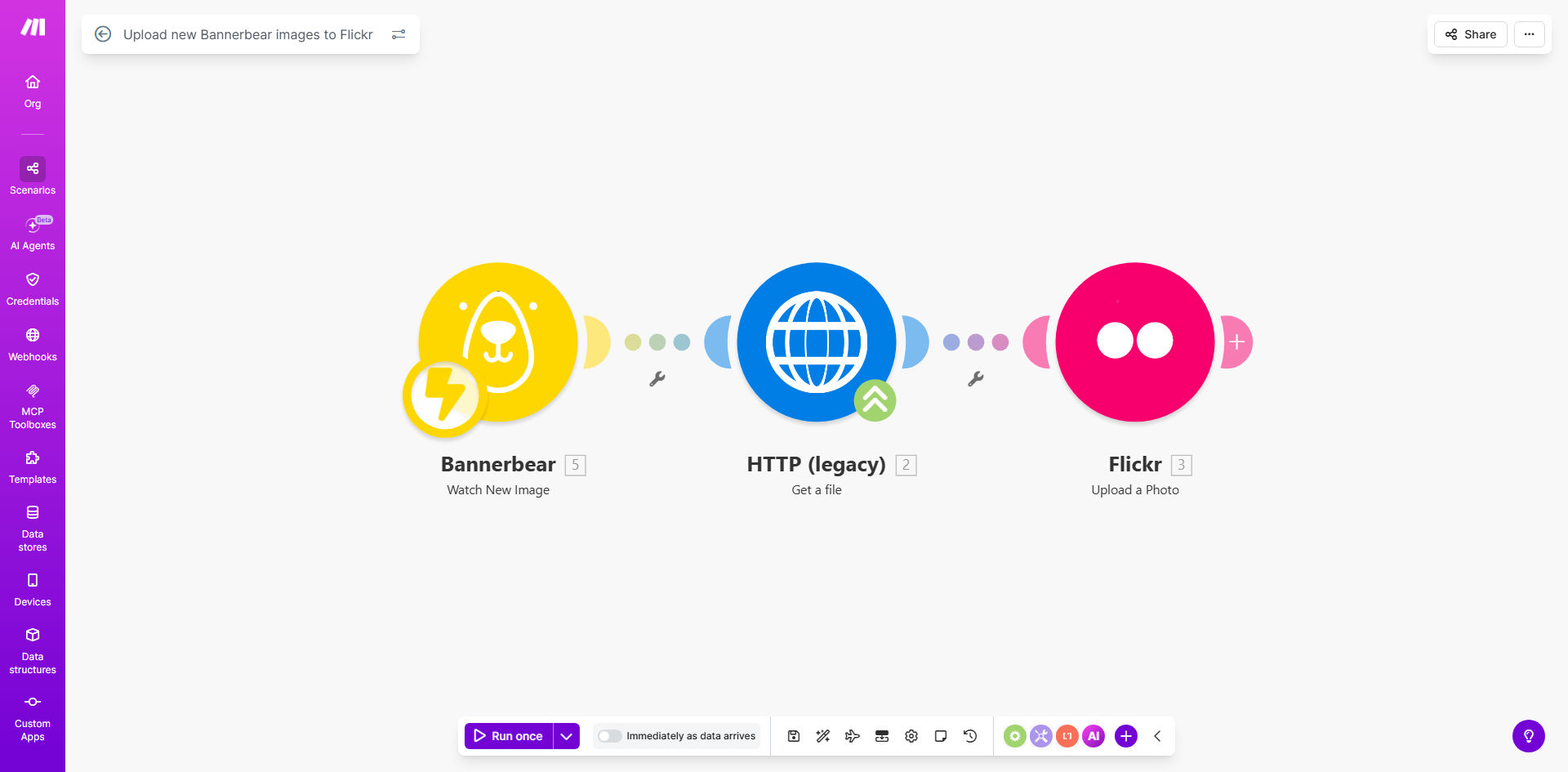
What This Workflow Does
For marketing teams, designers, and content creators, the process of moving assets from creation tools to storage or sharing platforms is a repetitive, time-consuming chore. You design a perfect social media graphic in Bannerbear, then you must manually download it, navigate to Flickr, find the right album, and upload it. This workflow breaks that bottleneck.
This automation acts as a digital courier between Bannerbear and Flickr. The moment a new image is generated or finalized in your Bannerbear account, the workflow is triggered. It captures the image file and all its relevant data, then seamlessly uploads it to a pre-defined photoset in your Flickr account. The result is a fully synchronized asset library where your latest creative work is always immediately accessible for your team, clients, or public sharing.
Pro tip: Use this automation to maintain a "live" portfolio or client gallery. Every time you create a new project mockup or marketing asset in Bannerbear, it automatically populates a public or private Flickr gallery, keeping it always up-to-date without any extra effort.
How It Works
The workflow is built on a simple but powerful "watch-and-act" principle using Make.com's automation platform.
Step 1: Trigger on New Bannerbear Image
The scenario starts by monitoring your Bannerbear account for new image creation events. This could be when a template is rendered, a new design is saved, or an image is added to a specific project. Make.com connects to Bannerbear's API and waits for this signal.
Step 2: Retrieve the Image File & Details
Once triggered, the workflow fetches the newly created image. It doesn't just get the image URL; it can also pull metadata like the image name, template ID, creation date, and any custom variables you passed during its creation in Bannerbear. This data can be used for organization later.
Step 3: Upload to Your Flickr Photoset
The core action: the workflow takes the image file and uploads it directly to your connected Flickr account. You specify the destination photoset during setup. The automation handles the authentication, file transfer, and confirmation, ensuring the image lands in the correct digital folder every single time.
Who This Is For
This automation is a game-changer for any professional or team that regularly produces visual content and needs to distribute or archive it efficiently.
- Marketing Agencies: Automatically archive all client campaign graphics for easy retrieval and reporting.
- Social Media Managers: Instantly push new post designs to a shared Flickr library for the entire content team.
- E-commerce Businesses: Streamline the process of uploading new product mockups or banner ads to a central asset repository.
- Freelance Designers: Maintain an automatically updated online portfolio by sending every finished project to a public Flickr photoset.
- Content Teams: Ensure blog post featured images, infographics, and other visuals are immediately available to writers and editors.
What You'll Need
To set up this workflow, you'll need just a few key accounts and permissions:
- A Make.com account (free tier available). This is the automation platform that will run the workflow.
- A Bannerbear account with API access. You'll need an API key from your Bannerbear dashboard to allow Make.com to connect.
- A Flickr account. You'll need to authenticate Make.com with Flickr, typically via OAuth, granting permission to upload photos to your account.
- Clear destination: Decide which Flickr photoset you want to use as the default upload destination. You can create a new one specifically for automated uploads.
Quick Setup Guide
You can have this automation running in under 15 minutes by following these steps:
- Get the Template: Click the "Get This Workflow" button above to open the pre-built template in your Make.com account.
- Connect Bannerbear: In the first module, click to add your Bannerbear connection. You'll be prompted to enter your Bannerbear API key, which you can find in your account settings.
- Connect Flickr: In the upload module, click to add your Flickr connection. You'll go through a standard OAuth flow to log in to Flickr and grant Make.com the necessary permissions.
- Configure the Destination: Select the specific Flickr photoset where you want all new Bannerbear images to be sent. You can find the photoset ID in its Flickr URL.
- Test & Activate: Run the scenario once manually to test. Create a simple image in Bannerbear and watch as it automatically appears in your Flickr photoset. Once confirmed, turn the scenario to "ON" to let it run automatically.
Key Benefits
Save 2-5 hours per week per team member by eliminating the download-upload shuffle. That's time your designers and marketers can reinvest in creative work or strategy instead of manual file management.
Eliminate human error such as uploading to the wrong folder, forgetting to upload a file, or misnaming assets. The automation performs the same task perfectly every time, ensuring consistency.
Accelerate project timelines by making assets instantly available. When a graphic is ready in Bannerbear, it's immediately in Flickr for the next person in the workflow, removing waiting periods and bottlenecks.
Improve organization and discoverability by having all your automated graphics flow into a single, structured location. This creates a reliable, searchable archive of all your visual content.
Scale your content production effortlessly because the distribution process keeps up with your creation speed. Whether you produce ten images a day or a hundred, the automation handles the transfer without breaking a sweat.