What This Workflow Does
In today's fast-paced digital market, the speed of lead response is a critical competitive advantage. Many businesses use WhatConverts to track phone calls and form submissions from marketing campaigns, but manually checking the dashboard for new leads creates delays. Valuable opportunities can go cold before a sales rep even knows they exist.
This automation solves that problem by creating a real-time bridge between WhatConverts and your team's communication hub, Slack. It acts as a smart filter and alert system. Every time WhatConverts captures a new lead and enriches it with sufficient contact information—specifically a name and email address—this workflow automatically triggers. It then formats the lead details into a clear, actionable message and posts it directly to a designated Slack channel or chat. This ensures your sales team is notified instantly, within seconds of the lead becoming actionable, right where they are already working.
How It Works
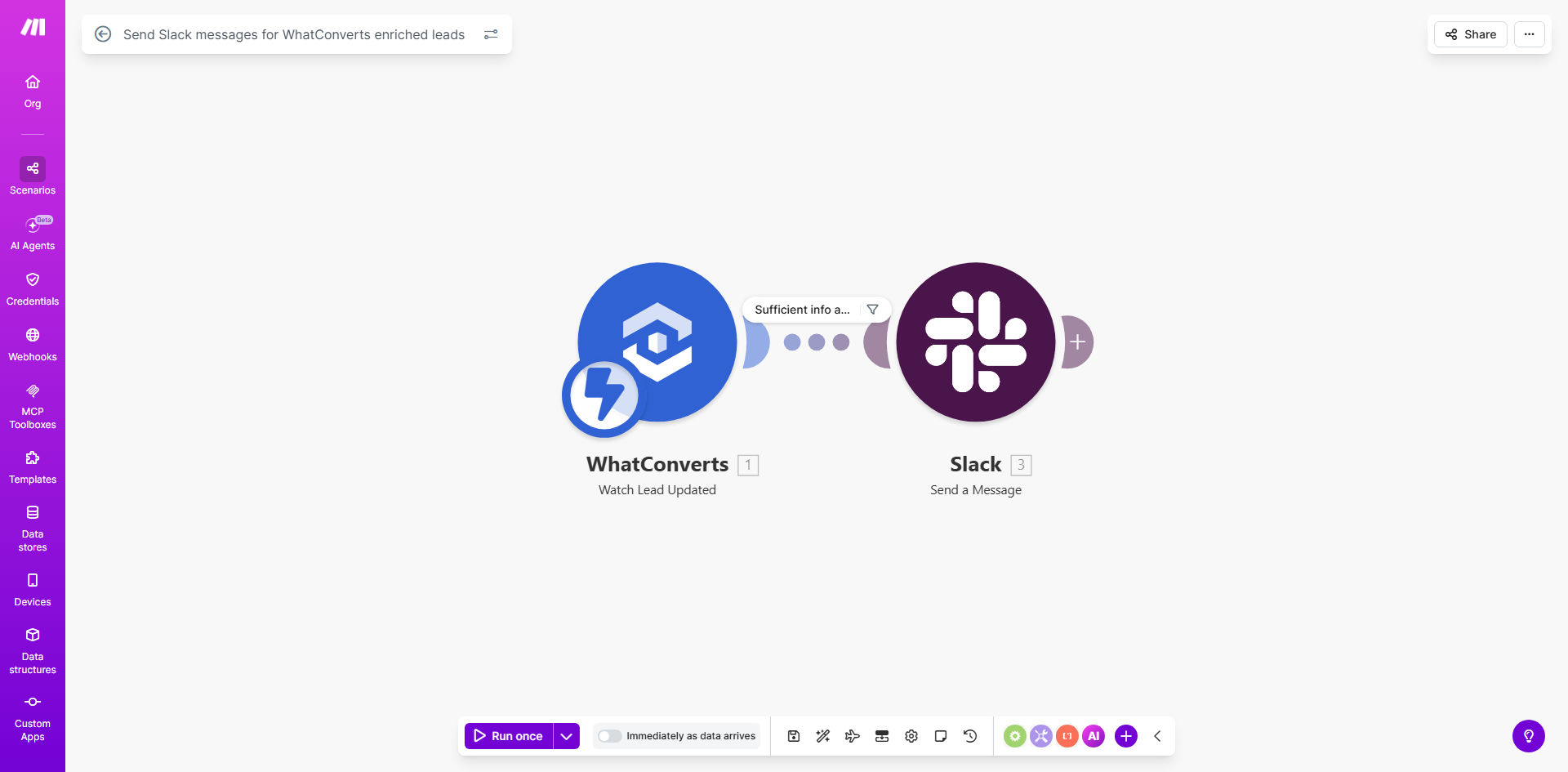
The workflow is a precise, three-step sequence that transforms a raw lead notification into a targeted team alert.
Step 1: Monitor WhatConverts for New Leads
The automation continuously watches your WhatConverts account for new or updated leads. It uses a "watch leads" trigger that activates whenever lead data changes. The key intelligence is in the filter applied at this stage: it checks if the incoming lead data contains both a name and an email address. This ensures only "enriched," sales-ready leads proceed, filtering out incomplete inquiries or simple phone number captures that need further qualification.
Step 2: Format the Lead Alert
Once a qualified lead is detected, the automation structures the information for maximum clarity. It pulls relevant data points from the WhatConverts lead object, such as the lead source (e.g., "Google Ads: Brand Campaign"), the project name, the captured phone number, and any custom notes. It then assembles this into a well-formatted message designed for quick scanning in Slack.
Pro tip: Customize the Slack message to include a direct link to the lead's full profile in WhatConverts. This allows your sales rep to click and see the full conversation history or recording immediately, saving valuable time.
Step 3: Post to Your Designated Slack Channel
The final step is the delivery. The formatted message is sent to a pre-configured Slack channel (like #new-leads or #sales-team) or even a specific user's direct message. The alert appears in Slack with clear labeling, making it impossible for the team to miss. This creates a seamless handoff from marketing attribution to sales engagement.
Who This Is For
This automation is a game-changer for marketing agencies, B2B service providers, e-commerce businesses, and any sales-driven organization using WhatConverts for lead tracking. It's ideal for sales teams that need to act fast on inbound inquiries, marketing managers who want to prove campaign ROI through immediate lead follow-up, and business owners tired of leads slipping through the cracks due to manual processes. If your team lives in Slack, this workflow brings your most important business events directly to them.
What You'll Need
- A Make.com account: This is the automation platform that will host and run the workflow.
- A WhatConverts account: You'll need an active subscription with leads coming in.
- Admin access to a Slack workspace: You need permission to create a Slack app or use an existing one to post messages to channels.
- A dedicated Slack channel: Decide which channel (e.g., #leads, #sales-alerts) or user will receive the notifications.
Quick Setup Guide
You can have this automation running in under 15 minutes by following these steps.
- Clone the Template: Click "Get This Workflow" to open the template in your Make.com account and create a copy.
- Connect WhatConverts: In the first module, authorize Make.com to access your WhatConverts account using your API credentials (found in WhatConverts Settings > API).
- Connect Slack: In the Slack module, authenticate with your workspace. You may need to create a Slack app in your workspace's admin panel to get the necessary permissions.
- Set the Destination: Specify the exact Slack channel name (e.g., "#new-leads") or user (e.g., "@john") where alerts should be sent.
- Customize the Message (Optional): Edit the "Compose Message" section to include the lead data points most important to your team, like lead score, source medium, or a custom greeting.
- Turn it On: Activate the scenario in Make.com. It will now run automatically, monitoring for new enriched leads and sending alerts around the clock.
Key Benefits
Reduce lead response time from hours to seconds. The moment a lead is captured and enriched, your sales team is notified in their primary communication tool, enabling contact while the lead's intent is highest.
Eliminate manual dashboard checking. Free your sales and marketing teams from the repetitive task of refreshing WhatConverts, saving an estimated 2-3 hours of non-selling time per team member per week.
Improve lead qualification and routing. By filtering for leads with name and email, you ensure your team focuses on the most actionable opportunities, increasing overall conversion rates and sales efficiency.
Create perfect accountability and visibility. Every qualified lead is logged in a public Slack channel, creating a clear record of incoming opportunities and team responsiveness for managers.
Scale your lead management process. This automation works 24/7 without fatigue. As your lead volume grows, the system handles the notification load effortlessly, ensuring no lead is ever missed due to capacity constraints.