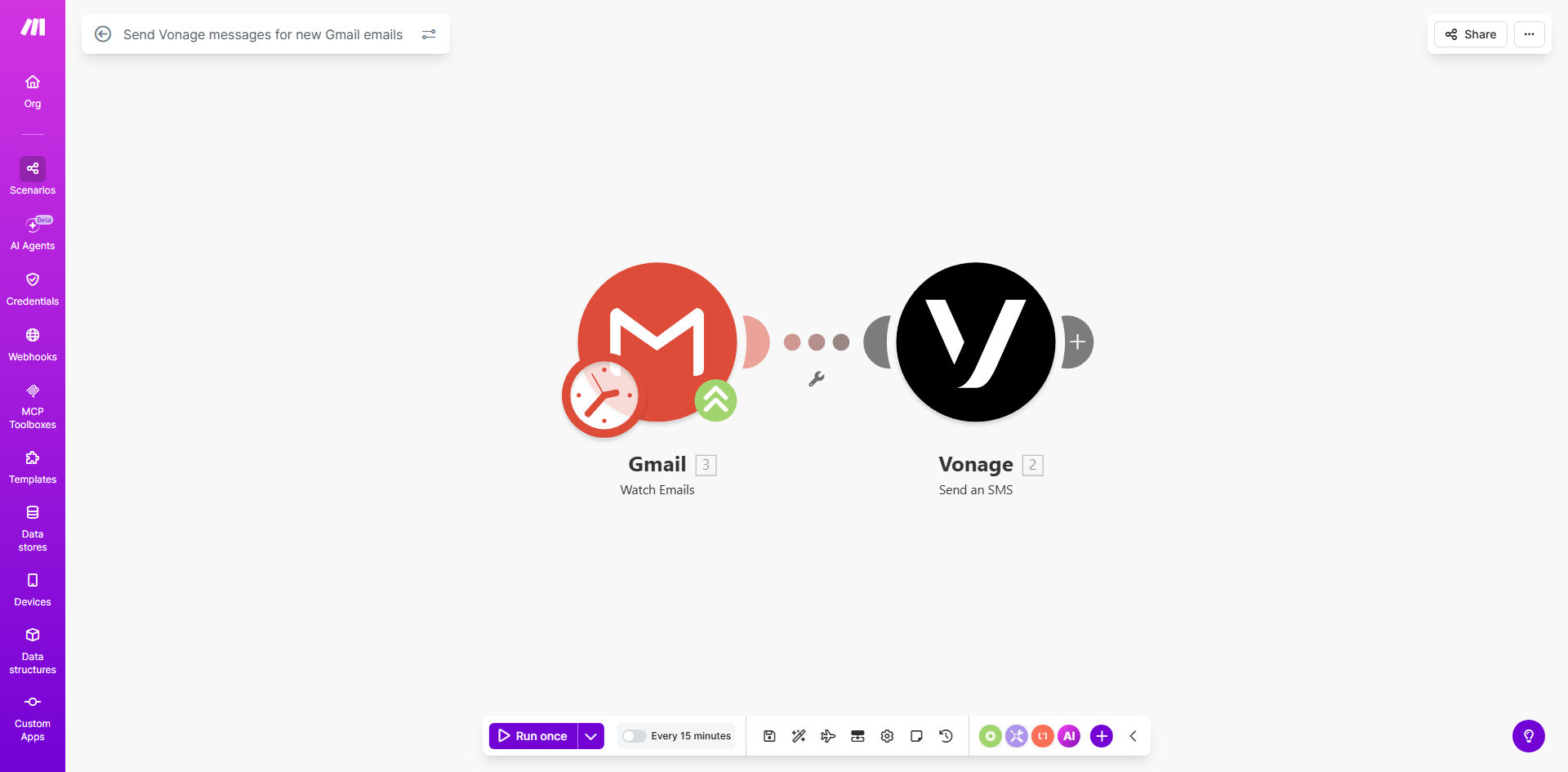
What This Workflow Does
In today's fast-paced business environment, missing a critical email can mean lost opportunities, delayed responses, and frustrated clients. Many professionals and teams are not always logged into their email, especially when traveling, in meetings, or focusing on deep work. This automation solves that problem by bridging your Gmail inbox with Vonage's reliable SMS platform.
The workflow automatically monitors your Gmail account for new emails at regular intervals. When a new email arrives, it instantly sends an SMS alert to a specified phone number via Vonage. This ensures you or your team receive immediate notifications for important communications, enabling faster responses and better prioritization without constant email checking.
Beyond simple alerts, this template can be customized to filter emails by sender, subject keywords, or labels, ensuring only high-priority messages trigger an SMS. It transforms your email workflow from a passive, inbox-bound process into an active, mobile-ready notification system.
How It Works
Step 1: Gmail Watches for New Emails
The Make.com scenario uses the Gmail module to watch your specified inbox at a scheduled interval (e.g., every 5 minutes). It can monitor all new emails or apply filters to only catch emails from specific senders, with certain keywords, or labeled as urgent.
Step 2: Extract Key Email Details
When a new email is detected, the workflow extracts relevant information such as the sender's name or email address, the subject line, and optionally a snippet of the body content. This data is formatted and prepared for the SMS message.
Step 3: Vonage Sends the SMS Alert
The formatted data is passed to the Vonage SMS module. Vonage then sends a concise, actionable SMS to the pre-configured phone number. The message can include the sender, subject, and a call to action like "Check email urgently."
Pro tip: Use filters to avoid SMS spam. Only trigger alerts for emails from clients, leads, or internal alerts. You can also set up different SMS recipients for different types of emails (e.g., sales alerts go to the sales lead, support alerts go to the support team).
Who This Is For
This automation is ideal for business owners, sales teams, support agents, and remote teams who need to stay responsive without being glued to their email client.
Sales Professionals: Get instant alerts for new lead inquiries or client responses, allowing you to reply within minutes instead of hours.
Customer Support Teams: Never miss a support ticket or customer complaint email. SMS alerts ensure urgent issues are addressed immediately.
Executives & Managers: Receive notifications for critical internal communications or reports without constantly checking email during meetings or travel.
Freelancers & Consultants: Stay on top of project communications and new client inquiries even when working offline or from different devices.
What You'll Need
- A Make.com account (free or paid plan) to build and run the automation scenario.
- A Gmail account with access to the inbox you want to monitor. You'll need to authenticate Gmail within Make.com.
- A Vonage API account with SMS capabilities. You'll need your Vonage API key and secret to send messages.
- The phone number(s) you want to receive the SMS alerts. This can be your personal number or a team distribution number.
- A clear filtering strategy to define which emails should trigger an alert (to avoid notification overload).
Quick Setup Guide
- Clone the Template: Use the "Get This Workflow" button above to open the template on Make.com and clone it to your own workspace.
- Connect Gmail: In the first module, authenticate your Gmail account. Configure the watch interval and set up any filters (sender, subject keywords) if needed.
- Connect Vonage: In the SMS module, add your Vonage API credentials. Enter the destination phone number where alerts should be sent.
- Customize the Message: Map the data from the Gmail module (sender, subject) into the SMS message body. Keep the message concise and actionable.
- Test & Activate: Run a test by sending yourself a qualifying email. Verify the SMS arrives correctly. Once confirmed, activate the scenario to run automatically.
Key Benefits
Reduce Response Time by Up to 90%: Instead of checking email every few hours, you get instant SMS alerts. This can cut response times from hours to minutes, dramatically improving customer satisfaction and closing deals faster.
Eliminate Missed Critical Emails: Important emails no longer get buried in a crowded inbox or missed during offline periods. SMS ensures they reach you wherever you are, on the device you always have with you.
Save 1–2 Hours Daily on Email Monitoring: Constant inbox checking is a time sink. This automation frees you from that habit, allowing you to focus on high-value work while still being notified of urgent items.
Improve Team Coordination: You can configure alerts to go to multiple team members or a shared team number. This ensures everyone is aware of critical updates simultaneously, enabling better collaborative response.
Create a Mobile-First Workflow: Modern business happens on the go. This integration makes your email communication mobile-friendly, aligning with how teams actually work today.