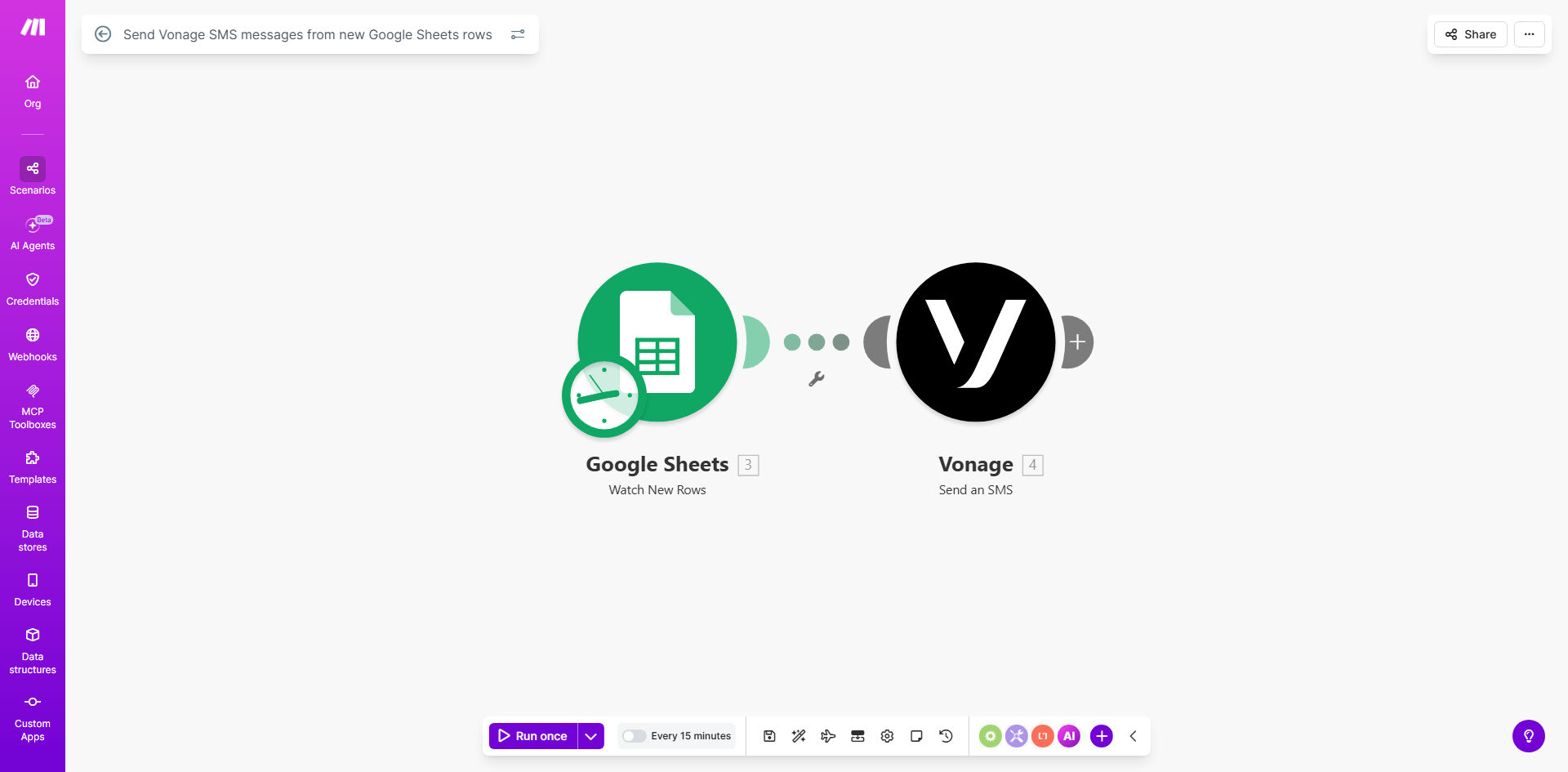
What This Workflow Does
Manually sending SMS messages based on spreadsheet data is a tedious, error-prone task that wastes valuable time. Whether it's notifying a customer their order is ready, reminding a client of an appointment, or alerting a team member about a new lead, the process of copying phone numbers and messages from a sheet is inefficient and delays critical communication.
This automation solves that by creating a direct bridge between your Google Sheets data and your customers' mobile phones via Vonage. The workflow monitors a specified Google Sheet for new rows. Each time a new entry is added—containing a phone number and message content—it triggers an instant SMS dispatch through the Vonage API. This turns your static spreadsheet into a dynamic communication hub.
The business value is clear: instant, reliable, and hands-free notification delivery. It ensures no alert is missed because someone forgot to check the sheet, dramatically improves operational speed, and allows your team to focus on higher-value tasks instead of administrative messaging.
How It Works
The workflow follows a simple but powerful sequence, automating the entire flow from data entry to message delivery.
Step 1: Monitor the Google Sheet
The Make.com scenario is set to watch a specific Google Sheets spreadsheet at a regular interval you define (e.g., every 5 or 15 minutes). It checks for rows that have been added since its last check. You specify the worksheet and the column range to monitor.
Step 2: Process the New Row Data
When a new row is detected, the workflow captures the data from each column. Typically, you'll map columns like 'Phone Number', 'Customer Name', 'Message Text', or 'Order ID'. This data is parsed and prepared for the next step.
Pro tip: Structure your Google Sheet with clear column headers (e.g., "Phone", "Message", "Status"). This makes mapping the data in Make.com straightforward and prevents errors.
Step 3: Send SMS via Vonage
The core action: the workflow takes the phone number and composed message from the row data and uses the Vonage SMS module to send it. You can personalize the message by combining static text with dynamic variables from the sheet, like {{1.CustomerName}} or {{1.AppointmentTime}}.
Step 4: Logging & Error Handling (Optional)
For robustness, you can add modules to log the result of each send back to the sheet (e.g., a "Sent" timestamp or "Error" message) or to a separate log. This creates an audit trail and helps you monitor the automation's performance.
Who This Is For
This template is a game-changer for any business or professional that uses Google Sheets as a source of truth and needs to trigger immediate mobile notifications.
Small Business Owners & E-commerce: Send order confirmation or shipping update SMS directly from your order log sheet.
Service Providers (Healthcare, Salons, Consultants): Automate appointment reminders to reduce no-shows. Add a new row for tomorrow's appointments, and the SMS goes out automatically.
Sales & Marketing Teams: Instantly notify a sales rep when a new hot lead is added to the shared lead tracker sheet.
Operations & IT Teams: Alert on-call staff about new support tickets or system alerts logged in a tracking spreadsheet.
Educators & Coaches: Send class reminders or urgent announcements to students or clients whose details are managed in a sheet.
What You'll Need
To clone and use this template, you will need active accounts and the following prerequisites set up:
- A Make.com account (free or paid plan).
- A Google Sheets spreadsheet with data you want to trigger messages from. The template includes an example structure.
- A Vonage API account with SMS capabilities enabled. You'll need your API Key and API Secret from the Vonage dashboard.
- Phone numbers in your sheet formatted correctly for Vonage (typically in E.164 format, e.g., +14155552671).
- (Recommended) A dedicated Google Cloud Project with the Sheets API enabled if you encounter authentication issues.
Quick Setup Guide
You can have this automation running in under 15 minutes by following these steps.
- Get the Template: Click "Get This Workflow" to open the template in your Make.com account and create a copy.
- Connect Google Sheets: In the first module, authenticate and select your target spreadsheet and worksheet. Set the schedule (how often to check for new rows).
- Connect Vonage: In the SMS module, add your Vonage API Key and Secret. Specify the 'From' number (your Vonage virtual number) and map the 'To' number and 'Text' fields to the correct columns from your Google Sheets row.
- Map Your Data: Ensure the phone number and message content from your sheet are correctly mapped to the Vonage module's inputs. Personalize the message template as needed.
- Test & Activate: Run a test execution by adding a dummy row to your sheet. Check that the SMS is received successfully. Then, activate the scenario to let it run automatically.
Key Benefits
Eliminate Manual Effort & Human Error: This automation removes the need for an employee to constantly watch a spreadsheet and manually send texts. It ensures every new entry is acted upon consistently, eliminating missed messages or typos from copy-pasting.
Achieve Near-Real-Time Communication: Depending on your polling interval, you can send SMS within minutes of data being entered. This speed is crucial for time-sensitive alerts, appointment reminders, or lead notifications, greatly improving customer experience and internal responsiveness.
Scale Your Communication Without Scaling Headcount: Whether you send 10 or 10,000 messages a month, the workflow handles it without additional labor. It allows small teams to manage large-scale, personalized communication effortlessly.
Centralize Control in a Familiar Tool: Your team manages everything from the Google Sheet they already know how to use. There's no need to learn a new messaging platform's interface; just add a row, and the automation does the rest.
Create a Reliable Audit Trail: By linking messages directly to spreadsheet rows, you have a clear record of what was sent, to whom, and when. This is valuable for compliance, customer service follow-ups, and process analysis.