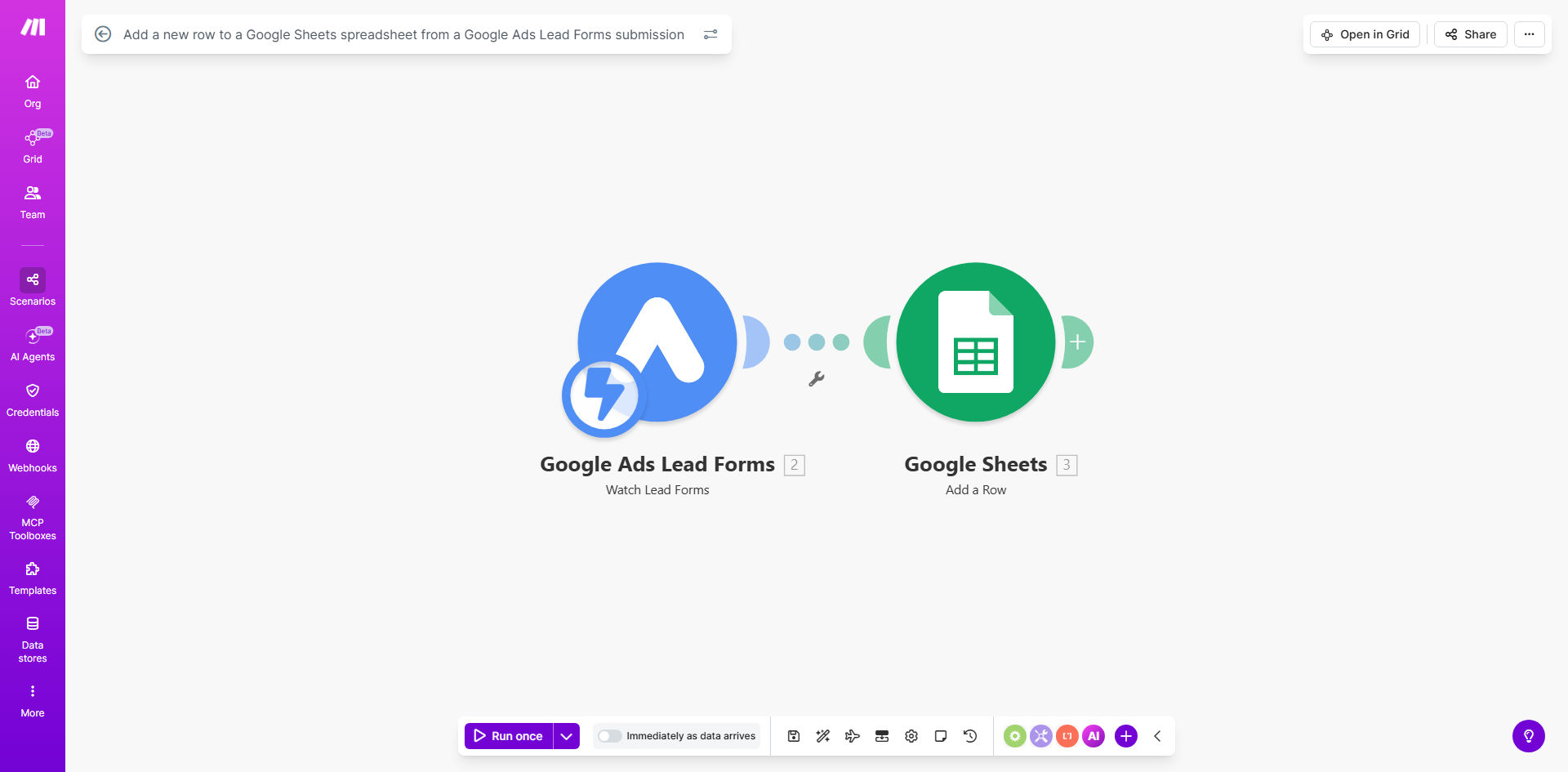
What This Workflow Does
Running Google Ads is a powerful way to attract new customers, but the real challenge begins the moment a lead submits your form. Manually copying names, emails, and phone numbers from Google Ads into a spreadsheet is a tedious, error-prone process that wastes valuable time and can lead to lost opportunities. This workflow solves that problem by creating a seamless, automatic bridge between your ad campaigns and your data.
Every time a potential customer fills out a lead form on your Google Ads, this Make.com automation instantly captures their information and adds it as a new row in your designated Google Sheets spreadsheet. It ensures your lead list is always up-to-date, centralized, and ready for your sales team to act upon. This isn't just about saving a few minutes; it's about accelerating your sales cycle and improving lead response times from hours to seconds.
Beyond simple data transfer, this automation standardizes your lead intake process. Whether you're collecting dozens or hundreds of leads per day, each entry is formatted consistently in your sheet, making it easy to sort, filter, and analyze. This creates a reliable single source of truth for all your advertising-generated prospects, which is foundational for measuring campaign ROI and optimizing your marketing spend.
How It Works
The automation acts as a real-time data pipeline, triggered by a new form submission and ending with a neatly organized spreadsheet entry.
Step 1: Trigger on New Lead Form Submission
The workflow begins with the "Google Ads" module in Make.com, which is configured to watch for new submissions on your specific lead form. As soon as a user clicks submit after entering their details on your ad, Make.com detects this event almost instantly. This trigger captures the entire payload of data from the form.
Step 2: Map the Lead Data
Once triggered, the scenario passes the lead information to the next module. Here, you map the specific fields from the Google Ads submission (like "Full Name," "User Email," and "User Phone") to corresponding column headers in your Google Sheets. This mapping step is crucial—it ensures John Doe's email goes into the "Email" column and his phone number into the "Phone" column, maintaining clean, usable data.
Pro tip: Ensure your Google Ads lead form uses consistent field names. If you change a field label in Ads, you'll need to update the field mapping in your Make.com scenario to avoid broken data flows.
Step 3: Add Row to Google Sheets
The final action is performed by the "Google Sheets" module. Using the mapped data from the previous step, it creates a new row at the bottom of your specified spreadsheet. The module connects to your Google account, finds the right sheet and worksheet, and inserts the lead's information in the correct order. The result is a live, updating lead database that requires zero manual intervention from your team.
Who This Is For
This automation is a game-changer for any business or marketer investing in Google Ads to generate leads.
Digital Marketing Agencies: Manage multiple client accounts and need a standardized, foolproof way to collect lead data from various campaigns into centralized reports or client-facing sheets.
Small Business Owners: Wear multiple hats and don't have time to manually check for and export leads. This automation ensures they never miss a inquiry and can follow up while the lead is still hot.
Sales Teams: Rely on fast, accurate lead information to hit their targets. An automated sheet provides an instant, shared lead queue that the whole team can access, eliminating internal delays in lead distribution.
Freelancers & Consultants: Running lead generation campaigns for their own services can use this to professionally manage prospects without investing in complex CRM systems initially.
What You'll Need
To set up this workflow, you'll need the following accounts and assets ready:
- A Google Ads account with an active lead form set up on one or more campaigns.
- A Google Sheets spreadsheet to receive the data. You can use the provided template or create your own with columns matching your lead form fields.
- A Make.com account (free tier available). This is the platform where the automation logic lives.
- Connection permissions to authorize Make.com to access both your Google Ads and Google Sheets accounts.
- Basic information about your lead form, specifically the names of the fields you wish to capture (e.g., "Full Name", "Email").
Quick Setup Guide
Follow these steps to get your automation live in under 10 minutes:
- Get the Template: Click the "Get This Workflow" button above to clone the template into your Make.com account.
- Connect Your Apps: In the Make.com scenario editor, click on the Google Ads module and connect your account. Repeat the process for the Google Sheets module, selecting the spreadsheet you want to use.
- Select Your Lead Form: In the Google Ads trigger module, choose the specific customer lead form you want to monitor from the dropdown list.
- Map Your Data: In the Google Sheets "Add a Row" module, map the fields from your lead form (shown as data items from the previous module) to the correct column headers in your spreadsheet. Ensure "Full Name," "User Email," and "User Phone" are correctly assigned.
- Test & Activate: Use the "Run once" feature to test the scenario. Submit a test lead through your Google Ads form and check if a new row appears in your sheet. Once confirmed, turn the scenario scheduler to "On" to automate it.
Pro tip: Make a copy of the example spreadsheet linked in the template description to ensure your column structure matches the automation's expectations, then customize it to your needs.
Key Benefits
Eliminate Manual Data Entry & Human Error: Completely remove the need for anyone on your team to manually transfer lead information. This not only saves hours each week but also guarantees 100% data accuracy, preventing typos or missed entries that can cost you sales.
Accelerate Sales Response Time: Speed is critical in lead conversion. With leads landing in your sheet in real-time, your sales team can be notified and begin outreach within minutes—or even seconds—of a form submission, dramatically increasing your chances of closing the deal.
Centralize Your Lead Data for Better Analysis: Having all leads from your paid ads in one organized spreadsheet allows for powerful analysis. You can easily track lead volume over time, measure conversion rates by campaign, and calculate your true cost-per-lead, enabling data-driven decisions to optimize your ad budget.
Create a Foundation for Advanced Automation: This sheet becomes a powerful hub. Once your leads are automatically collected here, you can build additional automations—like sending a welcome email, creating a CRM contact, or assigning a task to a sales rep—creating a sophisticated, multi-step marketing machine.
Improve Team Collaboration & Accountability: A shared, auto-updating spreadsheet provides clear visibility into incoming leads for your entire team. It creates a transparent pipeline, making it easy to assign leads, track follow-up status, and ensure no potential customer falls through the cracks.