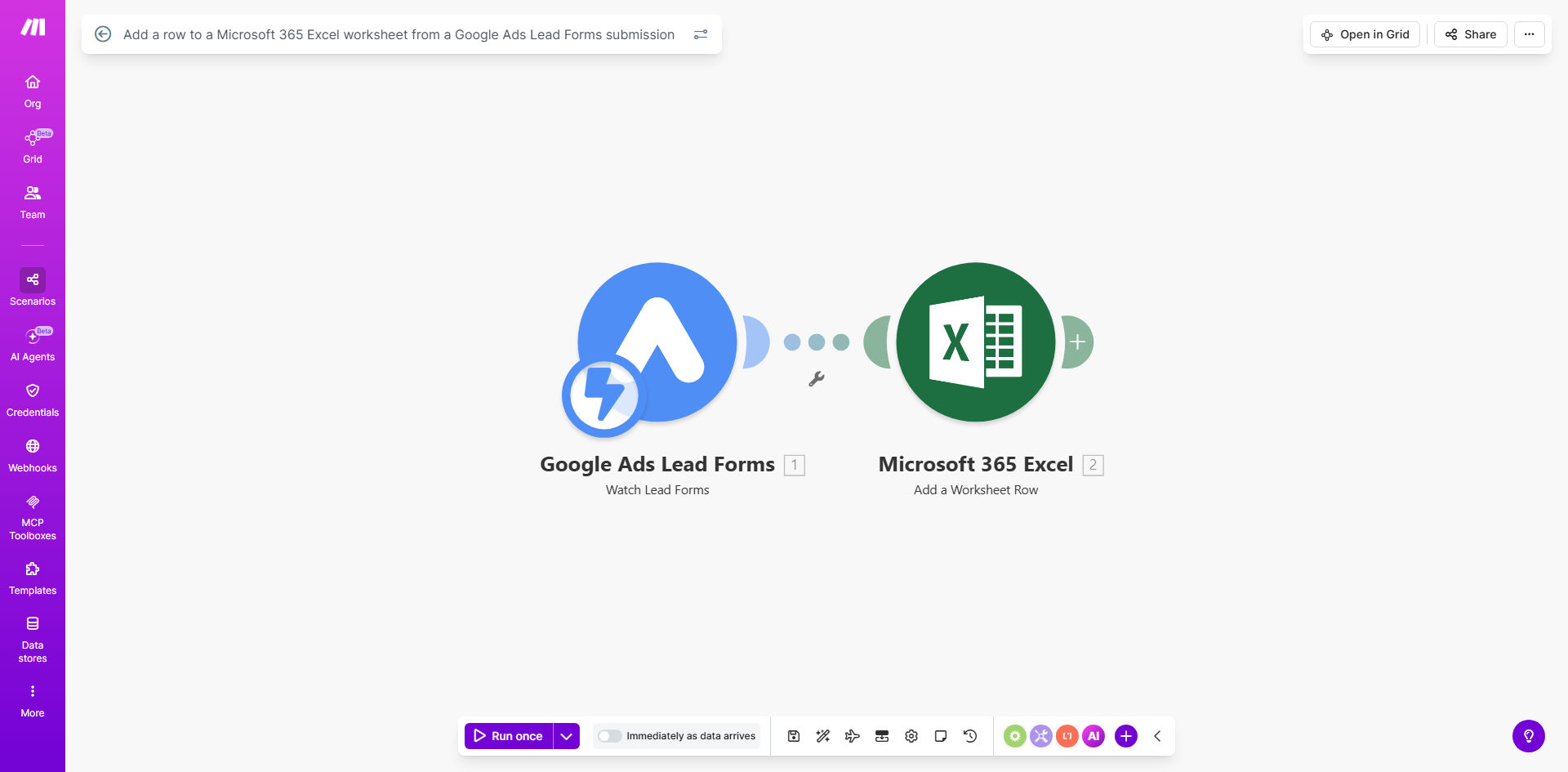
What This Workflow Does
Every dollar spent on Google Ads is an investment in generating leads. But when those leads arrive via Lead Forms, the real challenge begins: manually copying data from the ads platform into a spreadsheet for your sales team. This process is not only tedious but fraught with risk—leads get missed, data is entered incorrectly, and response times slow down, costing you conversions.
This automation solves that problem completely. It acts as a digital bridge between your Google Ads account and your Microsoft Excel worksheet. Every time someone submits a lead form on your search, display, or YouTube ads, this workflow instantly captures their information—name, email, phone number, and any other custom fields—and adds it as a new, perfectly formatted row in your designated Excel file. It turns a manual, error-prone task into a seamless, hands-off process that works 24/7.
The business value is immediate: your sales team receives leads faster, your marketing team gets accurate, real-time data for reporting, and you eliminate the administrative overhead of data management. This ensures that your advertising budget is fully leveraged by maximizing the efficiency of your lead follow-up process.
How It Works
The workflow follows a simple, reliable sequence to transfer data from point A (Google Ads) to point B (Excel) without any human intervention.
Step 1: Trigger on New Lead
The automation is initiated the moment a new submission comes through your Google Ads Lead Form. Make.com watches your connected Google Ads account for this specific event, detecting it in near real-time.
Step 2: Extract Lead Data
The workflow parses the form submission, pulling out all the submitted fields. While it expects core information like Full Name, User Email, and User Phone, it can capture any additional questions you've added to your form, such as company name, job title, or specific inquiries.
Step 3: Format and Map to Excel
This is where the magic happens. The automation structures the raw lead data to match the column layout of your target Excel worksheet. It ensures each piece of information goes into the correct cell, maintaining consistency for easy reading and analysis.
Step 4: Add Row to Worksheet
Finally, the workflow connects to your Microsoft 365 Excel file (hosted on OneDrive or SharePoint) and inserts the newly formatted data as the next available row. It can also add timestamps, source identifiers, or campaign tags automatically, enriching your data set from the start.
Pro tip: Add a timestamp column in your Excel sheet and configure the workflow to populate it with the exact submission time. This allows you to measure and improve your lead response time—a critical sales metric.
Who This Is For
This automation is a game-changer for any business investing in Google Ads to generate leads.
Digital Marketing Agencies: Manage multiple client accounts and need to streamline lead delivery reports without manual compilation.
Small Business Owners & Solo Entrepreneurs: Wear multiple hats and cannot afford to waste time on data entry between running ads and closing sales.
Sales Teams: Require immediate notification and structured data for new leads to begin outreach while the prospect is still hot.
Marketing Operations Managers: Need clean, reliable data in a central location (Excel) to calculate Cost-Per-Lead, conversion rates, and overall campaign ROI accurately.
What You'll Need
To implement this workflow successfully, you'll need the following set up beforehand:
- A Google Ads account with Lead Forms enabled on your campaigns.
- A Make.com account (free or paid) to host and run the automation.
- A Microsoft 365 (Office 365) account with access to Excel Online and either OneDrive or SharePoint to store the destination worksheet.
- An Excel worksheet created with column headers for the data you wish to capture (e.g., "Timestamp", "Full Name", "Email", "Phone", "Campaign Name").
- The lead form should collect, at a minimum, the user's full name, email address, and phone number.
Quick Setup Guide
You can have this automation running in under 15 minutes by following these steps:
- Get the Template: Click the "Get This Workflow" button above to clone the template into your Make.com account.
- Connect Google Ads: In the first module, authorize Make.com to access your Google Ads account by logging in with OAuth.
- Connect Microsoft 365: In the Excel module, authorize the connection to your Microsoft 365 account where your target worksheet is stored.
- Configure the Worksheet: Point the workflow to the specific Excel file and worksheet name where leads should be added.
- Map the Data Fields: Match the output from Google Ads (like "User Email") to the correct column names in your Excel sheet (like "Email").
- Test & Activate: Run a single test operation by submitting a dummy lead form. Verify the data appears correctly in Excel, then turn the scenario on.
Key Benefits
Eliminate Manual Data Entry: Save 5–10 hours per month per campaign that was previously spent copying and pasting lead information from one platform to another. This time can be reallocated to strategic marketing or sales activities.
Zero Lead Loss: Achieve 100% capture rate of your Google Ads leads. Manual processes inevitably miss submissions during busy periods, weekends, or due to human error. Automation ensures every single lead is recorded the moment it arrives.
Faster Sales Response: Cut down lead assignment time from hours (or even days) to mere minutes. Studies show contacting a lead within 5 minutes makes you 10x more likely to qualify them. This workflow gives your sales team that critical advantage.
Improved Data Accuracy & Reporting: Create a perfectly clean, timestamped log of all leads in a single Excel file. This eliminates duplicate entries and typos, providing a reliable dataset for calculating true marketing ROI and analyzing which ad campaigns deliver the highest-quality leads.
Scalable Foundation: This simple Google-Ads-to-Excel flow is a foundational automation. Once established, you can easily extend it to trigger instant email notifications to your sales reps, add leads to a CRM like HubSpot or Salesforce, or even segment leads into different sheets based on the ad campaign they came from.