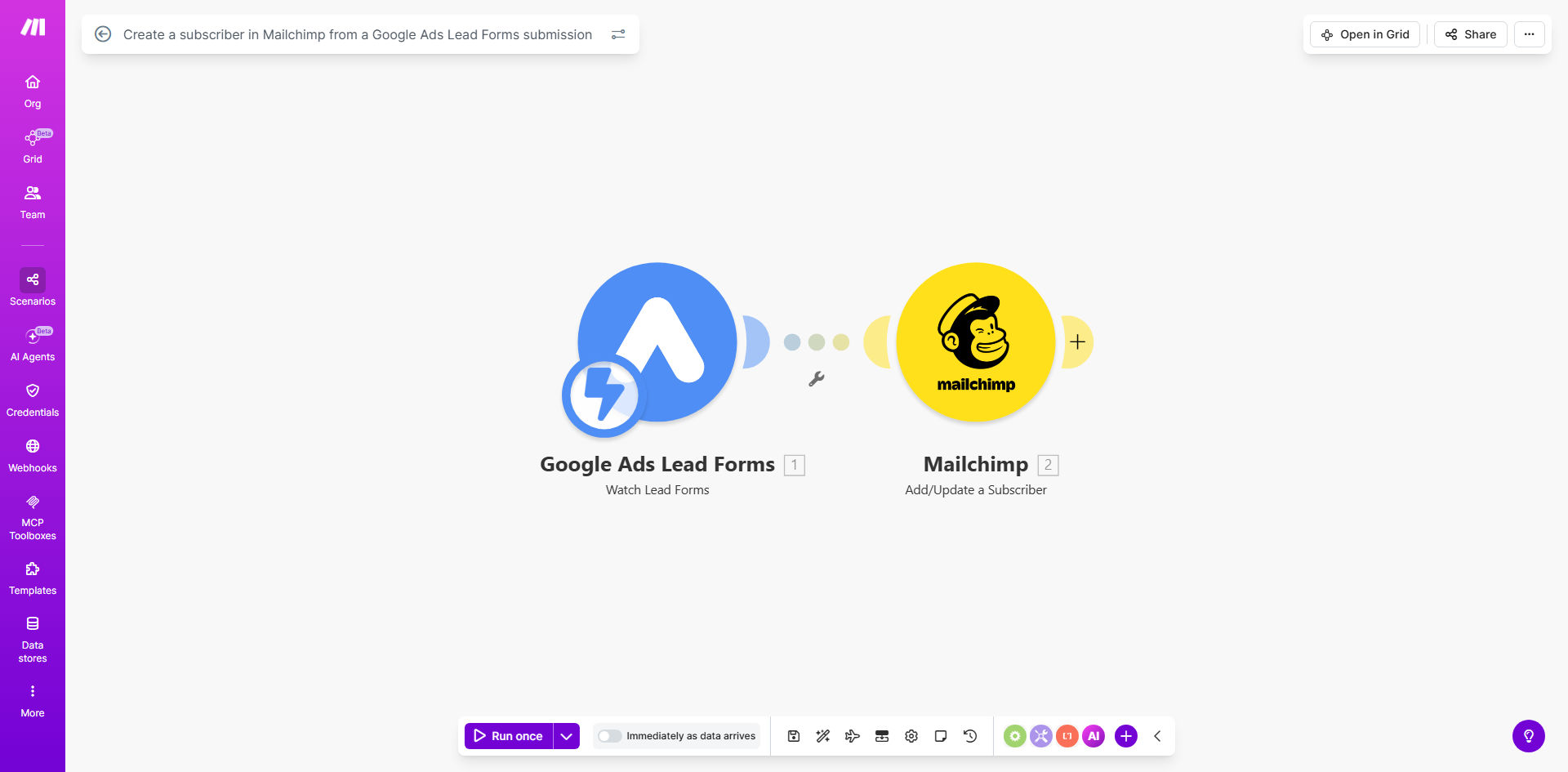
What This Workflow Does
Running Google Ads is a powerful way to attract potential customers, but the real challenge begins after they click. When a user fills out your lead form, that valuable contact information often gets stuck in your Google Ads dashboard, requiring manual export and upload to your email marketing platform. This delay can cost you conversions, as leads cool off without immediate follow-up.
This automation solves that problem by creating a seamless bridge between your paid advertising and your email marketing. Every time a new submission comes through your Google Ads lead form, the workflow is triggered. It instantly takes the lead's data—starting with their essential email address—and either adds them as a new subscriber or updates their existing profile in your specified Mailchimp audience. This turns your ad spend into a live, growing email list without you lifting a finger.
How It Works
The workflow operates on a simple trigger-action principle, ensuring reliability and speed.
Step 1: The Trigger – A New Lead Form Submission
The automation starts when Make.com detects a new submission from your connected Google Ads lead form. This happens in real-time, so there's no polling delay.
Step 2: Data Parsing & Routing
The workflow receives the full submission data. It checks for the presence of a valid email address (the only mandatory field) and prepares the data package to be sent to Mailchimp.
Step 3: Subscriber Management in Mailchimp
Make.com sends an API call to your Mailchimp account. Using the lead's email as a unique identifier, it either creates a new subscriber in your chosen audience or updates an existing subscriber's information if they are already on the list. This prevents duplicates and keeps contact records fresh.
Pro tip: Extend this template by adding a step to send an instant "Thank You" or "Lead Magnet" email via Mailchimp's automation features. This immediate touchpoint can double your engagement rates.
Who This Is For
This automation is a game-changer for any business investing in lead generation through Google Ads. It's perfect for:
- Digital Marketing Agencies managing multiple client campaigns who need to prove ROI with fast lead follow-up.
- E-commerce & DTC Brands running performance ads to build their newsletter list for promotions and new launches.
- B2B Service Providers (consultants, SaaS companies) using lead forms to capture demo requests and need to nurture leads through email sequences.
- Small Business Owners who wear many hats and can't afford to manually transfer leads from ads to their email platform daily.
What You'll Need
- A Make.com account (free tier available).
- A Google Ads account with an active lead form extension.
- A Mailchimp account with at least one audience (list) set up.
- API access enabled for both services (standard for most business accounts).
- Your Google Ads lead form should be configured to collect, at minimum, the user's email address.
Quick Setup Guide
- Clone the Template: Click "Get This Workflow" to copy the template into your Make.com account.
- Connect Google Ads: In the first module, authorize Make.com to access your Google Ads account and select the specific lead form you want to monitor.
- Connect Mailchimp: In the Mailchimp module, authorize your account and select the target Audience ID where subscribers should be added.
- Map Your Fields: Match the data fields from your Google Ads form (e.g., `First Name`, `Phone`) to the corresponding merge tags in Mailchimp (e.g., `FNAME`, `PHONE`).
- Test & Activate: Turn on the scenario and submit a test lead through your form. Verify the subscriber appears correctly in your Mailchimp audience.
Key Benefits
Eliminate Manual Data Entry: Save 2-5 hours per week typically spent on exporting CSV files and uploading them to Mailchimp. This time can be reinvested into strategy and creative work.
Speed Up Lead Nurturing: Reduce the time from lead capture to first email contact from hours/days to under 60 seconds. Faster follow-up can increase conversion likelihood by up to 400%.
Improve Data Accuracy: Remove the risk of human error from copying, pasting, or misplacing lead information. Every piece of data is transferred exactly as submitted.
Maximize Ad Spend ROI: Ensure not a single lead from your paid campaigns falls through the cracks. Automatically feed your most valuable marketing channel (email) with qualified prospects.
Build a Dynamic Email List: Create a live, always-growing list of warm leads who have explicitly shown interest in your ads, providing a higher-quality audience for your email campaigns.