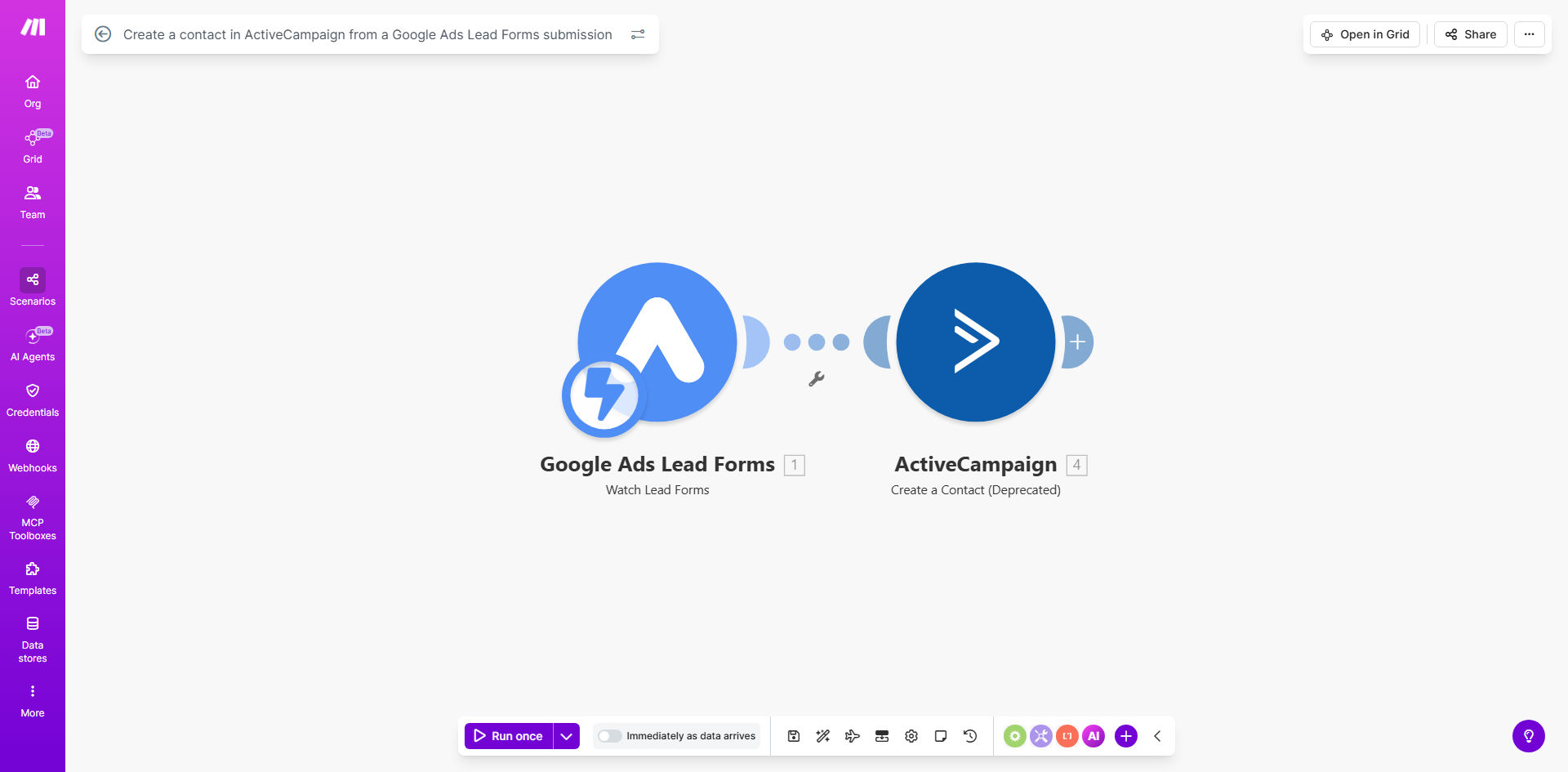
What This Workflow Does
Every click on your Google Ads costs money, and every lead form submission represents a potential customer actively searching for your solution. The critical challenge is the gap between that submission and your sales team's follow-up. Manual processes—where someone must download a spreadsheet, check for duplicates, and manually input data into your CRM—introduce delays of hours or even days. By then, the lead's intent has cooled, and competitors may have already engaged them.
This automation bridges that gap instantly. It connects Google Ads Lead Forms directly to ActiveCampaign, your powerful CRM and marketing automation platform. The moment a prospect fills out your ad form, their information is automatically formatted and created as a new contact in ActiveCampaign. This triggers your predefined email sequences, assigns the lead to the correct list, and can even notify your sales team in real-time. You turn ad spend into engaged leads without any manual intervention, ensuring no opportunity slips through the cracks.
How It Works
The workflow is a straightforward, reliable pipeline that moves data from point A to point B the moment an event occurs.
Step 1: Trigger on New Form Submission
The Make.com scenario watches your connected Google Ads account for new submissions on your specified lead form. It acts as the instant listener, capturing the data packet as soon as Google Ads records it.
Step 2: Map and Structure the Lead Data
The module takes the raw form fields—First Name, Last Name, Email, Phone, and any other custom fields you've added—and maps them to the corresponding contact fields in ActiveCampaign. This step ensures clean, consistent data entry every time.
Step 3: Create or Update the ActiveCampaign Contact
Using the ActiveCampaign module, the workflow sends the structured data to create a new contact. You can configure it to add the contact to a specific list (e.g., "Google Ads Leads"), apply relevant tags (like the ad campaign name), and populate custom fields. Optionally, it can be set to update an existing contact if the email is already in your system.
Pro tip: Use tags in ActiveCampaign based on the Google Ads campaign ID or keyword. This allows you to measure which ad campaigns are generating the most valuable leads and calculate your true ROI beyond just clicks.
Who This Is For
This automation is essential for any business investing in Google Ads to generate leads. It's perfect for marketing agencies managing client campaigns, B2B companies with high-consideration products, e-commerce brands running lead magnet campaigns, and sales teams that need instant lead notifications. If you're tired of leads getting lost in spreadsheets or delayed in inboxes, this workflow is your solution.
What You'll Need
- A Make.com account (free tier available).
- A Google Ads account with Lead Form extensions set up and collecting data.
- An ActiveCampaign account with API access enabled.
- Your Google Ads lead form configured to collect at minimum: First Name, Last Name, Email, and Phone Number.
Quick Setup Guide
You can have this automation running in under 15 minutes.
- Clone the Template: Click "Get This Workflow" to open the template in your Make.com account and create a copy.
- Connect Google Ads: In the first module, authorize Make.com to access your Google Ads account and select the specific lead form you want to monitor.
- Connect ActiveCampaign: In the second module, authorize Make.com with your ActiveCampaign account and select your default account URL.
- Map the Fields: Ensure the form fields from Google Ads (e.g.,
gclid,first_name) are correctly mapped to the ActiveCampaign contact properties (e.g.,FirstName,Email). - Set List & Tags: Configure the ActiveCampaign module to add new contacts to your desired list (e.g., "Google Ads Leads 2024") and apply any relevant tags for tracking.
- Test and Activate: Run a single test operation by submitting a test lead form. Verify the contact appears correctly in ActiveCampaign, then turn the scenario on. It will now run automatically.
Key Benefits
Eliminate manual data entry and save 5–10 hours per week that your team currently spends downloading, formatting, and importing lead lists. This time can be redirected towards strategic marketing or sales activities.
Improve lead response time from hours to seconds, dramatically increasing your chances of conversion. Studies show contacting a lead within 5 minutes makes them 9x more likely to convert.
Ensure 100% data capture and accuracy by removing the human error factor from copying and pasting information between systems. Every lead from your ads is reliably recorded in your CRM.
Gain clearer campaign attribution by automatically tagging leads with their source (Google Ads), campaign, and even keyword data, making it easy to calculate which ads deliver the best ROI.
Scale your lead generation efforts effortlessly. Whether you get 10 leads or 1,000 leads a day, the automation handles the volume without any additional work or cost on your part.