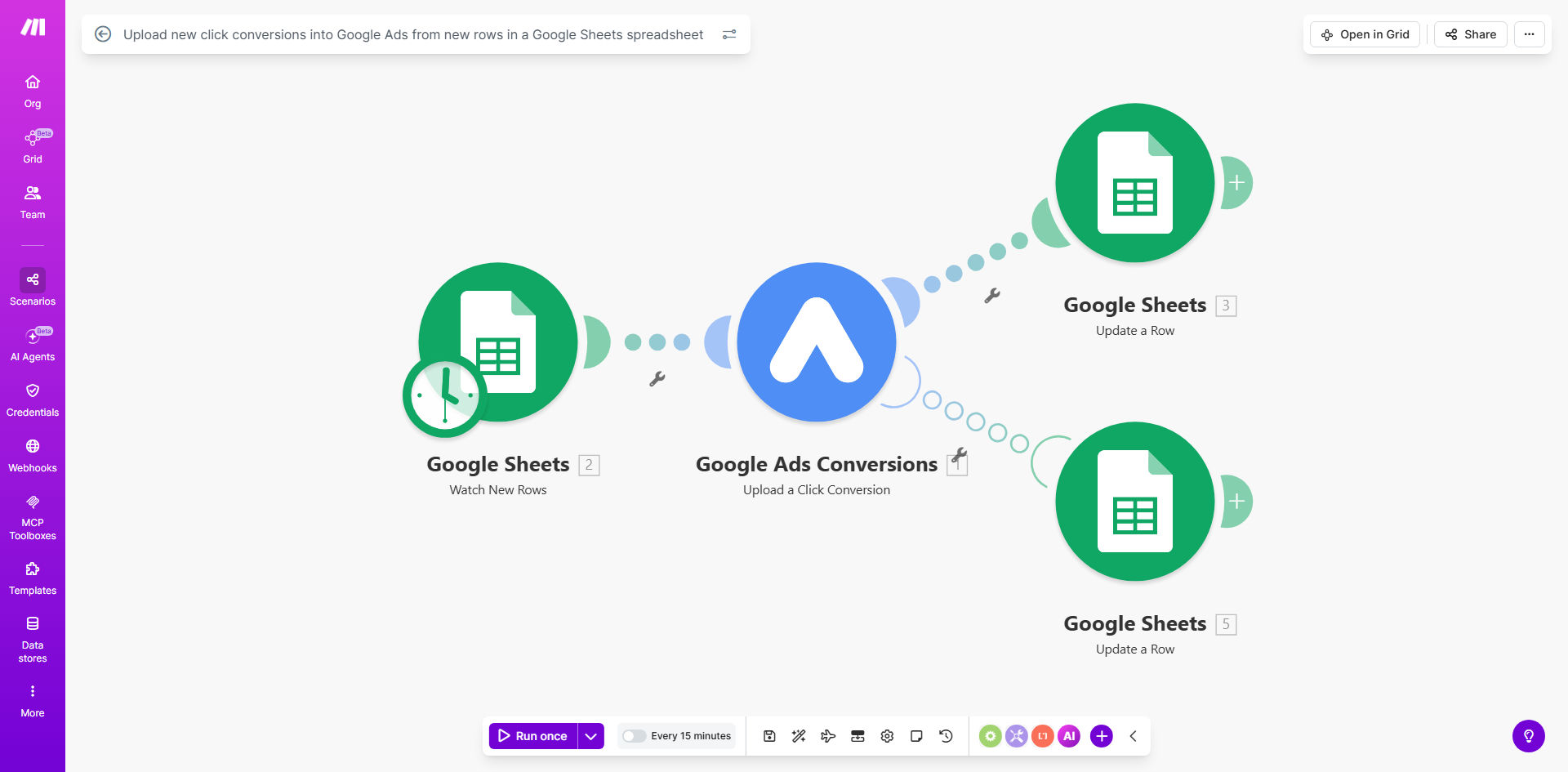
What This Workflow Does
If you run Google Ads, you know the frustration of incomplete data. Website conversions are easy to track, but what about the phone calls that turn into sales, the contact form leads your team qualifies, or the invoices that get paid days later? These "offline conversions" are often where your real revenue happens, yet they remain invisible to your ad platform. This means Google's smart bidding is working with half the picture, likely wasting budget on clicks that don't lead to valuable outcomes and missing opportunities to bid higher on the ones that do.
This automation solves that problem by creating a seamless bridge between your offline data in Google Sheets and your Google Ads account. It automatically detects new rows added to a designated spreadsheet—where your sales or support team logs outcomes—and uploads each record as a conversion directly into Google Ads. This closes the attribution loop, giving you a true measure of your return on ad spend (ROAS) and empowering Google's algorithms to optimize your campaigns for what actually matters: real business results.
How It Works
The workflow operates on a scheduled, hands-off basis, ensuring your conversion data is always up-to-date.
Step 1: Monitor Your Google Sheet
The scenario is triggered on a schedule (e.g., every 15 minutes). It connects to your specified Google Sheets spreadsheet and checks for any new rows that have been added since the last run. This is where you store your offline conversion data, such as closed deals, completed calls, or qualified leads.
Step 2: Process and Validate New Data
For each new row found, the workflow extracts the critical information: the Google Click ID (GCLID), the conversion name, value, and timestamp. It performs basic validation to ensure the data is formatted correctly and that required fields like the GCLID are present, preventing errors during the upload.
Step 3: Upload to Google Ads
Once validated, the workflow uses the Google Ads API to upload each conversion. It matches the GCLID from your sheet to the original ad click in Google Ads' system, crediting the conversion to the correct campaign, ad group, and keyword. This action instantly updates your conversion reports and influences automated bidding strategies.
Pro tip: Use a shared spreadsheet that your sales team updates directly from their CRM or call logs. This creates a single source of truth and eliminates the need for manual data exports.
Who This Is For
This automation is a game-changer for any business investing in Google Ads that has conversions occurring outside their website. It's ideal for service-based businesses (like agencies, consultants, or home services) that rely on phone calls and contact forms for leads. B2B companies with long sales cycles can use it to track when a lead becomes a qualified opportunity or a closed-won deal. E-commerce businesses with offline sales channels or phone orders can attribute that revenue back to their ads. Essentially, if your marketing team argues with sales about lead quality or struggles to prove ad effectiveness, this workflow provides the data to end the debate.
What You'll Need
- A Make.com account (free or paid tier).
- A Google Ads account with manager/admin access to set up conversion actions and generate API credentials.
- A Google Sheets spreadsheet formatted to include columns for: Google Click ID (GCLID), Conversion Name, Conversion Value (optional), and Conversion Time.
- A basic understanding of your offline conversion process (e.g., how sales are logged).
Quick Setup Guide
You can have this automation running in less than 30 minutes by following these steps:
- Get the Template: Click "Get This Workflow" to copy the ready-made scenario into your Make.com account.
- Prepare Google Ads: In your Google Ads account, create a new "Upload" conversion action (e.g., "Phone Sale") and note its name. Generate OAuth credentials for the Make.com Google Ads module.
- Set Up Your Sheet: Make a copy of the sample spreadsheet and adapt the column headers to match your data. Share it with your team.
- Connect Accounts in Make: In the scenario, connect the Google Sheets and Google Ads modules to your respective accounts using OAuth.
- Map Your Data: Point the Sheets module to your new spreadsheet and map the columns (GCLID, conversion name, etc.) to the corresponding fields in the Google Ads upload module.
- Test and Activate: Run the scenario once to test with a single row of data. Confirm the conversion appears in Google Ads, then turn on the schedule to run automatically.
Key Benefits
Improve Campaign ROI by 20-30%: By feeding true conversion data back into Google Ads, its automated bidding strategies (like Target CPA or Maximize Conversions) can accurately find more customers like your best ones, lowering your cost per acquisition and increasing overall return.
Eliminate 5-10 Hours of Monthly Manual Work: No more weekly exports, CSV formatting, and manual uploads. This automation runs silently in the background, freeing your marketing or operations team for higher-value strategic work.
Gain Full-Funnel Attribution: Finally see which keywords, ad groups, and campaigns are driving not just clicks or form fills, but actual revenue, phone sales, and qualified leads. Make confident budget decisions based on complete performance data.
Enhance Data Accuracy and Timeliness: Automated validation reduces human error in data entry. Real-time or frequent updates mean your campaign optimizations are based on the latest information, not data that's days or weeks old.
Scale Your Tracking Effortlessly: Whether you upload 10 conversions a day or 1,000, the workflow handles it without additional effort. It grows with your business, providing consistent, reliable tracking as your ad spend and sales volume increase.