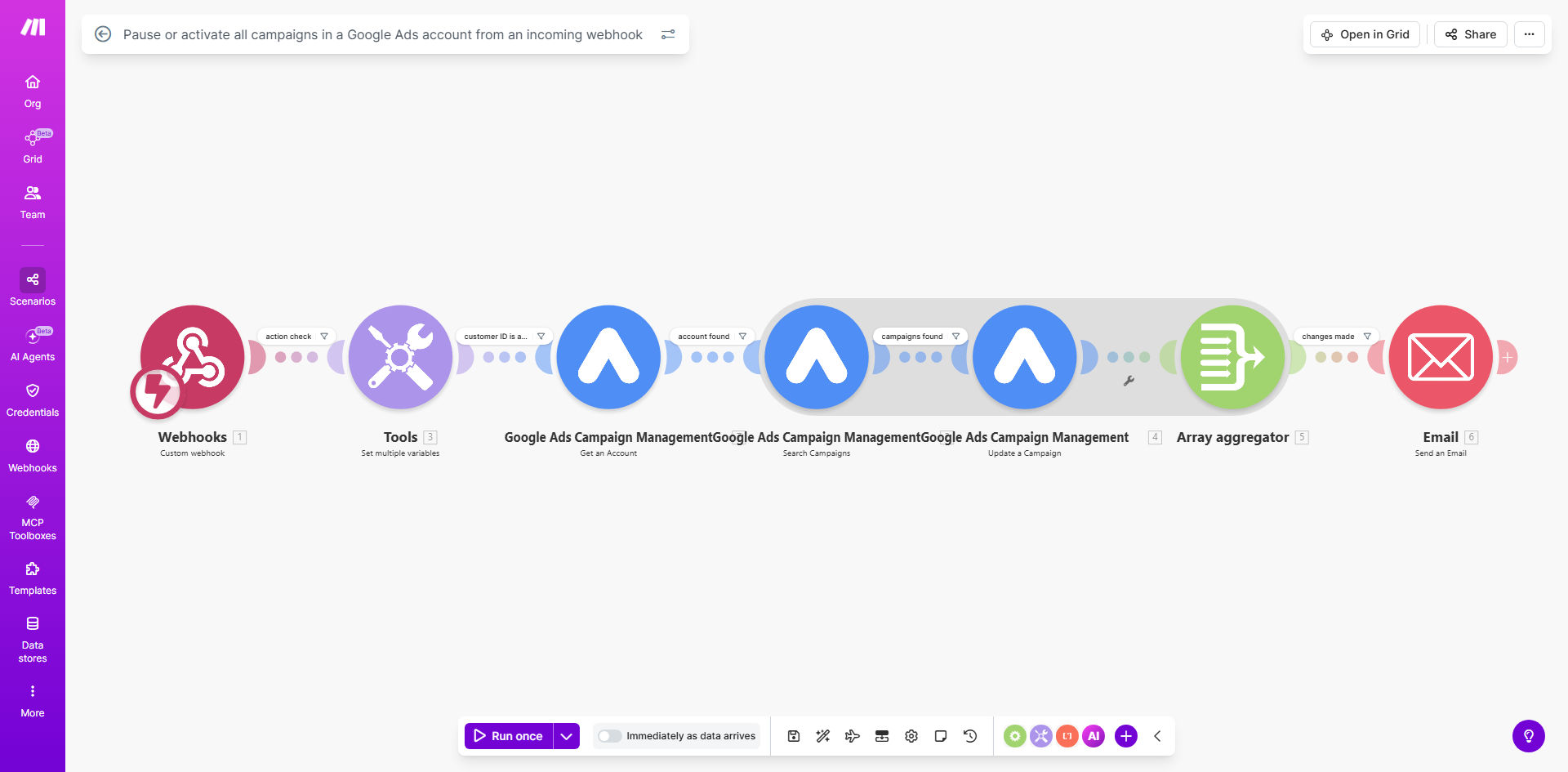
What This Workflow Does
Managing Google Ads campaigns reactively is a constant challenge for marketers and business owners. Unexpected budget overruns, website downtime, or inventory shortages can lead to thousands of dollars in wasted ad spend before you even notice the problem. Manually logging into the Google Ads interface to pause dozens of campaigns is slow, stressful, and prone to error, especially in a crisis.
This automation solves that problem by putting a remote control on your entire Google Ads account. It connects a simple webhook URL to your Google Ads account via Make.com. When the webhook is triggered—whether by another software, a scheduled event, or a manual command—it instantly sends an instruction to either pause or activate every single campaign in your specified account. This turns a complex, manual process into a single, automated action that executes in seconds.
The business value is immense: immediate financial protection. You can stop all ad spend the moment your conversion tracking detects an anomaly, your inventory system shows a stock-out, or your monitoring tool alerts you to website issues. Conversely, you can automate campaign launches to coincide with product restocks, the start of a business day, or a promotional event, ensuring you never miss a revenue opportunity.
How It Works
The workflow acts as a secure bridge between any tool that can send an HTTP request and your Google Ads account. It's a straightforward, three-step process built for reliability.
Step 1: Webhook Trigger
The scenario starts with a Webhook module in Make.com, which provides you with a unique, secret URL. Any application or service can send an HTTP GET request to this URL to trigger the workflow. The request must include two crucial URL parameters: action (set to either "pause" or "activate") and customerId (your Google Ads account ID). This design makes it incredibly versatile.
Step 2: Instruction Processing
Once the webhook is received, Make.com parses the incoming parameters. It validates the action parameter to ensure it contains a valid command. The customerId is passed directly to the next module to specify exactly which Google Ads account to manage. This step ensures the command is clear and the target is unambiguous before any action is taken on your ad spend.
Step 3: Google Ads API Execution
The core action happens here. Make.com connects to the Google Ads API using your pre-configured credentials. It searches for all campaigns within the provided customerId account. Then, based on the action parameter, it executes a bulk update operation, changing the status of every campaign to either PAUSED or ENABLED. The API confirms the changes, and the workflow completes, leaving you with an instantly updated account.
Pro tip: Use this webhook as a universal "emergency stop" button. Bookmark the "pause" URL on your phone's browser for instant access, or integrate it into your team's Slack with a simple slash command like /ads-stop.
Who This Is For
This automation is a powerful tool for any business or individual responsible for Google Ads spend and performance.
E-commerce Managers: Instantly pause ads when best-selling items go out of stock to avoid bad customer experiences and wasted clicks. Reactivate them the moment inventory is replenished.
Marketing Agencies: Manage multiple client accounts from a single dashboard. Schedule campaign pauses for weekends or holidays across all clients simultaneously, or implement a standardized emergency procedure.
SaaS Companies & Lead Gen Businesses: Link your ad spend directly to conversion rates. Automatically pause campaigns if your lead form breaks or your application's sign-up flow fails, protecting your cost-per-acquisition (CPA).
Finance & Operations Teams: Enforce strict budget controls. Connect this webhook to your accounting software to trigger a pause when monthly ad spend hits a predefined ceiling, preventing overspend.
What You'll Need
- A Make.com Account: Free tier is sufficient to run this scenario.
- A Google Ads Account: With active campaigns and administrative access.
- Google Ads API Access: You'll need to enable the Google Ads API for your Google Cloud project and create OAuth credentials for Make.com to connect. This is a one-time setup.
- A Triggering System (Optional but Recommended): This could be another Make.com scenario, a monitoring tool like UptimeRobot, your inventory management system, a spreadsheet, or even a simple browser bookmark.
Quick Setup Guide
Follow these steps to deploy this automation in under 30 minutes.
- Clone the Template: Click the "Get This Workflow" button above to open the template in your Make.com account. This creates a copy of the scenario for you to edit.
- Configure Google Ads Connection: In the Google Ads module within the scenario, click to add a connection. You'll be guided through the OAuth process with Google Cloud to grant Make.com the necessary permissions to manage your campaigns.
- Note Your Webhook URL: The first module in the scenario is a Webhook. Open its settings and copy the unique URL it provides. This is your trigger endpoint.
- Test the Trigger: Manually test the setup by constructing a test URL:
YourWebhookURL?action=pause&customerId=YOUR_ACCOUNT_ID. Paste it into a browser tab. The scenario should run and pause your campaigns. Repeat withaction=activateto turn them back on. - Integrate with Your Systems: Now, use your webhook URL in your other business processes. Add it as a webhook action in your analytics platform, a zap in Zapier, an automation in your inventory software, or a scheduled task.
Pro tip: For safety, create two separate webhook URLs from two cloned scenarios: one dedicated to "pause" and one to "activate." This prevents accidental mis-triggering by hardcoding the action in the scenario itself, leaving only the customerId as a parameter.
Key Benefits
Instant Financial Protection: The most significant benefit is the ability to halt ad spend within seconds of detecting a problem. This can save hundreds or thousands of dollars that would otherwise be lost while you manually log in and navigate the Google Ads interface.
Operational Efficiency & Time Savings: Eliminate the daily or weekly manual task of checking budgets and pausing/activating campaigns. This automation handles it instantly, freeing up hours each month for more strategic marketing work.
Proactive Campaign Management: Move from reactive to proactive control. Your ads can now respond automatically to real-time data from other parts of your business, creating a truly integrated marketing stack that reacts to inventory, website health, and conversion performance.
Reduced Human Error: Manual processes are prone to mistakes—pausing the wrong campaign, missing one, or forgetting to activate after an issue is resolved. Automation executes the command perfectly every time, across all campaigns, exactly as instructed.
Scalable Process for Teams & Agencies: Provides a standardized, secure method for team members or clients to request campaign pauses or activations without needing direct access to the Google Ads account, improving security and workflow clarity.