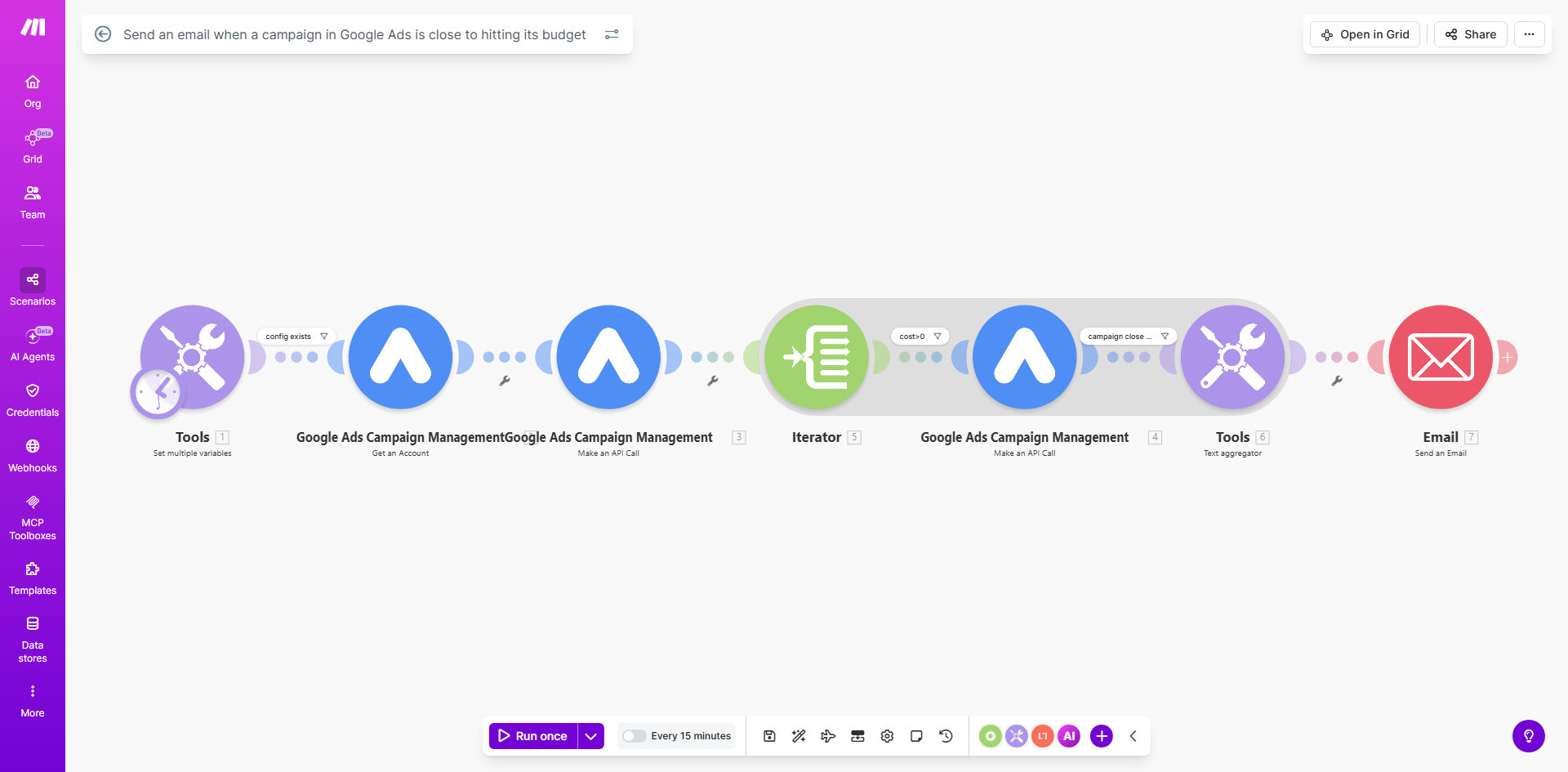
What This Workflow Does
Managing Google Ads budgets manually is a constant battle against overspending and missed opportunities. Marketing managers often discover that a high-performing campaign has suddenly stopped because it hit its daily budget hours ago, wasting precious time and potential conversions. This reactive approach leads to inefficient ad spend and forces teams to constantly check dashboards instead of focusing on strategy.
This automated workflow solves that problem by acting as your 24/7 budget watchdog. It connects your Google Ads account to your email system, continuously monitoring campaign spend against predefined budgets. When a campaign approaches its limit—typically at 80%, 90%, or any threshold you set—the system instantly sends an alert to your team. This proactive notification gives you time to pause underperforming campaigns, increase budgets for top performers, or reallocate funds strategically, ensuring every advertising dollar is working effectively.
How It Works
The automation runs on a scheduled cycle, checking your campaign data and triggering alerts based on your business rules.
Step 1: Scheduled Check
The workflow is triggered at regular intervals you configure (e.g., every 6 hours, twice daily). It automatically connects to your Google Ads account via the official Make.com module and retrieves the latest campaign performance data, including spend for the previous day and the current campaign budget.
Step 2: Budget Analysis
For each active campaign, the system calculates the percentage of the budget that has been spent. It compares this figure against your configured alert threshold (like 90%). Advanced filters can be added to only monitor specific campaigns or exclude those with very small budgets.
Step 3: Alert Generation
If a campaign's spend crosses your threshold, the workflow composes a detailed email alert. This email includes the campaign name, current spend, budget limit, percentage used, and a direct link to the campaign in Google Ads for quick action.
Step 4: Notification Delivery
The alert email is sent instantly to designated team members via your connected email service (like Gmail, Outlook, or SMTP). The workflow can be extended to send additional notifications to Slack, SMS, or even pause the campaign automatically if desired.
Pro tip: Set your initial alert threshold at 85% of the daily budget. This provides a cushion for unexpected traffic spikes while giving your team enough time to review performance data and make an informed decision before funds run out.
Who This Is For
This automation is essential for any business investing in Google Ads. It's particularly valuable for digital marketing agencies managing multiple client accounts, e-commerce brands running performance campaigns, and in-house marketing teams with limited bandwidth for manual monitoring. Solopreneurs and small business owners who wear multiple hats benefit tremendously by eliminating the need for constant dashboard checks.
If you've ever experienced the frustration of a campaign stopping midday or wondered where your ad budget actually went, this workflow is for you. It's also a foundational building block for companies building more sophisticated marketing automation systems that include performance reporting, bid management, and cross-channel budget allocation.
What You'll Need
- A Make.com account (free tier available).
- A Google Ads account with active campaigns.
- API access enabled in your Google Ads account (standard setup).
- An email service connected to Make.com (Gmail, Outlook, SMTP, etc.) for sending alerts.
- Basic knowledge of your campaign budgets and desired alert thresholds.
Quick Setup Guide
You can have this automation running in under 15 minutes following these steps.
- Clone the template: Click "Get This Workflow" above to open the template in your Make.com account and create a copy.
- Connect Google Ads: In the first module, authorize Make.com to access your Google Ads account. You'll need to log in and grant the necessary permissions.
- Configure the schedule: Set how often you want the workflow to check budgets (e.g., every 12 hours). Consider your campaign's daily spend velocity.
- Set your threshold: Adjust the filter or router module to define what "close to hitting its budget" means for you (e.g., spend > 90% of budget).
- Connect your email: Authorize your email service (like Gmail) in the email module and specify the recipient addresses for alerts.
- Test and activate: Run the scenario once to ensure it fetches data and sends a test email correctly. Then turn it on.
Key Benefits
Prevent budget overruns instantly. Receive alerts before campaigns max out, giving you control to stop wasteful spending. This can save hundreds or thousands of dollars monthly that would otherwise be lost to unmonitored campaigns.
Reclaim hours of manual work each week. Eliminate the need for daily logins and spreadsheet tracking. This automation handles the monitoring, freeing up 5-10 hours per month for marketing teams to focus on strategy and optimization instead of data collection.
Improve campaign performance with timely adjustments. Get notified while there's still budget left to act. You can increase funding for high-ROI campaigns or pause underperformers, leading to better overall advertising efficiency and higher conversion rates.
Create accountability and visibility across teams. Alerts can be sent to multiple stakeholders—marketing managers, finance teams, or clients—ensuring everyone is informed about budget status. This transparency improves planning and trust.
Build a foundation for advanced marketing automation. This workflow is a stepping stone to more complex systems like automated bid adjustments, cross-channel budget balancing, and integrated performance dashboards that connect ad spend directly to revenue.