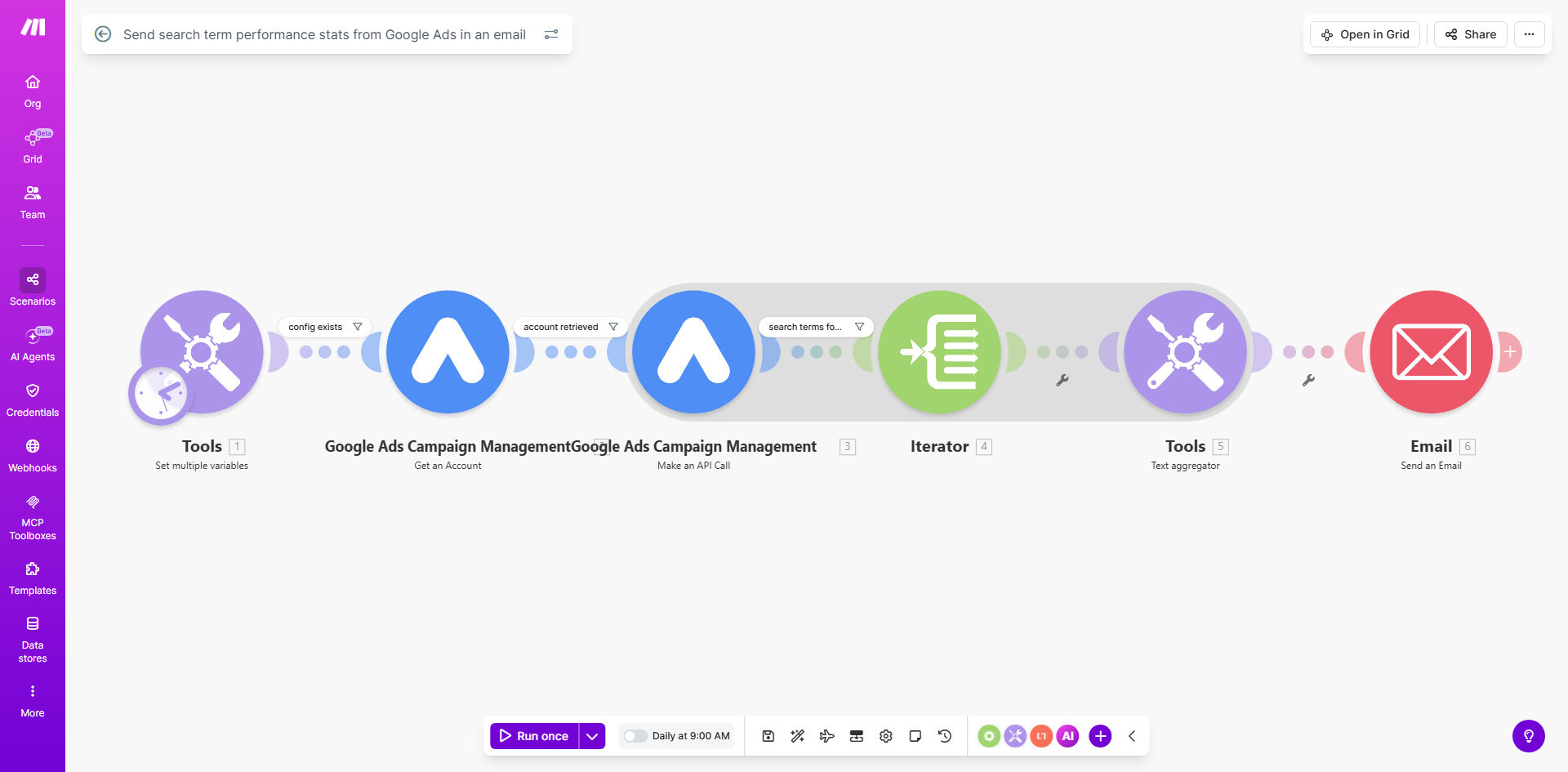
What This Workflow Does
For digital marketers and PPC managers, staying on top of search term performance is a non-negotiable but tedious task. Manually logging into Google Ads, navigating to the search terms report, filtering data, and then compiling insights for stakeholders can consume 5-10 hours per month. This process is not only time-consuming but also prone to inconsistency and delays in identifying budget-draining keywords or high-opportunity terms.
This automated workflow solves that problem entirely. It acts as your personal reporting assistant, connecting directly to your Google Ads account on a daily schedule. It fetches the latest search term data—including metrics like clicks, cost, and conversions—processes it, and sends a clean, formatted report directly to your specified email inbox (or your client's). This ensures you start each day with actionable insights, without ever having to open the Google Ads interface manually.
Pro tip: Use this automated report to quickly identify negative keyword opportunities. Any search term with high cost but zero conversions is a prime candidate to add to your negative keyword lists, preventing future wasted spend.
How It Works
The workflow follows a logical, step-by-step process to transform raw Google Ads data into a digestible email report.
Step 1: Scheduled Trigger
The automation begins with a schedule module, set by default to run every day at 9 AM. This time can be easily adjusted to weekly, bi-weekly, or any custom interval that fits your review cadence.
Step 2: Connect to Google Ads
Make.com securely authenticates with your Google Ads account using OAuth. You only need to authorize the connection once, granting read-only access to your campaign data.
Step 3: Execute the GAQL Query
The core of the workflow is a Google Ads Query Language (GAQL) module. This template uses a predefined query to pull specific fields for search terms—such as search term text, clicks, impressions, cost, and conversions. This query is fully customizable if you need additional metrics.
Step 4: Aggregate and Format Data
The raw data from Google Ads is then passed through an aggregator module. This tool structures the data, often calculating derived metrics like cost-per-click (CPC) or sorting terms by highest cost or highest conversions, preparing it for presentation.
Step 5: Compose and Send the Email
Finally, the formatted data is inserted into a professional email template within Make.com's email module. You define the recipient(s), subject line, and email body. The report is sent out automatically, delivering instant visibility into your PPC performance.
Who This Is For
This automation is a game-changer for several roles and business types:
- PPC Agencies: Automate client reporting to demonstrate value and insights proactively, saving countless hours across multiple accounts.
- In-House Marketing Teams: Keep your manager and team informed with daily or weekly performance snapshots without manual work.
- E-commerce Businesses: Quickly spot which product-related search terms are driving sales and which are wasting ad spend.
- Freelance Digital Marketers: Streamline your service delivery, allowing you to focus on strategy and optimization instead of data compilation.
What You'll Need
- A Make.com account (free tier available).
- A Google Ads account with active search campaigns.
- Access to the email address you want to use for sending the reports (Gmail, Outlook, SMTP, etc.).
- Basic understanding of the key Google Ads metrics you want to track (e.g., Cost, Conversions, Click-through Rate).
Quick Setup Guide
You can have this automation running in under 15 minutes.
- Clone the Template: Click the "Get This Workflow" button above to open the template in your Make.com account and create a copy.
- Connect Your Apps: In the first Google Ads module, click to add a connection. Authenticate with your Google Ads account. Then, connect your preferred email service (like Gmail) in the email module.
- Configure the Query (Optional): Review the GAQL query in the third module. If you want different metrics (e.g., adding "Conversion Value"), you can modify the SELECT statement here.
- Set Your Recipients: In the final email module, enter the destination email address(es), customize the subject line, and preview the email body to ensure the data table looks correct.
- Adjust the Schedule: Click the clock icon on the first module to change how often the report runs—daily, weekly, or on another schedule that suits you.
- Turn it On: Save your scenario and toggle the switch to "ON". Your first automated report will be sent at the next scheduled time.
Key Benefits
Save 5+ Hours Per Month on Manual Reporting. Eliminate the daily or weekly chore of logging in, exporting, and formatting data. This time can be reinvested into strategic campaign optimization.
Improve Campaign ROI with Faster Insights. Receive immediate alerts on which search terms are converting and which are wasting money, allowing you to make bid adjustments and add negative keywords faster.
Enhance Client and Stakeholder Communication. Automated, consistent reporting builds trust and transparency. Clients and managers appreciate proactive insights delivered directly to their inbox.
Reduce Human Error. Manual data entry and copy-pasting are eliminated. The data flows directly from Google Ads to the email, ensuring accuracy in every report.
Scale Your Reporting Effortlessly. Once set up for one Google Ads account, the same logic can be replicated for additional client accounts, scaling your reporting capacity without adding more work.