What This Workflow Does
Have you ever stumbled upon a brilliant article in a Discord channel, only to forget to save it later? Or spent valuable time manually copying links and descriptions into your Notion reading list? This automation solves that problem elegantly.
The workflow connects Discord and Notion to create a seamless content-saving pipeline. When you or your team members use a simple slash command (like /save https://example.com) in Discord, the automation instantly captures the URL, fetches the article title, and creates a beautifully formatted entry in your designated Notion database. It turns chaotic chat discussions into organized knowledge repositories.
Beyond personal use, this is particularly powerful for teams—research groups, marketing agencies, development squads—who share resources constantly. It ensures valuable insights don't get buried in chat history and creates a searchable, centralized knowledge base automatically.
How It Works
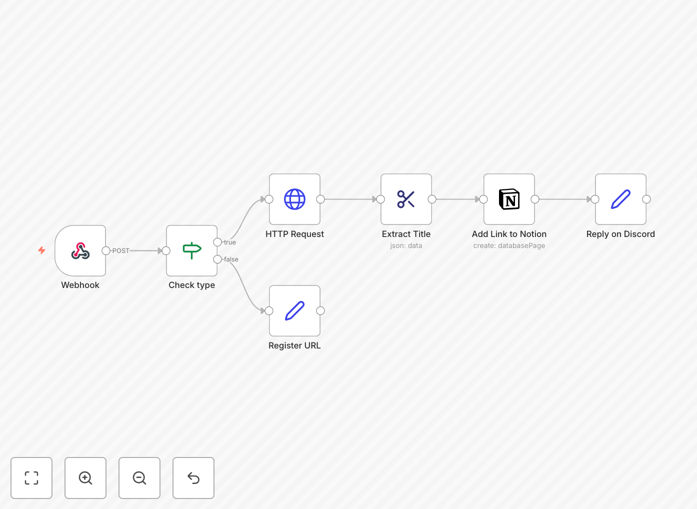
The automation follows a logical sequence to transform a Discord command into a structured Notion entry.
Step 1: Discord Slash Command Trigger
When someone uses your custom slash command in Discord (configured through Discord's developer portal), Discord sends an HTTP request to your n8n webhook URL. This payload contains the URL submitted by the user along with metadata about the user and channel.
Step 2: Request Validation and Processing
The workflow first validates that this is a legitimate command interaction (not just a ping). It then extracts the submitted URL from the Discord payload. If the command is just testing the connection, it responds immediately without further processing.
Step 3: Fetch Article Metadata
The automation makes an HTTP request to the provided URL to fetch the webpage's HTML. Using n8n's HTML Extract node, it intelligently parses the page title—the most important piece of metadata for your reading list. This ensures your Notion entries have descriptive titles, not just raw URLs.
Step 4: Create Notion Database Entry
With the URL and extracted title ready, the workflow connects to your Notion database using the Notion API. It creates a new page (database entry) with the article title as the page title, the URL in a dedicated property, and can include additional metadata like the saving date, source channel, or user who shared it.
Step 5: Confirm Back to Discord
Finally, the workflow sends an ephemeral response back to the Discord user confirming the article has been saved to Notion. This creates a closed feedback loop so users know their command worked successfully.
Who This Is For
This automation delivers value across multiple roles and industries. Content curators and researchers who constantly discover articles will save hours previously spent on manual organization. Development teams sharing documentation and technical resources can build a collective knowledge base effortlessly.
Marketing and sales teams discussing competitor analyses or industry trends can capture insights before they're forgotten. Educational groups and communities sharing learning materials create organized resource libraries automatically. Even individual professionals managing personal reading lists benefit from eliminating the friction between discovery and organization.
The common thread is anyone who values knowledge preservation but lacks the time or discipline for manual curation. This automation makes systematic organization the default, not an extra chore.
What You'll Need
- A Notion account with a database set up for your reading list (a simple template with Title and URL properties works perfectly).
- Notion integration credentials (Internal Integration Token) with write access to your specific database.
- A Discord account with permissions to create slash commands in your server (typically server admin or appropriate role).
- Discord application credentials from the Discord Developer Portal to configure your slash command.
- An n8n instance (cloud or self-hosted) with internet access to receive webhooks and make external API calls.
- Basic familiarity with copying API tokens and database IDs (the template handles the complex logic).
Pro tip: Create a dedicated "Saved Articles" database in Notion with additional properties like "Category," "Priority," or "Status" (To Read/Read). The workflow can be extended to populate these fields based on channel names or user roles in Discord.
Quick Setup Guide
Follow these steps to implement this automation in under 30 minutes:
- Download and import the JSON template into your n8n instance using the Import Workflow function.
- Create a Notion integration at notion.so/my-integrations, invite it to your database, and copy the Internal Integration Token.
- Note your Notion database ID from the database URL (the string between the slash and the question mark).
- Create a Discord application in the Discord Developer Portal, add a slash command with a "url" option, and note your Public Key.
- Configure the Webhook node in n8n with your Discord Public Key for request verification.
- Set up credentials in n8n for Notion (using your token) and update the Database ID field in the Notion node.
- Test your slash command in Discord with a sample URL and watch the entry appear in Notion!
Key Benefits
Save 5-10 minutes per article by eliminating manual copying, pasting, and formatting. For teams sharing multiple resources daily, this quickly adds up to hours of recovered productivity each week.
Never lose valuable resources shared in fast-moving chat conversations. The automation captures insights at the moment of discovery, preventing the "I'll save it later" trap that often leads to forgotten content.
Build organized knowledge bases automatically without changing team behavior. Since the saving happens through natural Discord interactions, you get systematic organization without requiring people to learn new tools or processes.
Improve team onboarding and knowledge sharing by creating searchable archives of shared resources. New team members can explore past discussions and the associated saved content, accelerating their ramp-up time.
Enable advanced workflows by using the structured data in Notion. Once articles are in a database, you can add tags, create views, set reminders, or trigger additional automations based on content categories or priorities.