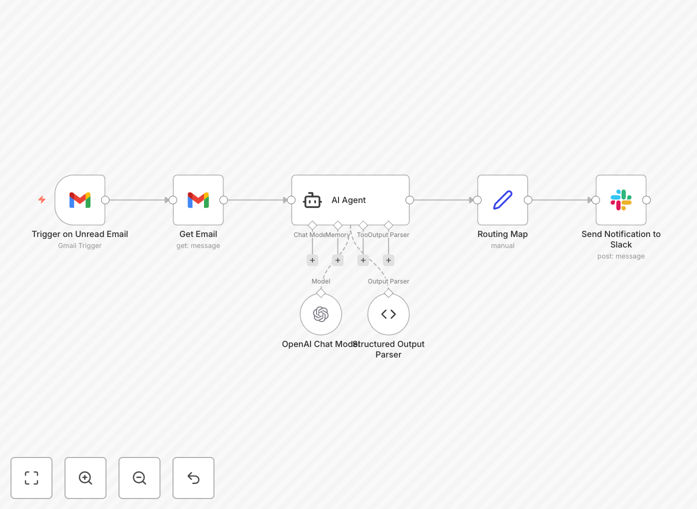
What This Workflow Does
If your team shares a Gmail inbox for support, sales, or operations, you know the chaos of manual email triage. Important messages get buried, responses are delayed, and team members waste hours sorting through noise. This workflow solves that by automating the entire process.
It connects your Gmail account to OpenAI's AI and Slack, creating an intelligent email assistant. Every new email is instantly analyzed, categorized (e.g., "Urgent Support," "Sales Inquiry," "Billing Question"), assigned a priority level, and a summarized alert is posted to the designated Slack channel. This ensures the right person sees the right message at the right time, dramatically improving response times and reducing missed opportunities.
Beyond simple filtering, the AI understands context and sentiment, so a frustrated customer's email about a bug can be flagged as "High Priority" and routed to your engineering Slack channel, while a partnership inquiry goes straight to sales.
How It Works
The automation follows a clear, logical sequence to process each email without human intervention.
1. Trigger: New Email in Gmail
The workflow is activated whenever a new, unread email arrives in your specified Gmail inbox or label. It pulls in the full email content including sender, subject, and body.
2. AI Analysis & Categorization
The email content is sent to an AI model (like OpenAI's GPT). A custom prompt instructs the AI to analyze the email and return a structured JSON output with the category, priority (High/Medium/Low), a concise summary, and the sender's intent.
3. Decision & Routing Logic
Based on the AI's output, the workflow uses a "Switch" or "IF" node to determine the destination. For example, emails categorized as "Technical Support" are routed to the #support-tech channel, while "Pricing Request" emails go to #sales-quotes.
4. Action: Post Alert to Slack
A formatted, actionable message is posted to the chosen Slack channel. The alert includes the priority flag, category, a brief AI-generated summary, and a direct link to the email for quick follow-up. The original email can also be automatically labeled in Gmail for tracking.
Pro tip: You can extend this workflow to also create a ticket in your helpdesk (like Zendesk) or a lead in your CRM (like HubSpot) based on the category, creating a fully automated intake pipeline.
Who This Is For
This template is designed for teams that receive a high volume of emails from customers, prospects, or partners and need to ensure nothing slips through the cracks.
Customer Support Teams: Automatically triage support@ or help@ emails, separating bug reports from feature requests and account issues. Route critical outages immediately to an on-call channel.
Sales & Business Development: Instantly identify and route inbound leads from contact forms, partnership inquiries, and pricing requests to the correct sales representative or channel, accelerating response times.
Operations & HR Teams: Sort vendor emails, job applications, or internal requests into appropriate buckets for faster processing and assignment.
Small Business Owners: Manage a single inbox for everything (sales, support, admin) without getting overwhelmed, by having AI sort and notify you only for what matters most.
What You'll Need
- A Gmail or Google Workspace account with the emails you want to monitor.
- A Slack workspace where you have permission to create webhooks or install apps and post to channels.
- An OpenAI API key (or access to another compatible LLM like Anthropic Claude, Google Gemini) for the AI categorization step.
- An n8n instance (you can use the cloud version or self-hosted).
- Basic familiarity with n8n's interface for pasting credentials and adjusting node settings.
Quick Setup Guide
Get this workflow running in your environment in under 15 minutes.
- Download & Import: Click the "Download Template" button above to get the JSON file. In your n8n instance, go to "Workflows" > "Import from File" and select the downloaded file.
- Configure Credentials: In the imported workflow, set up the credential nodes:
- Gmail Trigger: Connect using OAuth2 with your Google account.
- OpenAI Chat Model: Add your OpenAI API key.
- Slack: Connect using a Slack "Bot User OAuth Token" for the channel you want to post to.
- Customize the AI Prompt: Open the "AI Agent" or "Chat Model" node. Review and adjust the system prompt to match your desired categories (e.g., Support, Sales, Billing, Spam).
- Map Your Slack Channels: In the "Routing" node, update the Slack channel IDs to match your actual workspace channels (e.g., #customer-support, #urgent-alerts).
- Test & Activate: Click "Execute Workflow" to test with a sample email. Once confirmed, toggle the workflow to "Active." It will now run automatically based on your trigger schedule (e.g., every 5 minutes).
Pro tip: Start by monitoring a specific Gmail label (like "To Process") instead of your main inbox during testing. This prevents the AI from analyzing all historical emails at once.
Key Benefits
Eliminate Manual Sorting: Free up 5-10 hours per week per team member previously spent manually reading and forwarding emails. The AI handles the triage 24/7.
Faster Response Times: Urgent emails are flagged and routed instantly, potentially reducing first-response time from hours to minutes. This directly improves customer satisfaction and can increase sales conversion rates.
Reduce Human Error: No more misrouted emails or missed high-priority messages due to inbox overload. The AI applies consistent, unbiased categorization every time.
Actionable Insights: Gain visibility into your email traffic. The structured data from the AI (categories, priorities) can be logged to a database or spreadsheet, providing analytics on common request types and team workload.
Scalable Foundation: This workflow is a springboard. Easily add branches to create tickets, update CRMs, send SMS alerts, or trigger other automations based on the email category, building a powerful, integrated communication hub.