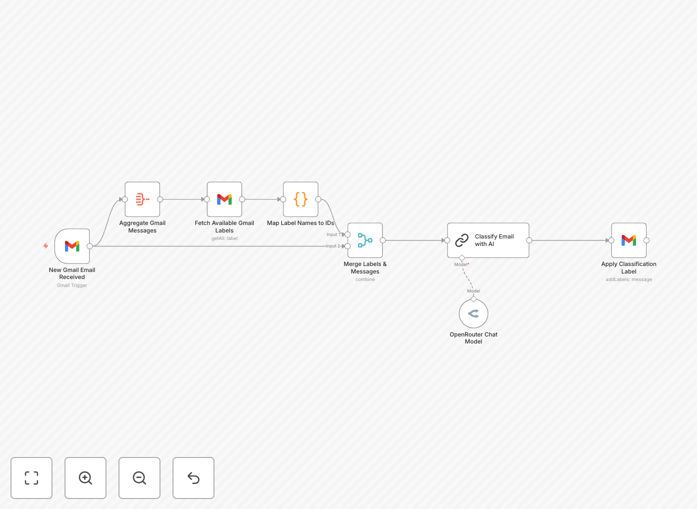
What This Workflow Does
If you're drowning in a cluttered inbox, manually triaging every email is a massive time sink. This automation solves that by acting as your intelligent email assistant. It monitors your Gmail, uses an AI model to understand the content and intent of each incoming message, and automatically applies one of eight predefined labels. This instantly sorts your emails into buckets like "To Respond," "FYI," "Meeting Update," or "Marketing," transforming chaos into clarity.
The business value is immense: professionals can reclaim 5–10 hours per month otherwise spent on email sorting. It ensures urgent messages are never buried, reduces stress, and creates a systematic workflow for communication. By automating this repetitive cognitive task, you free up mental bandwidth for strategic work and improve response times to critical messages.
How It Works
The workflow is a smart, scheduled pipeline that connects your Gmail to an AI brain.
Step 1: Trigger on New Emails
The "Gmail Trigger" node is set to poll your inbox at intervals you choose (e.g., every 15 minutes, daily). It fetches new, unlabeled emails and passes their subject, sender, and body content to the next stage.
Step 2: AI Analysis & Classification
A "Basic LLM Chain" node (configured for OpenAI, Anthropic Claude, or similar) receives the email data. It uses a carefully crafted prompt to analyze the content and assign it to the most relevant of eight categories: To respond, FYI, Comment, Notification, Meeting update, Awaiting reply, Actioned, or Marketing.
Step 3: Apply the Gmail Label
Based on the AI's decision, the workflow uses the "Gmail" node to find the corresponding label in your Gmail account and apply it to the email. The email is now organized, and you can set up Gmail filters or other automations to act on these labels.
Step 4: Error Handling & Logging
Additional nodes manage errors (like API timeouts) and can log results to a spreadsheet for review, ensuring robustness and providing transparency into the classification process.
Who This Is For
This template is ideal for any professional or team overwhelmed by email volume. It's perfect for solopreneurs, consultants, salespeople, support agents, and executives who receive a high mix of communication types. Marketing teams can instantly separate leads from newsletters. Project managers can flag action items. Remote teams can ensure meeting follow-ups are highlighted. If you use Gmail for work and struggle with inbox zero, this automation is for you.
What You'll Need
- A running n8n instance (cloud or self-hosted).
- A Gmail account with API access enabled (requires setting up Google Cloud credentials).
- Access to an LLM provider API key (OpenAI, Anthropic, Groq, etc.) for the classification intelligence.
- The eight Gmail labels pre-created in your account: "To respond", "FYI", "Comment", "Notification", "Meeting update", "Awaiting reply", "Actioned", "Marketing".
Pro tip: Start by running the workflow on a small batch of past emails to test and tune the AI's accuracy before letting it loose on your live inbox.
Quick Setup Guide
- Import the Template: Download the JSON file above and import it into your n8n workspace.
- Configure Gmail Credentials: In the "Gmail Trigger" node, authenticate with your Gmail account using OAuth2.
- Set Up Your AI Connection: In the "Basic LLM Chain" node, add your API key for your chosen LLM provider (OpenAI, Claude, etc.).
- Create Labels in Gmail: Ensure the eight exact label names from the workflow exist in your Gmail sidebar.
- Adjust the Schedule: Modify the "Schedule Trigger" node to run at a frequency that suits your email volume (e.g., every hour).
- Test & Activate: Run the workflow once in "Test" mode with a few sample emails, then activate it.
Key Benefits
Regain 5–10 hours per month by eliminating manual email sorting. This time can be redirected to revenue-generating activities or deep work.
Never miss a critical email again. Urgent messages are instantly flagged as "To Respond," while low-priority "Marketing" emails are sidelined, ensuring your focus stays on what matters.
Create a scalable system for team communication. Shared labels allow teams to have a unified view of email priorities, improving collaboration and handoffs.
Build a foundation for advanced automation. Once emails are classified, you can trigger other workflows: auto-respond, create tasks in Notion, log to CRM, or generate daily digests.
Reduce daily stress and cognitive load. An organized inbox leads to better mental clarity and reduced anxiety about an ever-growing pile of unread messages.