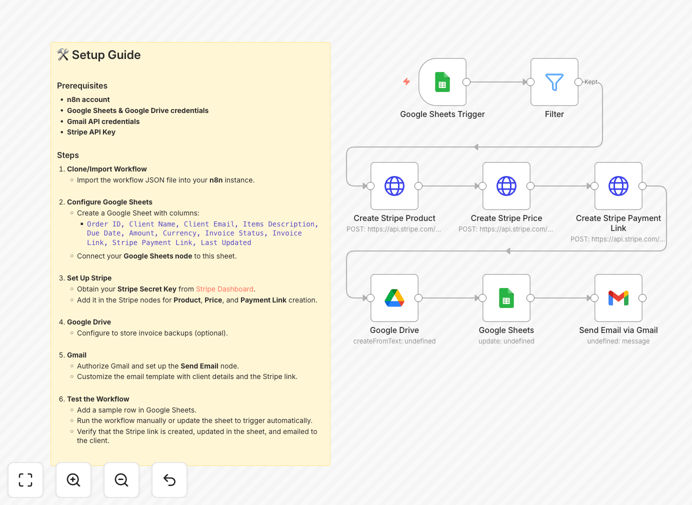
What This Workflow Does
Manual invoicing is a time-consuming, error-prone process that delays payments and frustrates clients. This automation workflow solves that by connecting Google Sheets, Stripe, Google Drive, and Gmail into a seamless billing pipeline.
Whenever you add or update an invoice record in Google Sheets, the workflow automatically creates a Stripe product and price, generates a secure payment link, stores a copy of the invoice in Google Drive, and emails the client with all details and the payment link. It turns hours of administrative work into a fully automated, reliable system that ensures invoices are sent instantly and payments are collected faster.
This template is ideal for freelancers, agencies, consultants, and small businesses that bill clients regularly but don’t have a dedicated billing system. It reduces manual steps, eliminates copy-paste errors, and gives you a centralized dashboard (your Google Sheet) to track all invoices and payment statuses.
How It Works
Step 1: Trigger from Google Sheets
The workflow monitors a specific Google Sheet for new rows or updates. You can set it to trigger when a new invoice is added or when the status changes to "Ready to Send." This ensures automation starts exactly when you need it.
Step 2: Filter Relevant Invoices
A filter node checks the invoice status column. Only rows marked as "Pending" or "Ready" proceed, preventing accidental triggers for paid or draft invoices. This keeps the automation precise and avoids unnecessary actions.
Step 3: Create Stripe Product & Price
The workflow extracts client name, description, amount, and currency from the sheet. It uses Stripe's API to create a product (the invoice) and a price (the amount). This step formalizes the invoice within Stripe's payment system.
Step 4: Generate Stripe Payment Link
Once the product and price are created, Stripe generates a unique payment link. This link is secure, branded, and ready for the client to pay. The link is captured and stored for the next steps.
Step 5: Update Google Sheet & Store in Drive
The payment link and timestamp are written back to the Google Sheet, creating a real‑time audit trail. Simultaneously, a PDF or document version of the invoice is saved to a designated Google Drive folder for record‑keeping.
Step 6: Send Email via Gmail
Finally, Gmail sends a professional, templated email to the client's address from the sheet. The email includes the invoice details, due date, and the Stripe payment link. You can customize the email body to match your brand voice.
Who This Is For
This workflow is perfect for:
- Freelancers & Consultants who bill clients project‑by‑project and want to automate payment collection.
- Small Agencies & Studios that manage multiple client invoices monthly and need to reduce administrative overhead.
- Service‑Based Businesses like coaches, trainers, or therapists who send recurring invoices for sessions or packages.
- Startups & SaaS Companies that issue manual invoices for custom contracts or one‑time services outside their regular subscription system.
- Teams Using Google Sheets as a CRM who already track clients and projects there and want to extend it into a billing engine.
What You'll Need
- n8n Instance – either self‑hosted or n8n.cloud account.
- Google Sheets with columns for Client Name, Email, Description, Amount, Currency, Status, Payment Link, and Last Updated.
- Google Drive folder for storing invoice documents.
- Gmail Account with API access enabled (or Google Workspace).
- Stripe Account with a Secret API Key from the Dashboard.
- Basic Understanding of how to set up API credentials in n8n.
Quick Setup Guide
- Import the Template – Download the JSON file and import it into your n8n workspace.
- Configure Google Sheets – Connect your Google account, select the sheet, and map the columns (Client Name, Email, Amount, etc.).
- Set Up Stripe – Add your Stripe Secret Key in the Stripe nodes. Test creating a product and price to ensure connectivity.
- Connect Google Drive – Choose the folder where invoice copies will be stored.
- Authorize Gmail – Allow n8n to send emails via your Gmail account. Customize the email template with your preferred wording.
- Test with a Sample Row – Add a test invoice in your sheet, run the workflow manually, and verify the payment link appears in the sheet and the email is sent.
- Activate the Trigger – Set the Google Sheets node to watch for updates and switch the workflow to “Active.”
Pro tip: Use a separate “Log” sheet or a dedicated column to track errors or skipped invoices. This helps you monitor automation health without interrupting the main process.
Key Benefits
Save 5–10 hours per month on manual invoicing tasks. No more copying data, generating links manually, or sending individual emails.
Reduce payment delays by 70% because invoices are sent instantly when marked ready. Clients receive the link within minutes, not days.
Eliminate human errors like wrong amounts, missing client emails, or outdated links. The automation pulls data directly from your sheet and uses Stripe’s accurate pricing.
Centralize audit trails with all invoices, payment links, and timestamps in one Google Sheet. You always know what’s sent, what’s paid, and what’s pending.
Scale effortlessly as your client list grows. The same workflow handles 10 invoices or 100 invoices without extra effort.