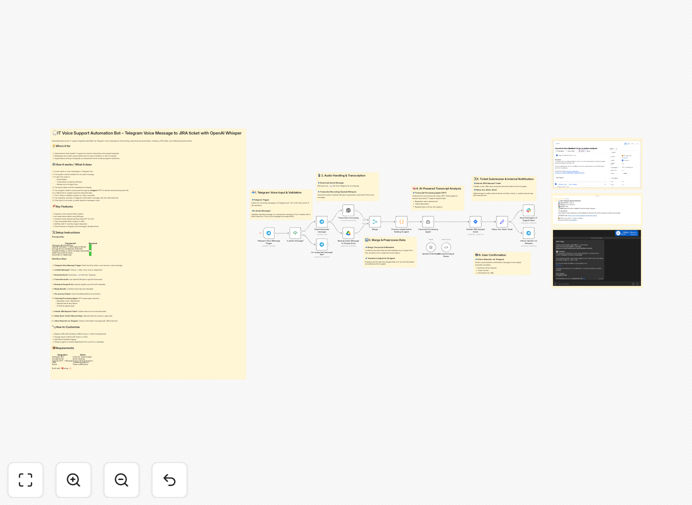
What This Workflow Does
This automation transforms how your IT team handles support requests. Instead of requiring employees to fill out detailed ticket forms or send emails, they can simply send a voice message via Telegram describing their issue. The system automatically transcribes the audio, extracts key details like the requester's name, department, issue type, and priority, creates a fully formatted JIRA ticket, and notifies both the IT team and the requester.
It eliminates manual data entry, reduces response latency, and ensures every voice request is captured, categorized, and tracked systematically. By leveraging OpenAI's Whisper for accurate transcription and GPT-4.1 Mini for intelligent data extraction, the workflow turns unstructured voice input into actionable, structured tickets ready for your support team.
The automation also backs up original voice files to Google Drive for audit purposes and provides immediate confirmation to the user with a direct link to the created ticket. This creates a seamless, user-friendly support channel that respects the urgency and convenience of voice communication while maintaining rigorous ticketing standards.
How It Works
Step 1: Voice Message Trigger
A user sends a voice message to your dedicated Telegram bot. The workflow triggers instantly upon receipt, checking if the message is indeed an audio file. If not, it sends a polite reply instructing the user to send a voice message.
Step 2: Audio Processing & Transcription
The audio file (typically .oga format) is downloaded from Telegram and sent to OpenAI's Whisper model for transcription. Whisper converts the spoken words into accurate text, capturing technical details, urgency tones, and specific problem descriptions.
Step 3: Backup & Metadata Merge
The original voice file is uploaded to a designated Google Drive folder for record-keeping. The transcription text and file metadata (timestamp, user ID, etc.) are merged into a single data package for the next stage.
Step 4: AI Agent Data Extraction
A GPT-4.1 Mini agent analyzes the merged data. It intelligently extracts structured information: requester name (or department inferred from context), a concise ticket title, a detailed description, priority level (based on keywords like "urgent," "broken," "can't work"), and request type (e.g., software issue, hardware, access request).
Step 5: JIRA Ticket Creation
Using the extracted structured data, the workflow creates a new ticket in your JIRA project. It populates all relevant fields—summary, description, priority, labels, assignee (if rules are set), and links the original voice file location for reference.
Step 6: Notification & Confirmation
The IT team receives a notification via Slack (or another channel) about the new ticket. Simultaneously, the original requester gets a Telegram message confirming the ticket creation and providing a direct link to view it in JIRA, closing the feedback loop instantly.
Who This Is For
This workflow is ideal for internal IT departments, MSPs (Managed Service Providers), and tech support teams that receive frequent ad-hoc requests. It's especially valuable for:
- Companies with remote or mobile employees who prefer quick voice communication over typing.
- IT teams overwhelmed by manual ticket creation from various communication channels.
- Organizations wanting to integrate AI into their support processes to improve accuracy and speed.
- Support desks that handle urgent, real-time issues where speed of ticket logging is critical.
- Businesses using JIRA for IT service management but seeking more intuitive input methods.
What You'll Need
- A Telegram Bot token (created via BotFather).
- OpenAI API key for Whisper and GPT-4.1 Mini access.
- Google Drive credentials (OAuth2) for audio backup.
- JIRA Cloud API access (or JIRA Server with API tokens).
- Slack Bot token or webhook URL for team notifications.
- An n8n instance (cloud or self-hosted) to run the workflow.
Quick Setup Guide
1. Download the template JSON file from this page.
2. Import it into your n8n workspace.
3. Configure the Telegram trigger node with your bot token.
4. Set up OpenAI credentials in the Whisper and AI Agent nodes.
5. Connect Google Drive for file backup.
6. Configure the JIRA node with your project details, issue type, and authentication.
7. Add your Slack webhook or bot token for notifications.
8. Test by sending a voice message to your bot—watch the ticket appear in JIRA within seconds.
Pro tip: Customize the AI agent's extraction prompts to match your specific JIRA fields and company terminology. This ensures tickets are created exactly how your team expects them.
Key Benefits
Reduce ticket creation time from minutes to seconds. Voice input is faster than typing; automated processing eliminates manual steps.
Improve ticket accuracy and consistency. AI extraction ensures standardized formatting and captures details humans might miss.
Enable support requests from anywhere. Mobile employees can report issues instantly via Telegram without needing to access a ticketing portal.
Maintain full audit trails. Original voice files are stored securely, providing a verifiable record of the initial request.
Boost IT team productivity. Automated categorization and prioritization let your team focus on solving issues rather than logging them.