What This Workflow Does
This automation solves a critical business problem: the manual, error-prone process of recording Stripe payments in QuickBooks. Every time a customer pays via Stripe, someone has to manually create a sales receipt in QuickBooks, check if the customer exists, create them if they don't, and ensure all payment details match perfectly. This process wastes valuable time and introduces accounting errors.
The workflow automatically captures successful Stripe payments via webhook, fetches customer details, checks QuickBooks for existing customer records, creates new customers when needed, and generates accurate sales receipts—all within seconds of payment confirmation. This eliminates manual data entry, ensures perfect synchronization between your payment processor and accounting system, and provides real-time financial visibility.
For businesses processing even 20-30 payments per month, this automation saves 5-10 hours of bookkeeping time while eliminating reconciliation errors and ensuring your financial records are always current. The system handles the entire process from payment confirmation to accounting entry without human intervention.
How It Works
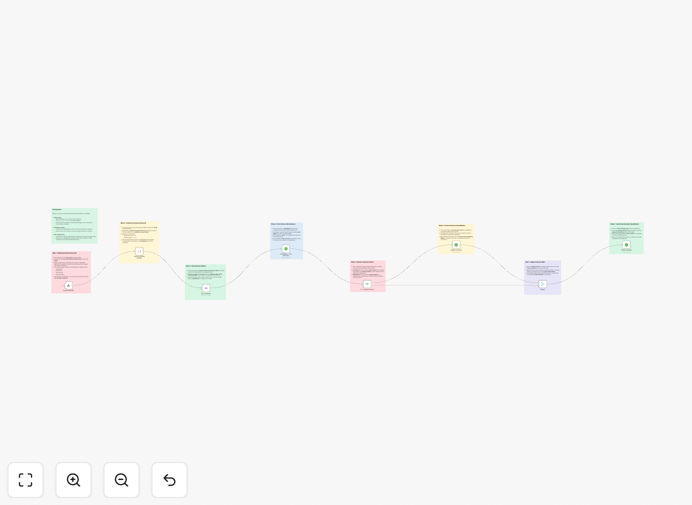
1. Payment Trigger & Data Capture
The workflow starts when Stripe sends a webhook notification for a successful payment (payment_intent.succeeded). This trigger happens instantly after a customer's payment is confirmed, ensuring real-time processing. The workflow captures all relevant payment data including amount, customer ID, currency, and transaction details.
2. Customer Information Retrieval
Using the customer ID from the payment data, the workflow queries Stripe's API to retrieve complete customer information including name, email, and billing details. This ensures we have accurate, up-to-date customer data before proceeding to QuickBooks.
3. QuickBooks Customer Lookup
The system searches your QuickBooks account for an existing customer matching the Stripe customer information. This prevents duplicate customer records and maintains clean accounting data. The search uses customer name and email for accurate matching.
4. Conditional Customer Creation
If no matching customer is found in QuickBooks, the workflow automatically creates a new customer record using the information from Stripe. This includes customer name, email, and any available billing details. If the customer already exists, the workflow proceeds with the existing record.
5. Sales Receipt Generation
Finally, the workflow creates and saves a sales receipt in QuickBooks using the correct customer record (either existing or newly created) and the exact payment amount from Stripe. The receipt includes all relevant transaction details, ensuring perfect reconciliation between systems.
Who This Is For
This automation is ideal for small to medium businesses using Stripe for payments and QuickBooks for accounting. E-commerce stores benefit from automatic sales recording, SaaS companies streamline subscription revenue tracking, consultants automate client payment reconciliation, and agencies eliminate manual bookkeeping for project payments.
Finance teams overwhelmed with manual data entry will find immediate relief, while business owners gain real-time financial visibility without accounting delays. Accountants and bookkeepers can focus on strategic analysis rather than data entry, and operations teams ensure accurate financial reporting with minimal effort.
What You'll Need
- Active n8n instance (cloud or self-hosted) with workflow execution capabilities
- Stripe account with API access and webhook configuration permissions
- QuickBooks Online account with API access enabled for customer and sales receipt management
- Basic understanding of webhook configuration in Stripe's developer dashboard
- OAuth2 credentials for both Stripe and QuickBooks API connections
Pro tip: Before activating the workflow in production, test with Stripe's test mode using sample payments. This ensures everything works correctly without affecting your live financial data.
Quick Setup Guide
1. Import the Template: Download the JSON file above and import it into your n8n instance via the workflow import function.
2. Configure Stripe Webhook: Copy the webhook URL from the "Capture Payment" node in n8n. In your Stripe dashboard, create a new webhook endpoint with this URL, listening for payment_intent.succeeded events.
3. Connect Stripe Credentials: In the "Get a customer" node, add your Stripe API credentials using OAuth2 or API key authentication.
4. Connect QuickBooks: In all three QuickBooks nodes (Find Customer, Create Customer, Create Payment), connect your QuickBooks Online account using OAuth2 authentication.
5. Test & Activate: Make a test payment in Stripe, verify the workflow runs successfully, check QuickBooks for the new sales receipt, then toggle the workflow to active status.
Key Benefits
Eliminate manual data entry completely. Save 5-10 hours per month on bookkeeping tasks that can now be automated, allowing your team to focus on higher-value activities like financial analysis and strategic planning.
Ensure 100% accuracy in financial records. Automated synchronization prevents human errors in data entry, amount transcription, and customer information—reducing reconciliation issues and audit risks significantly.
Real-time financial visibility. Sales receipts appear in QuickBooks within seconds of payment confirmation, giving you up-to-the-minute revenue tracking and cash flow management without waiting for manual updates.
Scalable payment processing. The system handles 10 or 10,000 payments with equal efficiency, growing with your business without additional administrative overhead or hiring needs.
Improved customer data management. Automatic customer creation and matching ensures clean, consistent customer records across both platforms, enabling better customer relationship tracking and revenue attribution.