Facebook Google Drive Google Sheets Social Media n8n

Automate Facebook Video Story Publishing from Google Drive

Free n8n workflow template to automatically publish videos from Google Drive to your Facebook Page Stories. Queue videos in Google Sheets, automate uploads, and save hours weekly.

Download Template JSON · n8n compatible · Free
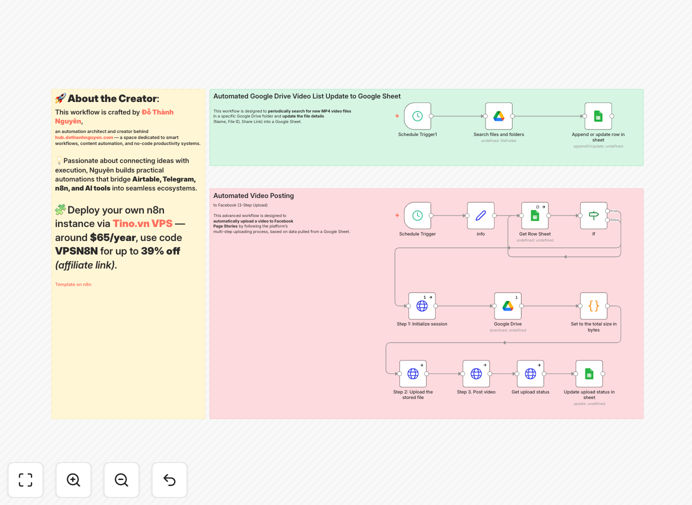
Facebook video story publishing automation workflow diagram showing Google Drive to Facebook integration

What This Workflow Does

Manual video posting to Facebook Stories consumes valuable time and leads to inconsistent posting schedules. Social media managers often spend hours each week downloading videos, formatting them, and manually uploading to Facebook—missing optimal posting times and reducing content velocity.

This automation solves that by creating a seamless pipeline from Google Drive to Facebook Stories. Videos stored in Drive are automatically uploaded as Facebook Stories based on a queue managed in Google Sheets. The workflow checks for new videos every 2.5 hours, handles the complete Facebook API upload process, and updates the sheet with posting status—all without manual intervention.

Beyond simple automation, this system creates a content calendar that multiple team members can contribute to. Marketing teams can batch-create videos, add them to the queue with metadata, and trust that they'll publish at the right intervals, maintaining consistent audience engagement while freeing up creative time.

How It Works

Step 1: Queue Management & Scheduling

The workflow begins by checking your Google Sheet queue every 2 hours and 30 minutes. It looks for the first video where the "Stories" column is empty—indicating it hasn't been posted yet. This scheduled trigger ensures regular checking without overwhelming the systems.

Step 2: Video Retrieval & Validation

Once a pending video is identified, the workflow validates that a valid Google Drive File ID exists. It then downloads the video file from Google Drive and calculates its size in bytes—critical information for the Facebook upload API which requires file size headers.

Step 3: Facebook API Three-Step Upload

The core automation executes Facebook's three-step upload protocol: First, it initializes an upload session with Facebook's API to receive a temporary upload URL and video ID. Second, it streams the video binary data to that URL. Third, it publishes the uploaded video as a Facebook Story on your specified Page.

Step 4: Status Update & Logging

After successful posting, the workflow updates the Google Sheet row, marking the video as processed. This creates an audit trail and prevents duplicate posting. Failed uploads are logged with error details for troubleshooting.

Who This Is For

This automation is ideal for social media managers, content creators, marketing agencies, and small business owners who regularly share video content on Facebook. Specifically, it benefits teams producing daily or weekly Stories content, businesses with multiple locations needing consistent posting, and agencies managing multiple client accounts where manual posting becomes unscalable.

Educational institutions, event promoters, and product-based businesses with regular video updates will find particular value. The system works equally well for solo entrepreneurs wanting to maintain professional social media presence and large teams needing collaborative content calendars.

What You'll Need

  1. n8n instance (self-hosted or cloud)
  2. Google Drive account with videos to publish
  3. Google Sheets for the content queue (template provided)
  4. Facebook Page with admin access
  5. Facebook Page Access Token with pages_manage_posts permission
  6. Google OAuth credentials for Drive and Sheets API access

Pro tip: Use a dedicated Google Drive folder for Facebook Stories content. This keeps your assets organized and makes permission management easier when multiple team members need access.

Quick Setup Guide

  1. Download and import the workflow JSON into your n8n instance
  2. Create your Google Sheet with columns for File ID, Stories status, and row_number
  3. Set up credentials for Google Drive, Google Sheets, and Facebook in n8n
  4. Configure the Schedule Trigger to your preferred checking frequency
  5. Add your Facebook Page ID and secure access token in the workflow nodes
  6. Test with one video to verify the complete pipeline works
  7. Activate the workflow and start adding videos to your queue

Key Benefits

Save 5-10 hours weekly by eliminating manual video uploads. What used to be a daily 30-60 minute task becomes completely automated, freeing social media managers for strategic work.

Ensure consistent posting even during weekends, holidays, or team absences. The automation runs 24/7, maintaining your Facebook presence without gaps in content delivery.

Reduce human error like wrong video selection, incorrect formatting, or missed posting times. The systematic approach guarantees each video processes correctly through the entire pipeline.

Enable team collaboration through a shared Google Sheet queue. Multiple contributors can add videos with notes, creating a transparent content calendar everyone can access.

Scale content production without proportional increases in posting effort. Whether you post 5 videos weekly or 50, the automation handles the upload workload seamlessly.

Frequently Asked Questions

Common questions about Facebook video automation and integration

Automating Facebook Story publishing saves 5-10 hours weekly for social media managers by eliminating manual uploads. It ensures consistent posting schedules, reduces human error, and allows you to batch-create content while maintaining daily engagement with your audience through automated, timely video stories.

Beyond time savings, automation creates reliability in your social media presence. Your Stories publish at optimal times regardless of team availability, and you can maintain a consistent brand voice through scheduled content that aligns with marketing campaigns.

Using Google Sheets as a content queue provides a centralized, collaborative planning tool that non-technical team members can use. It creates an audit trail of what's been posted, allows for easy scheduling adjustments, and integrates seamlessly with Google Drive where your video assets are already stored.

The spreadsheet approach enables advanced features like priority tagging, content categorization, and performance tracking. You can add columns for video descriptions, target audiences, or campaign tags—creating a rich metadata system that informs your content strategy beyond simple scheduling.

Facebook's video upload API uses a three-step process: first, you create an upload session and get a temporary URL; second, you upload the video file in chunks; third, you publish the uploaded video as a Story. This workflow automates all three steps, handling the technical complexity so you don't need to code API integrations.

The API handles various video formats and sizes, but following Facebook's recommended specifications (MP4, 1080x1920, under 15 seconds) ensures best results. The automation manages error handling, retry logic, and progress tracking—critical for reliable production use.

Yes, you can schedule videos by adding timestamps to your Google Sheet queue. The workflow can check the sheet at regular intervals and only process videos whose scheduled time has arrived. This allows for precise timing of Stories to match your audience's peak engagement hours throughout the day.

For advanced scheduling, you can modify the workflow to check for time-based conditions before processing each video. This enables day-parting strategies where different content types publish at optimal times—product demos during business hours, behind-the-scenes content evenings, etc.

Facebook Stories work best with MP4 or MOV formats under 15 seconds in length. The optimal resolution is 1080x1920 pixels (9:16 aspect ratio). Videos should be under 4GB in size. This workflow automatically handles the upload regardless of format, but following these guidelines ensures best viewer experience.

Vertical video (9:16) performs significantly better than horizontal in Stories format. Keep file sizes reasonable for mobile viewers—under 30MB for 15-second clips ensures quick loading. The automation will process any compatible format, but optimizing source videos improves engagement metrics.

Never hardcode access tokens in workflows. Instead, use n8n's credential management to store tokens securely. Implement token rotation where possible, use Page Access Tokens instead of User Access Tokens for better security, and ensure tokens only have the minimum required permissions (pages_manage_posts, pages_read_engagement).

Regularly audit token permissions and regenerate tokens quarterly. Consider implementing a secondary workflow that alerts you when tokens are nearing expiration. For enterprise use, explore Facebook's Business Manager system for centralized access control across multiple Pages and team members.

Yes, GrowwStacks specializes in building custom Facebook automation solutions tailored to your specific business needs. We can create workflows that integrate multiple platforms, add conditional logic for different content types, implement advanced scheduling, and ensure robust error handling for enterprise-scale social media operations.

Our team works with you to understand your content strategy, team structure, and business goals—then builds automation that fits seamlessly into your workflow. We handle the technical complexity while you focus on creating great content and engaging your audience.

  • Multi-platform publishing to Instagram Reels and TikTok
  • Content moderation and approval workflows
  • Performance analytics and optimization loops
  • Enterprise-grade security and compliance features

Need a Custom Facebook Automation?

This free template is a starting point. Our team builds fully tailored automation systems for your specific business needs.