DevOps Security Google Drive SSH Docker

Automated Credentials Backup to Google Drive via SSH and Docker

Automatically export and securely store your n8n credentials from Docker containers to Google Drive—no manual server access required.

Download Template JSON · n8n compatible · Free
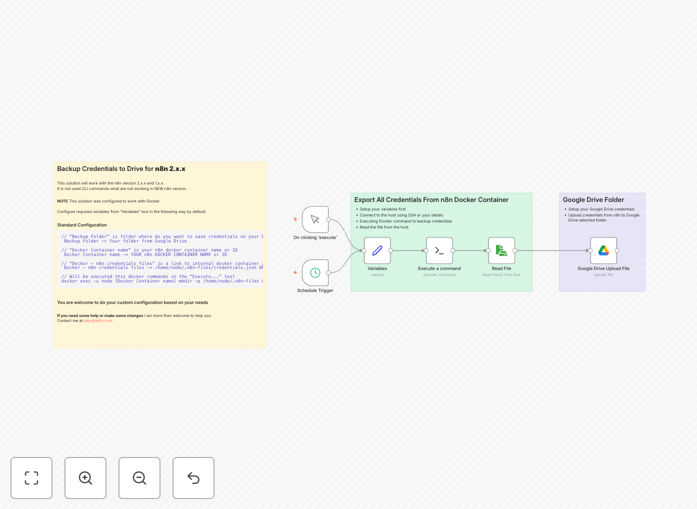
Automated credentials backup workflow diagram showing SSH connection to Docker container and Google Drive upload

What This Workflow Does

This automation solves a critical DevOps problem: securely backing up sensitive credentials from self-hosted n8n instances without manual intervention. When credentials are stored only within a Docker container, they become vulnerable to server failures, accidental deletions, or security incidents. Manual backup processes are often inconsistent, forgotten, or risky due to direct server access.

The workflow automatically connects via SSH to your host machine, executes the n8n export command inside the Docker container, retrieves the decrypted credential file, and uploads it to a designated Google Drive folder with a timestamp. This creates a secure, off-site backup history that enables quick restoration and meets compliance requirements for credential management.

How It Works

Step 1: Centralized Configuration

A variables node defines your Docker container name and file paths. This centralizes configuration, making the workflow adaptable to different environments by changing just one node.

Step 2: Secure SSH Execution

The workflow establishes an SSH connection to your host machine using key-based authentication. It executes the n8n export:credentials command inside the specified Docker container, generating a decrypted JSON file on the host filesystem.

Step 3: File Retrieval

The newly created credential file is read from the host filesystem via SSH. The workflow ensures the file exists and contains valid data before proceeding to upload.

Step 4: Cloud Upload with Timestamp

The credential file is uploaded to your Google Drive folder with a filename that includes the execution timestamp (e.g., n8n-credentials-2025-03-28.json). This creates versioned backups that can be tracked over time.

Pro tip: Configure the schedule trigger based on your credential change frequency. If you frequently add new integrations, set daily backups. For stable environments, weekly backups may suffice.

Who This Is For

This workflow is ideal for DevOps teams managing self-hosted n8n instances, IT administrators responsible for business automation security, and companies requiring compliance with data protection regulations. It's particularly valuable for:

  • Teams using n8n for critical business processes where credential loss would cause operational disruption
  • Organizations needing demonstrable backup procedures for audit compliance (ISO 27001, SOC 2)
  • Companies with multiple n8n instances requiring consistent backup policies
  • Businesses transitioning from manual backup processes to automated, reliable systems

What You'll Need

  1. A self-hosted n8n instance running in Docker (version 2.x.x or later)
  2. SSH access to the host machine with key-based authentication configured
  3. A Google Drive account with API access enabled
  4. Basic familiarity with n8n workflow import and node configuration
  5. A designated Google Drive folder for credential backups

Quick Setup Guide

  1. Import the template: Download the JSON file and import it into your n8n instance.
  2. Configure variables: Open the Variables node and enter your Docker container name (typically n8n).
  3. Set up SSH connection: In the Execute Command node, add your host IP, username, and SSH key/password.
  4. Authenticate Google Drive: Connect the Google Drive Upload node with your account credentials.
  5. Select backup folder: Choose the specific Google Drive folder where backups should be saved.
  6. Adjust schedule: Modify the Schedule Trigger node to your preferred backup frequency.
  7. Test execution: Run the workflow once manually to verify all connections work correctly.

Key Benefits

Eliminates manual backup risks: Human error, forgotten backups, and inconsistent procedures are replaced by automated, scheduled execution. This ensures credentials are backed up reliably regardless of team workload or attention.

Provides geographic redundancy: Storing credentials in Google Drive creates off-site backups that survive local hardware failures. Cloud storage offers version history and access controls unavailable with local storage solutions.

Enables quick disaster recovery: When credentials are lost due to server issues, the latest backup can be restored within minutes rather than requiring days to manually re-establish every integration connection.

Supports compliance requirements: Automated backups with timestamps and audit logs help meet data protection regulations requiring secure credential storage and demonstrable recovery capabilities.

Reduces security exposure: SSH automation eliminates the need for human intervention on production servers, minimizing attack vectors while ensuring consistent, logged execution.

Frequently Asked Questions

Common questions about credential backup automation and integration

Automated credential backup is critical for disaster recovery and compliance. Manual backups are often forgotten or inconsistent, leaving systems vulnerable. Automation ensures credentials are securely stored off-site, enabling quick restoration after incidents like server failures or security breaches.

For DevOps teams managing production automation, credential loss can halt all business processes. Automated backups provide a safety net that reduces recovery time from days to minutes, while creating audit trails for security compliance.

The main risks include complete workflow disruption, loss of API integrations, and extended downtime. If credentials are lost, all automated processes stop. Recovery requires manually re-establishing every connection, which can take days and impact business operations significantly.

Beyond operational disruption, unbacked credentials pose security compliance risks. Many regulations require demonstrable backup procedures for sensitive access data. Without backups, organizations may fail audit requirements and face regulatory consequences.

SSH automation eliminates the need for human intervention on production servers, reducing exposure to human error and potential security breaches. Automated scripts execute predefined commands securely, with logs for auditing. This minimizes attack vectors while ensuring consistent execution.

Manual server access introduces risks like credential exposure during copy-paste, accidental command execution, and lack of audit trails. Automation confines these activities to predefined workflows with controlled permissions and comprehensive logging.

Yes, the workflow structure is adaptable. By modifying the Docker container name and export command, you can backup credentials or configuration files from any containerized application. The SSH execution and Google Drive upload components remain reusable for various backup scenarios.

This template provides a pattern for secure, automated container backups. You can adapt it for database configuration files, application secrets, or environment variables—any sensitive data stored within containers that requires regular off-site backup.

Google Drive provides geographic redundancy, version history, and access controls unavailable with local storage. Backups survive local hardware failures. Cloud storage also facilitates compliance auditing and enables secure sharing with team members or auditors when required.

Local backups often reside on the same infrastructure they protect, creating a single point of failure. Cloud storage separates backup location from production environment, while offering built-in versioning that tracks backup history automatically.

Frequency depends on credential change rate. For stable environments, weekly backups suffice. For rapidly evolving integrations with frequent credential updates, daily backups are recommended. The workflow's schedule trigger can be adjusted from minutes to months based on your risk assessment.

Consider backing up immediately after adding new integrations or modifying existing credentials. The automation can be triggered manually after credential changes, alongside scheduled regular backups for comprehensive coverage.

Automated backup helps meet data protection regulations requiring secure storage of access credentials, audit trails of backup activities, and demonstrable disaster recovery capabilities. Regular automated backups provide evidence for ISO 27001, SOC 2, and GDPR compliance assessments.

Specifically, it addresses requirements for confidential data backup procedures, access control logging, and recovery testing. The timestamped files and execution logs create auditable records that demonstrate compliance with security frameworks.

Yes, GrowwStacks specializes in building tailored automation systems for specific business needs. We can design backup workflows for multiple applications, integrate with your preferred cloud storage, add encryption layers, and implement monitoring alerts. Our team ensures the solution matches your security policies and operational requirements.

Custom implementations can include multi-environment support, integration with your existing monitoring tools, compliance reporting features, and team access management. We build systems that scale with your business while maintaining security and reliability.

  • Tailored to your specific container infrastructure and security policies
  • Integration with existing monitoring and alerting systems
  • Compliance reporting and audit trail enhancements

Need a Custom Credential Backup Automation?

This free template is a starting point. Our team builds fully tailored automation systems for your specific business needs.