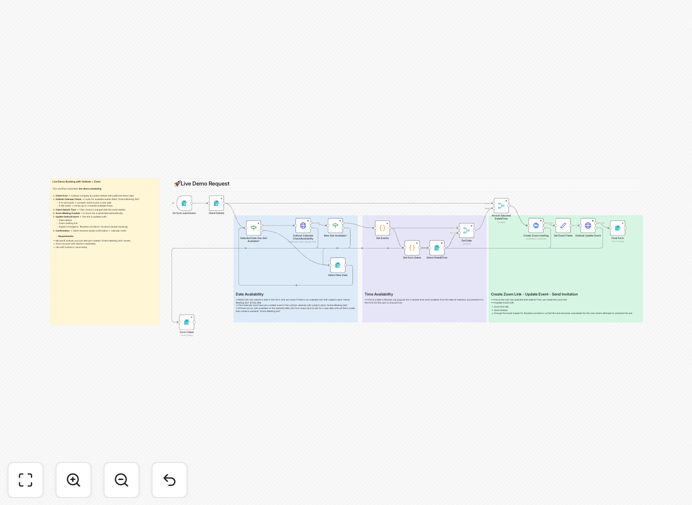
What This Workflow Does
Manual demo scheduling is a silent revenue killer. The endless email chains, calendar mismatches, and last‑minute Zoom link scrambling create friction that loses potential clients. This automation solves that by providing a professional, self‑service booking experience.
The workflow acts as your 24/7 scheduling assistant. It presents a clean booking form on your website, checks your Outlook Calendar for pre‑defined available slots, lets the client choose a time, automatically creates a Zoom meeting, updates your calendar with client details and the meeting link, and sends instant confirmations to both parties. The entire process happens in under a minute, with zero manual work from your team.
How It Works
1. Client Submits Booking Form
A prospective client visits your booking page and enters their name, company, email, and preferred demo date. This form is served by n8n and can be embedded anywhere on your site.
2. Real‑Time Calendar Check
The workflow queries your Microsoft Outlook Calendar for events with a specific title (like "Available Demo Slot") on the requested date. It filters for slots that are still marked as available, not booked.
3. Dynamic Slot Presentation
If slots are found, the client sees up to three nearest available times to choose from. If no slots exist for that date, they are politely asked to select another day, preventing frustration and wasted time.
4. Automated Zoom Meeting Creation
Once a slot is selected, the workflow uses the Zoom API to create a new meeting with the client's details, generating a unique join link, meeting ID, and password if required.
5. Calendar Update & Locking
The chosen Outlook Calendar event is updated. The title changes from "Available Demo Slot" to "Booked: Demo with [Client Name]", the description is populated with client info and the Zoom link, and the event is marked as busy. This prevents double‑booking.
6. Instant Confirmation & Handoff
The client sees a styled confirmation screen with all meeting details. Simultaneously, the workflow can trigger notifications to your sales team via email or Slack, providing full context for the upcoming demo.
Who This Is For
This automation is ideal for SaaS companies with sales teams that run frequent product demos. It's equally valuable for consultants, agencies, coaches, and freelancers who charge for discovery calls or strategy sessions. Any business that relies on scheduled virtual meetings as part of their sales or service delivery process will see immediate time savings and improved client experience.
Pro tip: Use this workflow for paid consultations by adding a payment step (Stripe, PayPal) between slot selection and Zoom creation. The meeting is only booked upon successful payment.
What You'll Need
- An n8n instance (cloud or self‑hosted).
- A Microsoft 365/Outlook account with calendar access and OAuth2 API credentials.
- A Zoom account (Pro plan or higher recommended) with OAuth2 app credentials.
- Pre‑created calendar events in Outlook titled consistently (e.g., "Online Meeting Slot") to define your available times.
- A website or landing page where you can embed the booking form (via iframe or direct link).
Quick Setup Guide
Import and configure this workflow in about 30 minutes:
- Download & Import: Click the download button above to get the JSON file. In your n8n workspace, go to Workflows → Import from file and select the downloaded JSON.
- Configure Credentials: Set up two new OAuth2 credentials in n8n: one for Microsoft Outlook API (with Calendar.ReadWrite scope) and one for Zoom API (with meeting:write:admin scope).
- Prepare Your Calendar: In your Outlook calendar, block out times you want to offer as demos. Create events with a clear, consistent title like "Available Demo Slot". These are the slots the workflow will detect.
- Customize the Form (Optional): Adjust the form node to collect additional fields relevant to your business (industry, use case, team size). Update the confirmation page HTML/CSS to match your branding.
- Test & Publish: Activate the workflow and test the booking process end‑to‑end. Once verified, use the webhook URL generated by n8n's Form Trigger node as your booking page link or embed it on your site.
Key Benefits
Save 5–10 hours per week per sales rep by eliminating manual scheduling, calendar checking, and meeting link creation. That time can be redirected to actual selling and customer conversations.
Reduce no‑show rates by up to 40% through immediate, automated confirmations that include all necessary details (Zoom link, date, time) in a single, professional communication.
Present a polished, scalable booking experience that works 24/7, capturing leads across time zones without requiring your team to be online, improving conversion from visitor to booked demo.
Eliminate double‑booking and scheduling errors by having a single source of truth (your Outlook Calendar) that is updated in real‑time the moment a booking is made.
Gain valuable lead intelligence by automatically capturing prospect details directly into your calendar event, providing sales reps with context before the demo even begins.