Gmail Gemini AI Notion Google Sheets Automation

AI Email Manager: Gmail Summarizing & Labeling with Gemini AI

Automatically summarize, categorize, and log incoming emails to Notion or Sheets—free n8n workflow template.

Download Template JSON · n8n compatible · Free
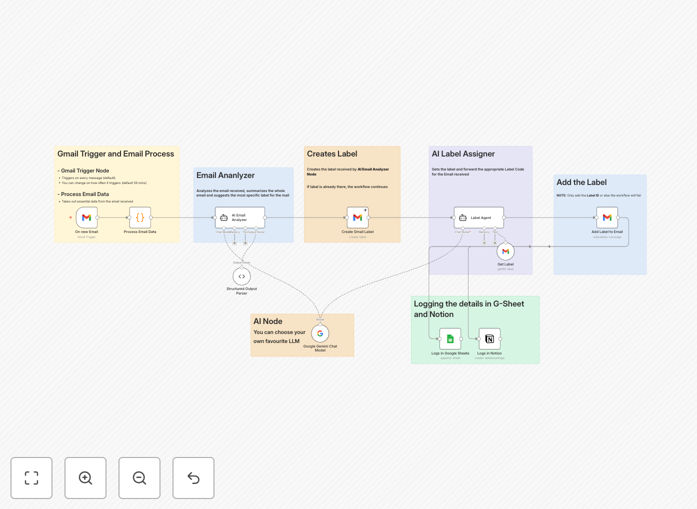
AI Email Manager workflow diagram showing Gmail, Gemini AI, Notion, and Google Sheets integration

What This Workflow Does

This workflow transforms your Gmail inbox into an intelligent, self-organizing system. Instead of manually reading, sorting, and logging every email, this automation uses Google Gemini AI to instantly understand email content, assign relevant labels, create concise summaries, and record everything into Notion or Google Sheets.

It solves the problem of email overload for founders, freelancers, and teams who receive high volumes of emails daily. Important client requests, project updates, invoices, and support tickets are automatically highlighted and logged, ensuring nothing gets buried in the inbox.

The system operates in real-time: as soon as an email arrives, it's processed, categorized, and stored. This creates a searchable database of all email interactions, perfect for client relationship tracking, project management, and analytics.

How It Works

Step 1: Gmail Trigger

The workflow starts when a new email arrives in your Gmail inbox. It captures the email's full content, sender details, subject line, and timestamp.

Step 2: Data Extraction & Structuring

The email body and metadata are cleaned and formatted into a structured JSON object, removing HTML clutter and extracting plain text for AI analysis.

Step 3: AI Analysis with Gemini

Google Gemini AI reads the email content and performs two key tasks: generating a concise summary (2–3 sentences capturing the essence) and determining the most appropriate label category (e.g., "Client Request", "Invoice", "Project Update", "Urgent").

Step 4: Dynamic Label Creation

If the AI recommends a label that doesn't exist in your Gmail account, the workflow automatically creates that label in your Gmail settings.

Step 5: Label Application

The recommended label is applied to the original email using Gmail's API, visually organizing your inbox without any manual action.

Step 6: CRM Logging

The email summary, sender, date, subject, and assigned label are logged as a new entry in either a Notion database or Google Sheets spreadsheet. This creates a permanent, searchable record outside your inbox.

Who This Is For

Founders & Entrepreneurs: Manage investor communications, client inquiries, and product feedback automatically. Never miss a critical email.

Agency Teams: Classify client emails by project, priority, or department. Track response times and ensure accountability across team members.

Freelancers & Consultants: Automatically organize leads, invoice reminders, and project updates. Spend less time on email admin and more on billable work.

Tech Builders & SaaS Companies: Use as a foundation for building more advanced email automation products or internal tools.

What You'll Need

  1. A Gmail account (or Google Workspace) with API access enabled.
  2. Google Gemini AI API key (available through Google Cloud).
  3. A Notion account with API integration or a Google Sheets spreadsheet.
  4. An n8n instance (cloud or self-hosted) to run the workflow.
  5. Basic understanding of connecting APIs (we provide setup guide).

Quick Setup Guide

  1. Download the template JSON file from this page.
  2. Import it into your n8n workspace (click Import > Upload JSON).
  3. Configure the Gmail node with your account credentials.
  4. Add your Google Gemini API key to the AI node settings.
  5. Connect the Notion or Google Sheets node to your target database/spreadsheet.
  6. Test the workflow by sending yourself an email—watch it process automatically.
  7. Activate the workflow to run continuously on new emails.

Pro tip: Start with a small set of test emails to verify label accuracy before running on your full inbox. Adjust the AI prompt in the workflow to better match your business terminology.

Key Benefits

Save 5–10 hours per week on email management. No manual reading, sorting, or logging. The AI handles triage instantly.

Never miss important client emails. Automatic labeling and logging ensures critical messages are highlighted and recorded.

Create a searchable email database. All email interactions logged in Notion/Sheets become a valuable CRM resource.

Improve team response times. Labeled emails show priority visually, helping teams address urgent matters faster.

Scalable across departments. The workflow can be duplicated with different labeling rules for sales, support, and operations teams.

Frequently Asked Questions

Common questions about AI email automation and integration

AI email automation uses artificial intelligence to automatically process incoming emails—summarizing content, categorizing by topic, and logging key details into databases like Notion or Google Sheets. It benefits businesses by saving hours of manual email triage, ensuring important messages are never missed, and providing structured data for client tracking and analytics.

For example, a consulting firm can automatically categorize client emails as "Scope Change", "Invoice Query", or "Project Update", then log them into a client dashboard. This eliminates manual sorting and provides instant visibility into all client communications.

AI email summarization works by extracting key points from email content—sender intent, action items, deadlines, and sentiment. For sales emails, it highlights lead status and next steps. For support emails, it identifies issue severity and customer tone. For internal updates, it condenses project progress and decisions.

The AI can be trained or prompted to focus on context-specific elements. A legal firm's summarization might extract case references and deadlines, while a marketing agency's summarization might capture campaign metrics and client feedback.

The best tools for AI email-CRM integration are n8n (for flexible workflow logic), Google Gemini AI (for intelligent summarization and labeling), Gmail (as the email source), and Notion or Google Sheets (as the logging destination). These tools together create a seamless pipeline where emails are automatically enriched and logged into your CRM or project management system.

Advanced setups can also integrate with dedicated CRMs like Salesforce or HubSpot by adding an additional node to push the summarized data into those platforms.

Automated email labeling instantly categorizes emails into predefined buckets like 'Client Requests', 'Invoices', 'Project Updates', or 'Urgent Action'. This eliminates manual folder sorting, reduces cognitive load for team members, ensures emails are routed to correct departments, and creates a visual priority system in the inbox.

Teams spend less time organizing and more time responding. Labeled emails can also trigger other automations—for example, 'Invoice' emails could automatically forward to accounting, while 'Support' emails could create a ticket in your help desk.

Yes, AI email automation can handle sensitive emails securely by processing data within your own infrastructure (self-hosted n8n), using encrypted connections between services, and storing logs in private databases you control. The AI analysis occurs without exposing email content to third-party platforms.

You can configure the system to exclude certain sender domains or keywords from processing, or to only log metadata without storing full email content. For highly confidential communications, you might run the automation only on non-sensitive email categories.

Key metrics to track after implementing email automation include: time saved per team member on email management, reduction in missed important emails, increase in response speed to high-priority messages, accuracy of AI categorization (measured via manual spot checks), and volume of emails logged into CRM systems.

These metrics demonstrate ROI and help optimize the automation rules. For instance, if categorization accuracy is low for a certain email type, you can refine the AI prompt or add custom rules for that category.

Scaling email automation across teams involves creating department-specific labeling rules (sales vs support vs operations), setting up shared logging databases with access controls, configuring email routing based on labels, and training the AI model on diverse email types from each department.

The workflow can be duplicated with slight modifications for each team's unique needs. For example, the sales team's workflow might label emails as 'Lead', 'Demo Request', 'Contract', while support's workflow labels as 'Bug Report', 'Feature Request', 'Account Issue'.

Yes, GrowwStacks specializes in building custom AI email automation systems tailored to your specific business processes, email volumes, team structure, and integration needs. We'll design workflows that match your CRM, add custom labeling categories, ensure security compliance, and provide ongoing optimization.

Contact us for a free consultation to discuss your requirements. We can build systems that integrate with your existing tools, handle complex email scenarios, and scale across your entire organization.

Need a Custom AI Email Automation?

This free template is a starting point. Our team builds fully tailored automation systems for your specific business needs.