n8n Google Drive DevOps Backup Automation

Automated Workflow Backup to Google Drive with Smart Cleanup

Protect your n8n automations with daily cloud backups and intelligent retention management

Download Template JSON · n8n compatible · Free
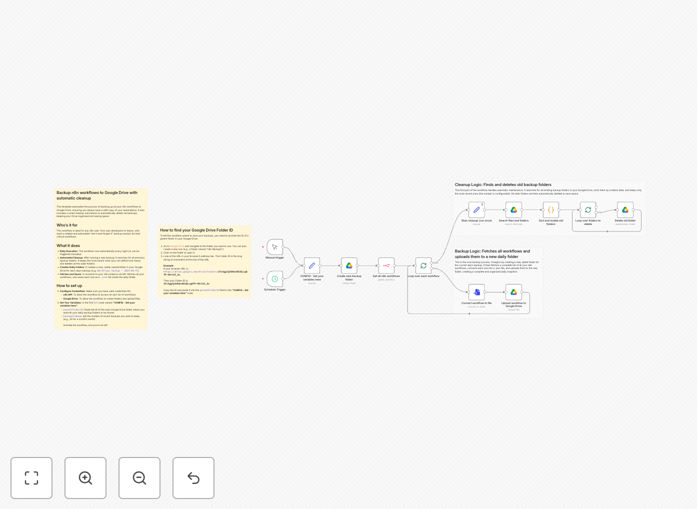
Automated workflow backup to Google Drive visualization showing backup process and cleanup

What This Workflow Does

This automation solves a critical but often overlooked problem: protecting your valuable n8n workflows from accidental loss, corruption, or system failures. Without proper backups, businesses risk losing complex automation logic that may have taken weeks to develop and fine-tune.

The workflow provides a complete, scheduled backup solution that runs automatically to ensure your automations are always safe. It connects to your n8n instance, retrieves all workflows, converts them to JSON files, and stores them securely in Google Drive with intelligent organization and cleanup.

Beyond simple backup, it implements smart retention management—automatically deleting older backups based on your configured policy to prevent storage bloat while maintaining a recovery timeline that meets your business continuity requirements.

How It Works

The automation follows a logical three-phase process that ensures reliability and efficiency.

1. Smart Cleanup Phase

First, the workflow connects to your Google Drive to identify and remove old backup folders. It sorts backups by date, keeps only the number you specify in your retention policy, and deletes the rest. This proactive cleanup prevents unlimited storage consumption and makes recent backups easier to find.

2. Folder Creation Phase

Next, it creates a new, date-stamped folder in Google Drive to store the current day's backups. The folder naming convention includes timestamps for easy identification, creating an organized backup history that simplifies recovery operations when needed.

3. Backup Execution Phase

Finally, the workflow uses the n8n API to fetch all your workflows, converts each one to a separate JSON file, and uploads them to the newly created folder. Each workflow is saved individually, allowing for granular restoration of specific automations without affecting others.

Who This Is For

This template is essential for DevOps teams, IT administrators, and business automation managers who rely on n8n for critical processes. It's particularly valuable for:

Growing businesses with expanding automation portfolios that need systematic protection. Compliance-conscious organizations requiring documented backup procedures. Development teams that frequently modify workflows and need version safety nets. Solo automators who can't afford to lose their hard work to technical issues.

If you have more than five active workflows or your automations handle important business data, this backup system provides peace of mind and operational resilience.

What You'll Need

  1. An active n8n instance (cloud or self-hosted) with API access enabled
  2. Google Drive account with sufficient storage for your backups
  3. Google Drive API credentials (OAuth 2.0) configured in n8n
  4. n8n API credentials for accessing your workflows programmatically
  5. Basic understanding of folder IDs in Google Drive (the template includes guidance)

Pro tip: Create a dedicated Google Drive folder specifically for n8n backups and share it only with necessary team members. This separation improves security and makes permission management simpler.

Quick Setup Guide

This template is designed for quick deployment with minimal configuration.

  1. Import the template into your n8n instance using the downloaded JSON file
  2. Authenticate connections for both Google Drive and n8n API nodes
  3. Configure main settings in the "CONFIG - Set your variables here" node:
    • Paste your Google Drive folder ID where backups should be stored
    • Set the number of recent backups to retain (7-30 is typical)
  4. Test the workflow manually once to verify connections and folder creation
  5. Activate the schedule to run daily (or adjust frequency as needed)

The workflow includes detailed sticky notes with instructions for finding your Google Drive folder ID and troubleshooting common setup issues.

Key Benefits

Eliminate manual backup tasks that often get postponed or forgotten. This automation runs consistently without human intervention, ensuring your workflows are protected even during busy periods or staff transitions.

Prevent catastrophic data loss that could require rebuilding automations from scratch. A single server failure or accidental deletion could otherwise cost dozens of development hours and business disruption.

Maintain organized backup history with automatic cleanup. Unlike manual backups that create storage clutter, this system enforces retention policies while keeping backups easily accessible for recovery operations.

Enable granular recovery options with individual workflow files. Restore specific automations without affecting your entire system, perfect for rolling back problematic changes or recovering from partial corruption.

Support compliance requirements with documented, automated backup procedures. Many regulatory frameworks require systematic data protection measures that this workflow helps implement and maintain.

Frequently Asked Questions

Common questions about workflow backup automation and integration

Automated backup is critical because automation workflows often contain complex business logic, API connections, and data transformations that would be time-consuming to recreate. Without backups, a server failure, accidental deletion, or corrupted update could result in days or weeks of lost work and business disruption.

Consider that a medium-sized business might have 20-30 workflows handling everything from customer onboarding to inventory management. Rebuilding these from memory or documentation could take weeks, during which critical business processes would be manual or non-functional.

Google Drive provides secure, off-site storage with version history, easy sharing for team collaboration, and accessibility from anywhere. Unlike local backups that can fail with hardware issues, cloud storage offers redundancy, automatic syncing, and enterprise-grade security features that protect your critical automation assets.

Cloud storage also enables disaster recovery scenarios—if your primary server location becomes inaccessible, your backups remain available in Google Drive. This geographic separation is a key principle of robust backup strategies that local storage cannot provide.

For most businesses, daily backups are sufficient, but the frequency depends on how often workflows change. If you're actively developing new automations, consider backing up after each significant change. For stable production systems, daily or weekly backups with proper retention policies provide adequate protection against data loss.

The key is aligning backup frequency with your change rate and risk tolerance. Financial systems might need daily backups, while marketing automation that changes weekly might be fine with weekly backups. This template's schedule trigger can be easily adjusted to match your specific needs.

Workflow backup saves the automation logic, connections, and configuration—the 'how' of your automation. Database backup saves the actual data being processed. Both are essential: losing workflows means rebuilding automation logic, while losing data means losing business records. This template specifically addresses workflow backup, which is often overlooked.

Many organizations have database backup procedures but neglect workflow backup until they experience a loss. A complete disaster recovery plan includes both: workflows to restore functionality and data to restore business information. They serve different but complementary purposes in business continuity.

Smart cleanup automatically removes old backups based on your retention policy, preventing storage bloat and making it easier to find recent backups. Without cleanup, you'd manually sort through hundreds of files, wasting time and potentially running into storage limits. Automated retention ensures you keep only what you need while maintaining a recovery timeline.

This approach follows the backup rule of thumb: keep recent backups frequently (daily for a week), then weekly for a month, then monthly for a year. The template's configurable retention lets you implement whatever policy matches your compliance requirements and storage constraints.

Yes, this backup system creates individual JSON files for each workflow, making it easy to restore specific automations without affecting others. This granular approach is more efficient than restoring an entire system backup when you only need to recover one problematic workflow or roll back a recent change that caused issues.

Individual files also enable version comparison and selective migration. You can compare a current problematic workflow with its last known good backup, or migrate specific automations between development, staging, and production environments using the backup files as transfer mechanism.

Workflow backups may contain API keys, connection credentials, and business logic. Store them in encrypted Google Drive folders with restricted access. Consider separating backup storage from production systems, implementing two-factor authentication, and regularly auditing who has access to backup files to prevent unauthorized use of your automation infrastructure.

Additional security measures include encrypting sensitive fields within workflows before backup, using service accounts with minimal permissions for the backup process itself, and monitoring backup access logs for unusual activity. Treat workflow backups with the same security rigor as your source code repositories.

Yes, GrowwStacks specializes in building custom backup and disaster recovery automations tailored to your specific infrastructure, compliance requirements, and business continuity needs. We can integrate with your existing systems, implement advanced retention policies, and create comprehensive recovery procedures that go beyond basic template functionality.

Our team designs solutions that consider your unique technology stack, regulatory environment, and operational workflows. We can add features like backup verification, multi-cloud redundancy, compliance reporting, and integration with your existing monitoring and alerting systems.

  • Custom retention policies aligned with industry regulations
  • Integration with existing monitoring and alerting systems
  • Backup verification and integrity checking
  • Multi-cloud redundancy for critical systems

Need a Custom Workflow Backup Automation?

This free template is a starting point. Our team builds fully tailored automation systems for your specific business needs.