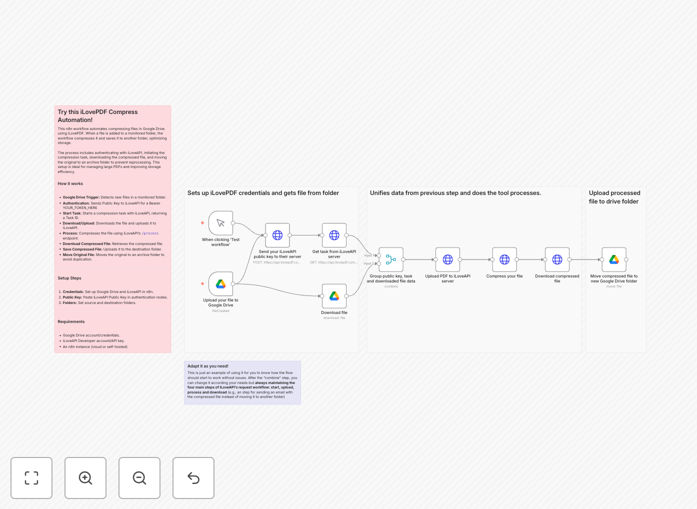
What This Workflow Does
This automation solves a common business problem: managing large PDF files that consume excessive Google Drive storage and slow down sharing and collaboration. Instead of manually compressing each document, this workflow automatically monitors a designated Google Drive folder, sends new PDFs to iLovePDF for compression, and saves the optimized files to another folder.
The process eliminates manual intervention, reduces storage costs by 30-70%, and ensures all archived documents are consistently optimized. Businesses dealing with regular PDF uploads—like legal firms, accounting departments, educational institutions, or healthcare providers—can save hours weekly and significantly cut cloud storage expenses.
The workflow maintains the four essential steps of iLovePDF's API workflow: authentication, task initiation, file processing, and download. This structured approach ensures reliable compression while allowing customization for specific business needs, such as adding email notifications or moving originals to archive folders.
How It Works
Step 1: Google Drive Trigger
The workflow starts when a new PDF file is added to your specified source folder in Google Drive. The trigger node monitors this folder continuously, detecting new uploads instantly without requiring manual checks.
Step 2: Authentication & Task Initiation
Your iLovePDF public key is sent to their authentication server to obtain a time-sensitive bearer token. Then a new compression task is initiated, returning a unique task ID and server address for the subsequent file processing.
Step 3: File Download & Upload to iLovePDF
The original PDF is downloaded from Google Drive and immediately uploaded to the dedicated iLovePDF server using the task ID. This prepares the file for compression while maintaining secure transfer between services.
Step 4: Compression Processing
The main compression is executed by sending the task ID, server filename, and original filename to iLovePDF's process endpoint. Their API applies optimization algorithms to reduce file size while preserving quality.
Step 5: Download & Save Compressed File
The compressed PDF's binary data is downloaded from iLovePDF's download endpoint and uploaded to your designated destination folder in Google Drive. This creates an optimized version ready for sharing or archiving.
Step 6: Move Original File (Optional)
The original file in the source folder can be moved to a separate archive location to prevent reprocessing. This keeps your active folders clean and organizes historical documents efficiently.
Who This Is For
This automation template is ideal for businesses and individuals who regularly handle PDF documents in Google Drive. Legal firms managing case files, accounting departments processing invoices and reports, educational institutions distributing materials, healthcare providers handling patient records, and any organization with substantial document archives will benefit.
Teams that share large PDFs internally or with clients will experience faster transfer times and reduced bandwidth usage. Administrators responsible for cloud storage management can significantly cut costs by automatically optimizing all incoming documents. Developers looking to implement reliable document processing pipelines can use this as a foundation for more complex workflows.
Pro tip: You can extend this workflow to include email notifications when compression completes, apply different compression levels based on file type, or integrate with other systems like Slack for team alerts.
What You'll Need
- Google Drive account with access to the source and destination folders.
- iLovePDF API key (public key) for authentication and compression services.
- n8n instance (cloud or self-hosted) to run the automation workflow.
- Basic understanding of folder structures in Google Drive.
- Clear naming conventions for your compressed files to maintain organization.
Quick Setup Guide
Follow these steps to implement the PDF compression automation in your n8n environment:
- Import the template: Download the JSON file and import it into your n8n workspace.
- Configure Google Drive credentials: Set up authentication for both source and destination folders in the Google Drive nodes.
- Add iLovePDF API key: Insert your public key into the authentication and task initiation nodes as specified in the workflow.
- Define folder paths: Specify your source folder (where new PDFs arrive) and destination folder (where compressed files will be saved).
- Test the workflow: Upload a sample PDF to your source folder and verify the compressed version appears in the destination folder.
- Customize as needed: Add additional steps like email notifications, Slack alerts, or archive moving based on your requirements.
Key Benefits
Save 30-70% on Google Drive storage costs by automatically reducing PDF file sizes. Large documents that previously consumed significant space become optimized immediately upon upload.
Eliminate hours of manual compression work weekly for administrative teams. Instead of manually opening each PDF and using compression tools, the process happens automatically behind the scenes.
Improve document sharing speed and collaboration with smaller file sizes. Compressed PDFs transfer faster via email, shared links, or internal systems, enhancing team productivity.
Maintain consistent archiving standards across all departments. Every PDF added to your Google Drive follows the same optimization process, ensuring uniform quality and size reduction.
Create a foundation for advanced document workflows that can be extended with OCR, metadata extraction, or integration with other business systems like CRM or project management tools.